Set up email
Purpose: with email on, people get their invitation and reset links in their inbox instead of from an admin's clipboard, "Forgot your password?" works, keys remind their holders before they expire, and budgets warn the people they cover. Vidai sends through your own mail server.
Before you start
- You're an organisation admin.
- You have your mail server's host name, port and security, and a user name and password if it needs them.
- You know the address emails should come from, and that your server allows it.
Steps
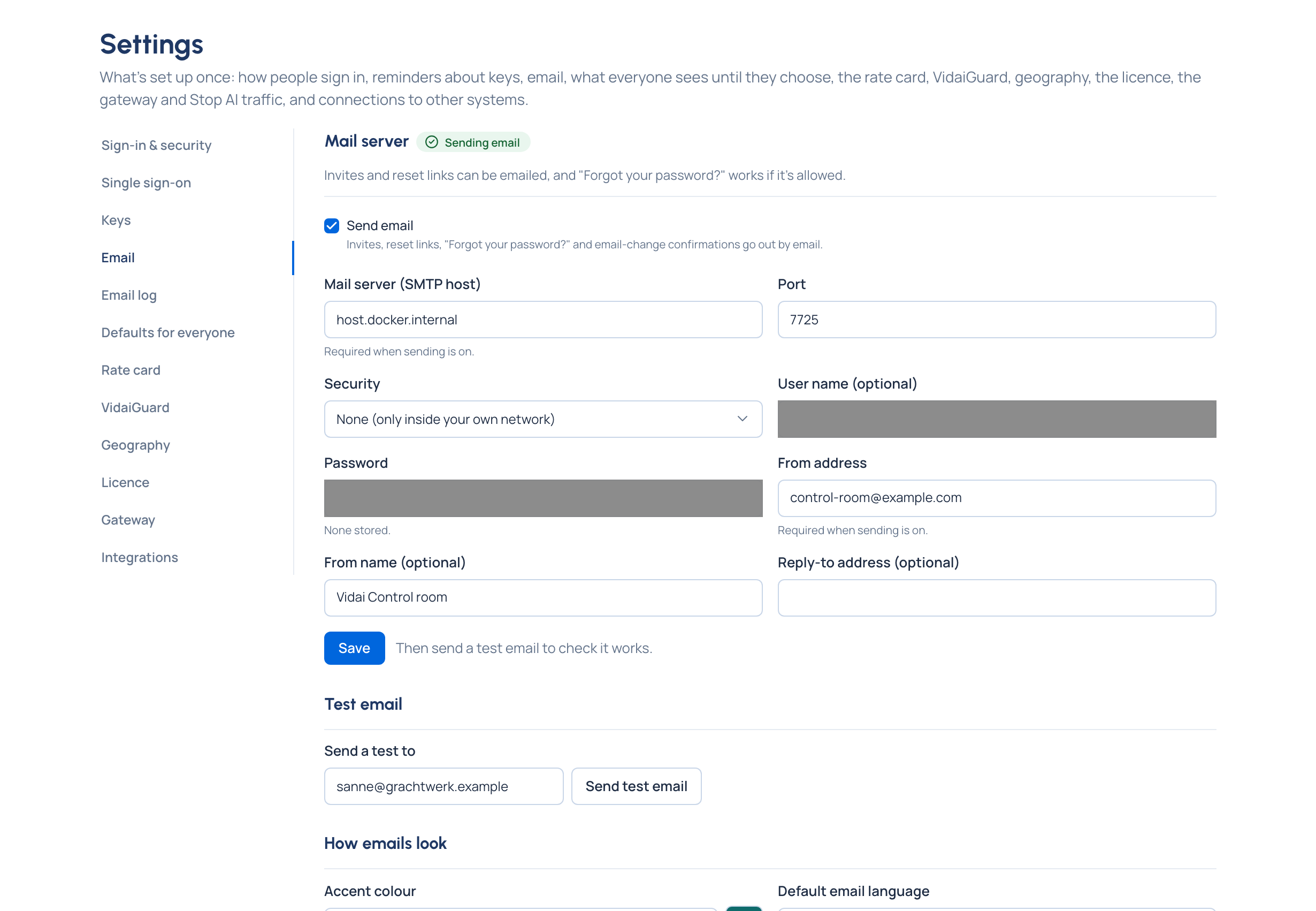
- Open System › Settings › Email and tick Send email.
- Fill in the Mail server (SMTP host) (a host name like
smtp.example.com), the Port and the Security: STARTTLS (usually 587), TLS from the start (usually 465), or None (only inside your own network). - Fill in the User name (optional) and Password if your server needs them.
- Fill in the From address, and if you like a From name (optional) and a Reply-to address (optional).
- Choose Save.
- Choose Send test email.
Check it worked
The test email arrives, and the page says it went. If it didn't, the page says why in plain words:
| What the page says | What to check |
|---|---|
| The mail server refused the user name or password | The user name and password |
| A secure connection couldn't be made | The security setting and the port |
| Nothing answered at that address and port | The host and port |
| The mail server didn't answer in time | The host, port and any firewall |
| The mail server won't send from that address | Use a from address it allows |
| The mail server refused that recipient | The address you sent the test to |
When the mail server refused, its number is given too ("The mail server refused it (550)."), and its own reply is under The mail server's reply, for whoever runs it.
Good to know
- The password is never shown again. Leave the field empty to keep it, or tick Remove the stored password.
- When an admin changes someone's email address, it changes once the new address is confirmed.
- Every email that went, or didn't, is in the email log.