Connect single sign-on Enterprise
People sign in with the account they already have at work, and leaving the company ends their access at the source. Connect your identity provider, try a sign-in before anyone depends on it, then switch it on. You keep a password as the emergency admin, so a fault at your provider never locks everyone out.
Single sign-on is part of the Enterprise edition; what Enterprise includes depends on the features your licence includes. It works with any OpenID Connect provider: Microsoft Entra ID, Okta, Google Workspace, Keycloak and others. On the Community edition, everyone signs in with a password and multi-factor sign-in.
Before you start
- You're an organisation admin. Organisation viewers and Compliance officers Enterprise can read the settings, but change nothing and never see the client secret.
- You can register a web application at your identity provider.
Steps
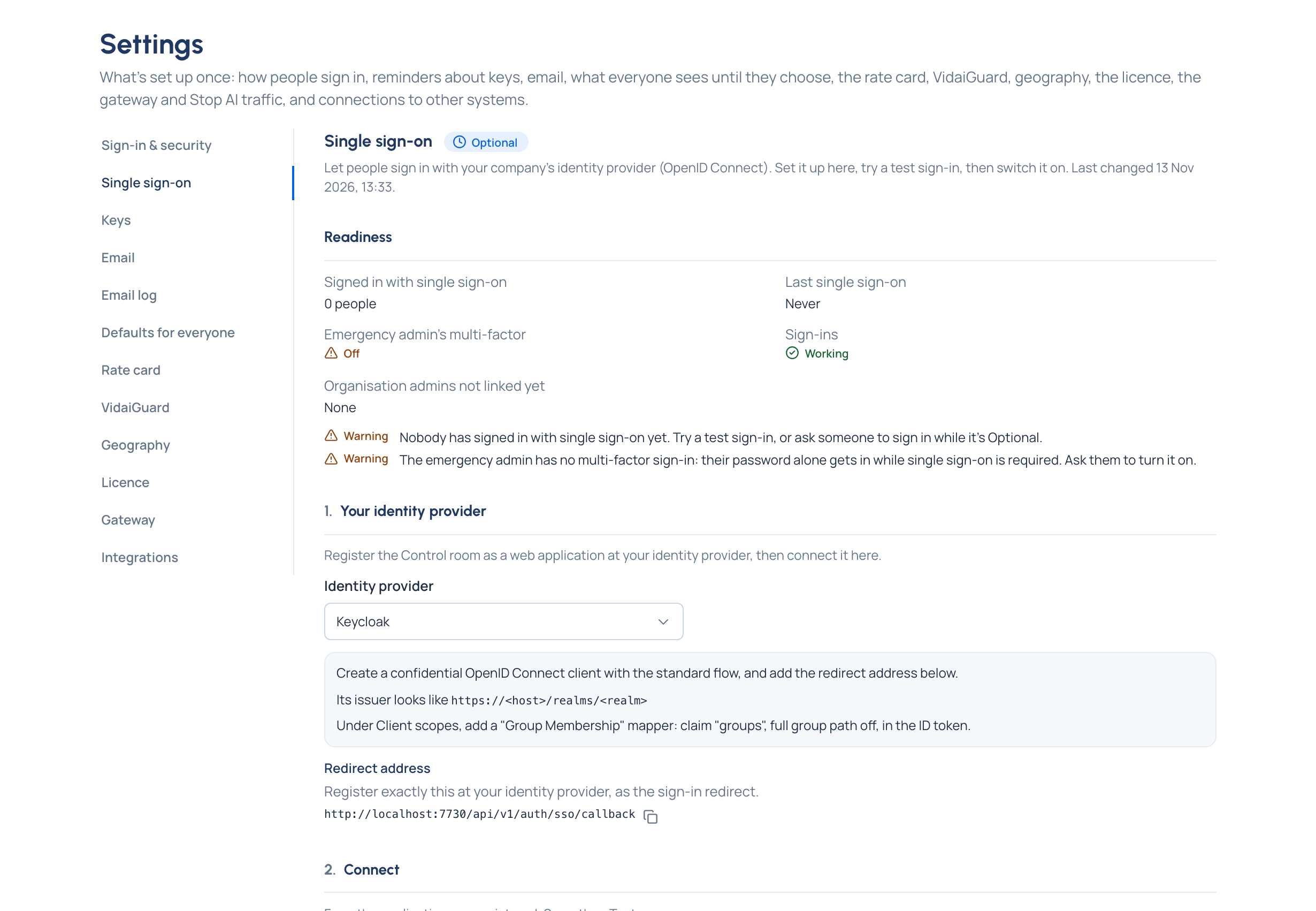
Open Settings › Single sign-on. It's a guide in steps; its state shows at the top: Off, Optional or Required.
- Your identity provider. Choose yours to see short help for it. Copy the redirect address and register exactly that at your provider as the sign-in redirect.
- Connect. Enter the Issuer (the full address, starting
https://), the Client ID and the Client secret, then Save. Under More settings: the Scopes (usuallyopenid email profile) and the Groups claim (usuallygroups). Choose Test: it says Connected, or why not, in words. A test saves nothing. - Who may sign in. People already in the Control room may always sign in this way, matched by their verified email. Add allowed domains to let anyone with a verified email there join as a user with no role; with none, it's invite only. For Microsoft Entra ID, turn on Trust this provider's email addresses if its addresses are managed by your organisation (Entra usually doesn't mark addresses as confirmed).
- Groups (optional). Map your provider's groups to teams and roles: Map groups to teams and roles.
- Emergency admin. An organisation admin who keeps a password; it's you unless you choose someone else. If it's you and you don't use multi-factor sign-in, Turn it on now sets it up there and then.
- Try it, then turn it on. This last step on the screen does both:
- Try a test sign-in takes you to your provider: sign in as yourself or anyone. You come back to a summary of what the provider sent (email, whether it's confirmed, name, groups) and what signing in would do here, and why. Nobody is signed in and nothing is linked; it works while single sign-on is Off. Optionally set the Button name ("Continue with Okta").
- Under Single sign-on, choose Optional, then Save. The sign-in page now offers Continue with single sign-on first; passwords still work.
When people are signing in this way, make it required: Make single sign-on required.
Check it worked
Readiness, above the steps, says how many people have signed in with single sign-on and when someone last did, and whether sign-ins are Working or Failing. On Home, Connect single sign-on (optional) is ticked.
The first time an organisation admin signs in with single sign-on, they're asked for their Control room password (and their code) once, to link the account. Everyone else goes straight in.
Related
- Make single sign-on required
- Map groups to teams and roles
- When single sign-on fails
- The sole admin and the emergency admin
- Signing in: questions
Good to know
- Your first administrator account is always a password account; single sign-on is added afterwards.
- The client secret is kept by Vidai and never shown again: the page says A secret is saved, and Replace takes a new one. Entra ID secrets expire; Vidai can't know when, so Readiness tells you once sign-ins start failing.
- Google doesn't send groups: set teams by hand.
- Signing out ends the Control room session, not the one at your identity provider.
- OpenID Connect only; SAML and directory sync aren't offered.
- Remove the connection appears once single sign-on is Off: people keep their accounts, and those without a password set one with Forgot your password?.