Set your preferences
A console you live in should read comfortably: your language, dates in your own time zone, light or dark, colours you can tell apart. Set them once on Your account; they're saved with your account and follow you to any device you sign in on. Your emails can come in a language of their own.
Before you start
Anyone signed in. Until you choose, you get your organisation's defaults (an organisation admin sets them in Settings › Defaults for everyone), or else this device's.
Steps
- Open the menu under your name and choose Preferences (or Your account, then the Preferences tab).
- Choose what you want. Each change is saved as soon as you make it, and the page says Saved.
- Appearance: Match my device follows your computer's light or dark setting; Light or Dark keeps that look whatever your device does.
- Colour vision: Standard, Red-green (protanopia, deuteranopia) or Blue-yellow (tritanopia). It changes the colours that carry meaning, such as status and warnings.
- Contrast: High uses black and white with solid outlines, in light or dark, with any colour-vision choice.
- Language: type to find yours: English, Deutsch, Français, Español, Italiano, Dansk or Svenska.
- Time zone: every date and time on screen is shown in it.
- Date format: for example 2026-10-29, 29/10/2026 or 10/29/2026. Left alone, dates follow your language.
- Below, under Language of your emails, choose an Email language for the emails Vidai sends you: invites, reset links and key reminders. It's saved as soon as you choose.
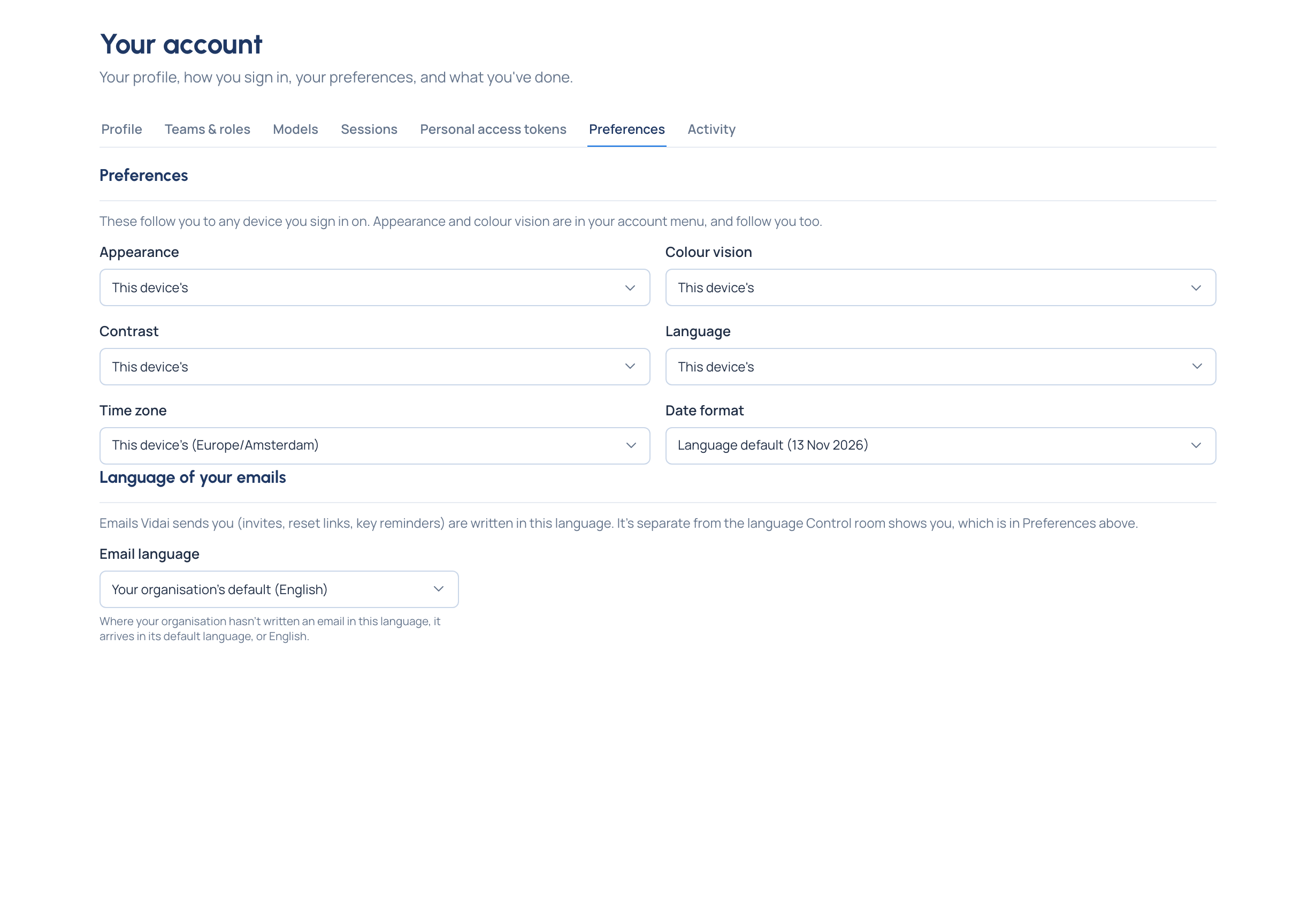
In each list, the first choice says what you get when you haven't chosen: Organisation default, This device's or, for the date format, Language default, with the value where there is one, for example "Organisation default (Europe/Amsterdam)".
Every preference, Contrast included, is kept with your account and follows you to any device you sign in on.
Language of your emails
The language of your emails is separate from the language the Control room shows you: read the console in English and get your emails in German, say. Your organisation's default (the starting choice) names the language your organisation admins chose, for example "Your organisation's default (French)". The languages your organisation writes emails in come first, each marked every email or some emails. Choose one with only some, and the page says the others arrive in your organisation's default language, or English.
The quick switch in the menu
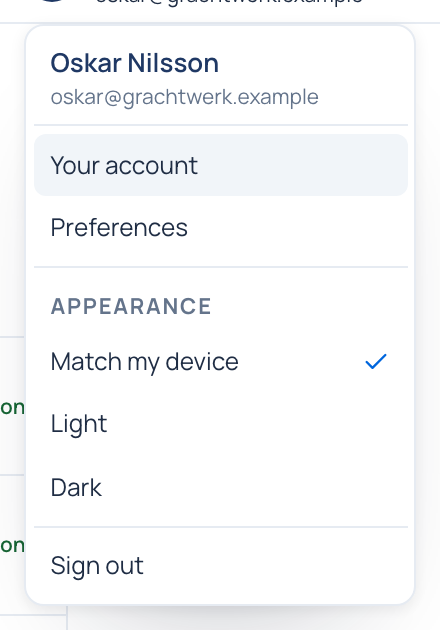
The menu under your name has an Appearance switch: Match my device, Light or Dark, one click away, and Sign out at the bottom. Search or jump to has the same switch: type "appearance".
Check it worked
The page changes at once: new colours, dates in your time zone, labels in your language. Sign in on another device and your choices are there.
Good to know
- Every status has an icon and a word as well as a colour, so nothing depends on colour alone, whatever you choose.
- Before you sign in, the sign-in page uses what this browser remembers; once you're in, your account's choices win.
- A person's own choice always wins over the organisation's default.
Related
- Set defaults for everyone: the organisation admin's side.
- Find your way round the Control room
- Change your name