Map groups to teams and roles Enterprise
Someone joins the Kessler account team in your directory; at their next sign-in they're in the Kessler team in Vidai, with its models and budgets. Map your identity provider's groups once and membership follows the directory, while anything an admin set by hand stays exactly as it was.
Part of single sign-on, on the Enterprise edition; what Enterprise includes depends on the features your licence includes.
Before you start
- Single sign-on is connected: Connect single sign-on.
- Your provider sends groups in its sign-in (Google doesn't: set teams by hand there). The Groups claim under More
settings is usually
groups.
Steps
- Open Settings › Single sign-on, step 4, Groups (optional).
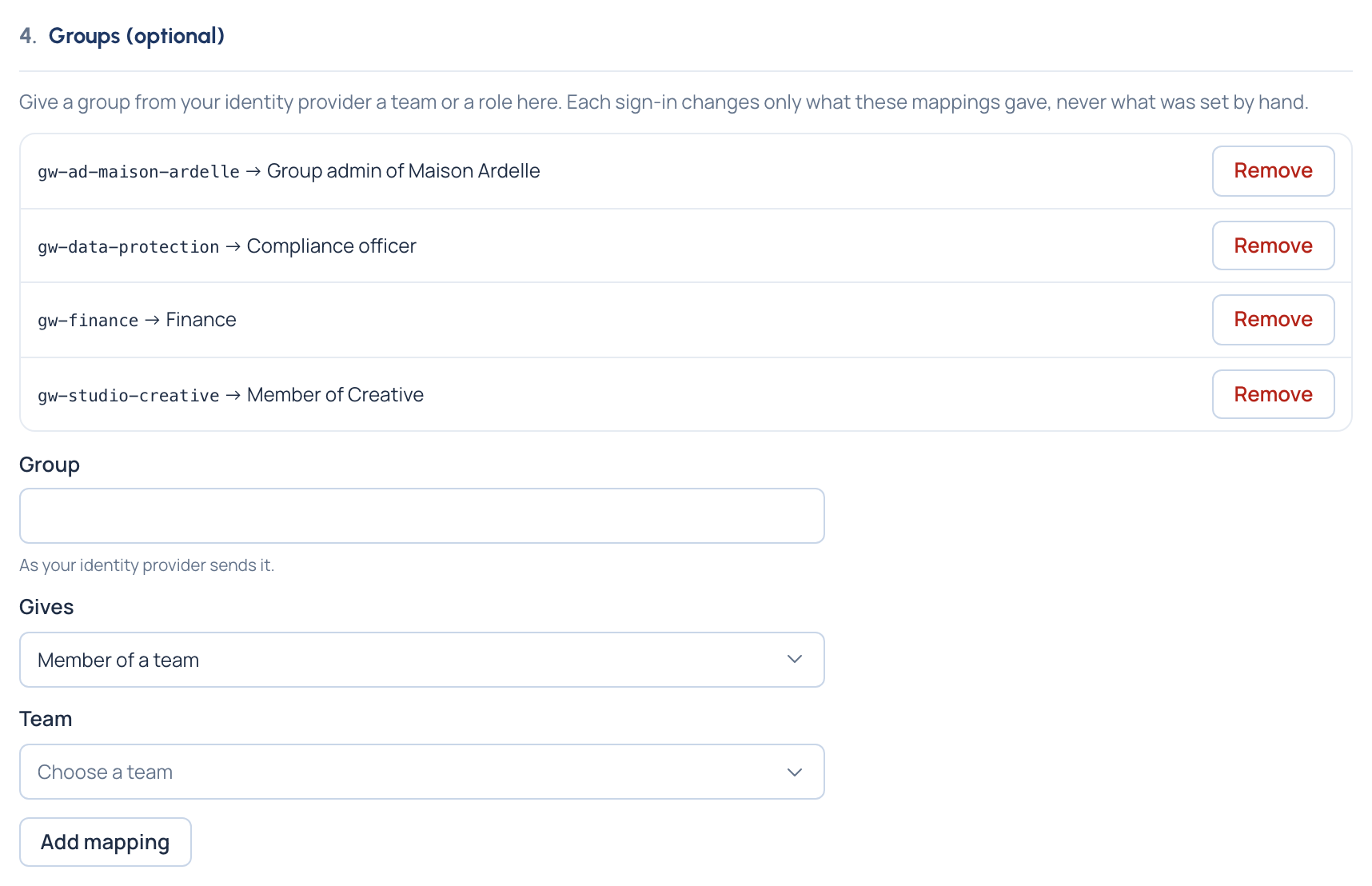
- Add a mapping: the group's name as your provider sends it (for Entra ID, the group's object ID), and what it gives:
- a team, as member or as group admin;
- or an organisation role: Organisation admin, Organisation viewer, Finance or Compliance officer Enterprise.
- Save. Mapping a group to Organisation admin warns you: anyone your provider puts in that group can change everything.
- Use Try a test sign-in as someone in the group: the summary shows the groups the provider sent and what signing in would do.
Check it worked
After the person's next sign-in, their page on People shows the team or role, and Roles & access shows the role came from single sign-on (the How filter finds them all).
Good to know
- Each sign-in changes only what the mappings gave, never what was set by hand; the emergency admin's roles are never touched.
- A mapping that took someone's role away is fixed by fixing the mapping: it applies at their next sign-in.
- Changes apply at sign-in, not straight away: someone removed from a group keeps what it gave until they next sign in.