Find your way round the Control room
You shouldn't need to remember where something lives. One search box in the top bar jumps to any page in your menu and finds people, teams, keys, models and more by the start of a name; paste a request id from a log and it opens that call. Help opens the guide for the page you're on, and the menu under your name holds everything about you.
Before you start
Anyone signed in. Search looks only in the pages your menu holds, so it finds what your role lets you open.
Search or jump to
- Choose Search or jump to… in the top bar, or press ⌘K (Ctrl+K on Windows and Linux), or / when you're not typing in a field.
- Type the start of a name or an email. As you type, results come in groups: People, Teams, Service accounts Enterprise, Agents, Applications, Models (by name or alias), Providers, Keys and Routing rules, only the kinds whose pages are in your menu. The pages of your menu whose names match are listed too.
- Choose a result to open it, selected in its list. A group with more results ends with, for example, All people matching "dan", which opens the full list searched.
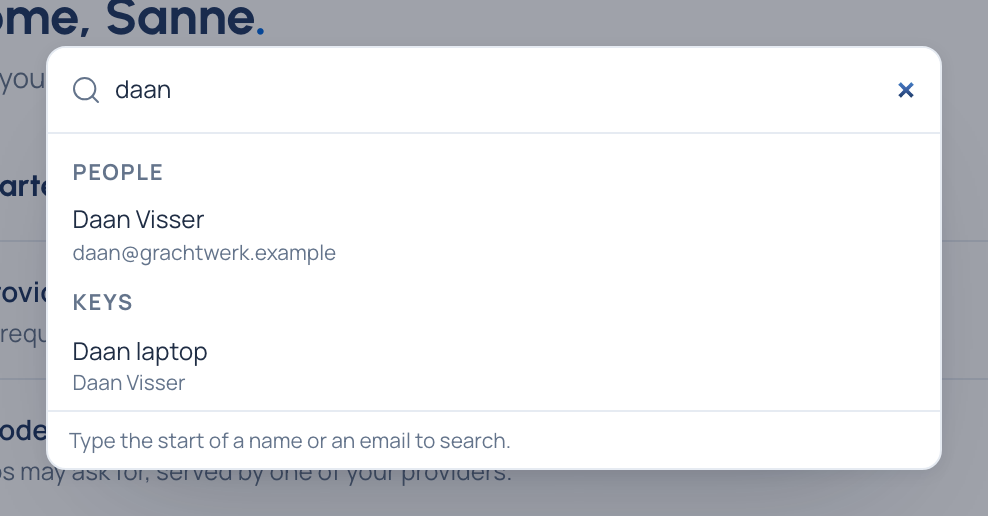
With nothing typed, the box shows:
- Opened lately: the places you've opened most recently, newest first.
- Every page in your menu, by group.
- More: Licence (organisation admins and viewers) or Your edition.
- Actions: Issue a key (for anyone who holds keys), Stop AI traffic… (organisation admins), Appearance: Light, Appearance: Dark, Appearance: Match my device, and Sign out.
Open a call from its request id
Paste a request id into the box: the gateway's id for a call, or an id starting req_ (the provider's or your app's).
If you can open Request logs, the call shows under Calls with its model and caller; choose it to open the call.
A call takes a few seconds to reach Request logs, so while it isn't there the box keeps asking every 15 seconds.
Help for the page you're on
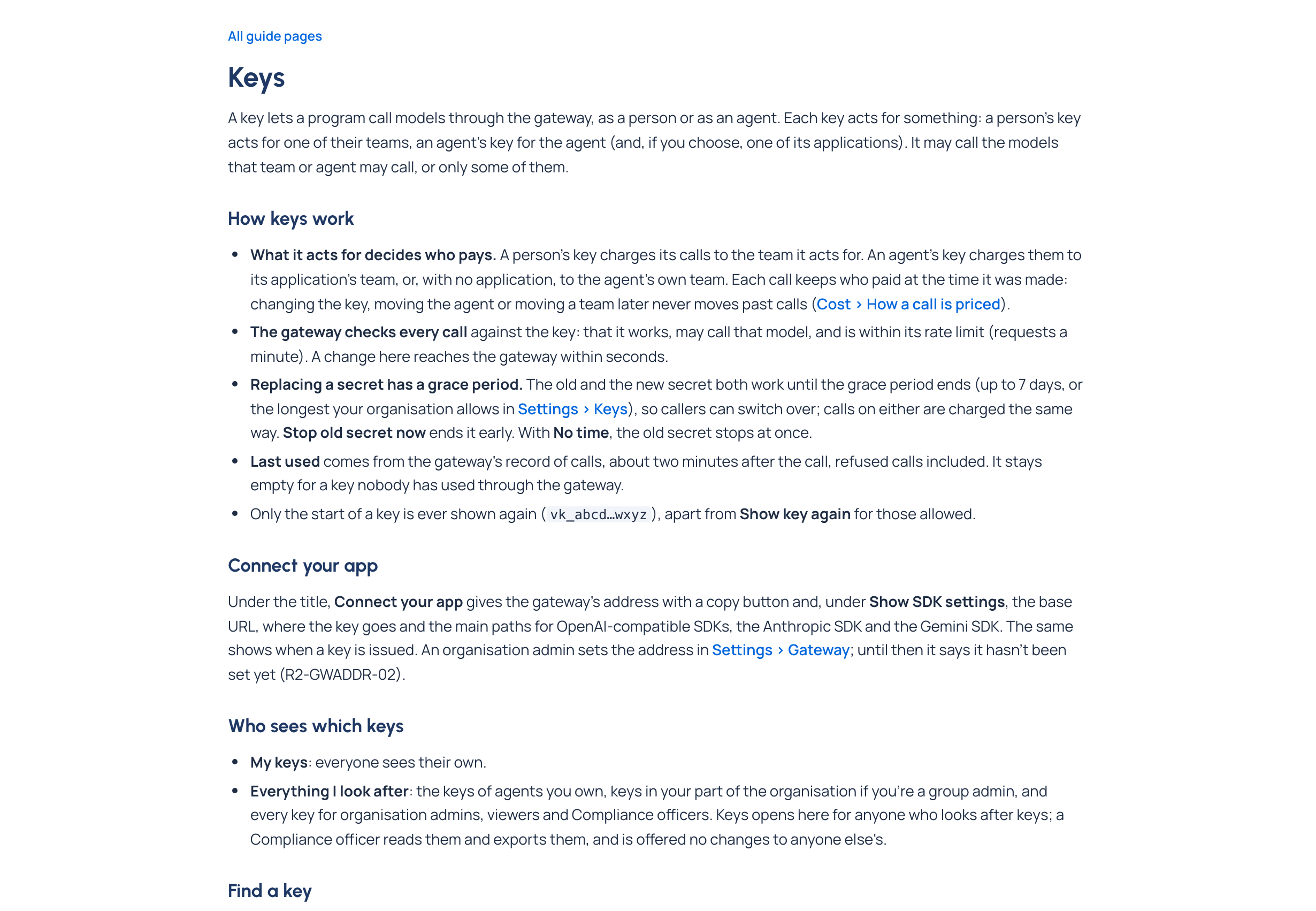
Choose Help in the top bar (on a phone, it's in the menu). It opens the page of the admin guide about where you are: on Keys, the guide to keys. All guide pages leads to the rest. The foot of each guide page says which Control room version it came with, so it always matches what's on your screen.
The menu under your name
At the top right. It shows your name and email (on a phone, your initials; the name and email head the menu). It has:
- Your account: your profile, how you sign in, your sessions, tokens, teams and roles, and activity.
- Preferences: language, time zone, colours and the language of your emails.
- Appearance: Match my device, Light or Dark, in one click.
- Sign out.
See Set your preferences.
Check it worked
Press ⌘K or Ctrl+K on any page: the search box opens. Type the start of a colleague's name and their page is one choice away.