Choose which models a team or agent may call
Purpose: a model list on every key goes stale the day a new model arrives. Set it where it belongs instead: each team and each agent has one list of models, and every key acting for it may call what that list allows, never more. Before a change is made, Vidai shows every team, agent and key it reaches, with the keys that would stop working first, so narrowing access never breaks a live app by surprise.
Before you start
- Organisation admins change any team's or agent's models, and only they give a top-level team Every model.
- Group admins change the models of the teams they run and the teams inside them, within what the team above allows. Change models shows only where you may change it.
- A model must be Approved for use on Models & routing › Models before anyone can call it. While that list is empty, every model is approved.
See every team's and agent's models at once
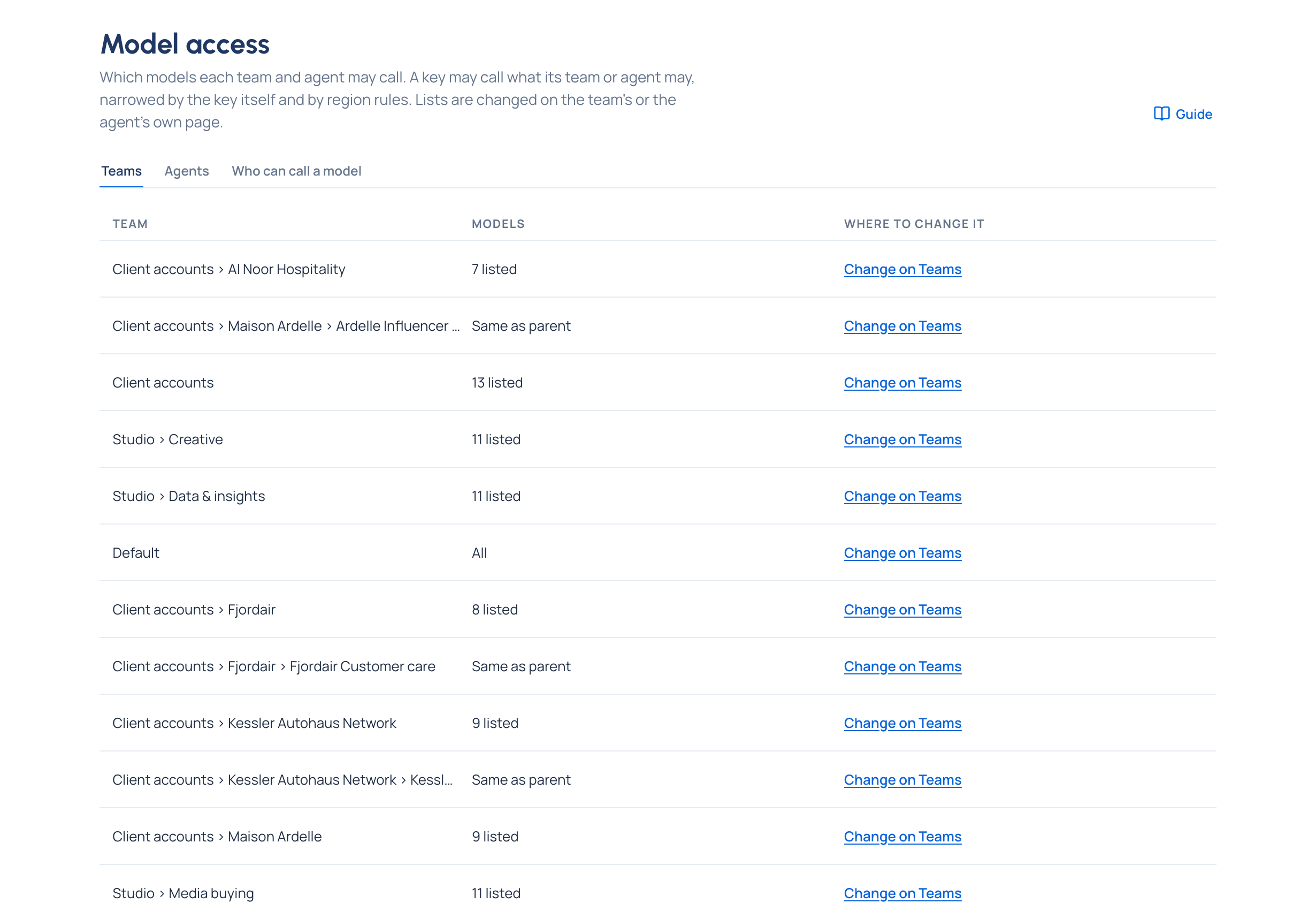
Open Models & routing › Model access. The Teams tab lists each team with its models in a word (All, Same as parent, 12 listed, None) and Change on Teams beside it. The Agents tab does the same for agents (All, Same as its team, 1 listed, None), with each agent's Home team and Change on its page. Nothing is changed on this page: each list is changed on the team's or the agent's own page.
Steps: a team's models
- Open Teams, choose the team (for example Kessler Autohaus Network) and open its Models tab. It shows the team's choice and What keys here may call now.
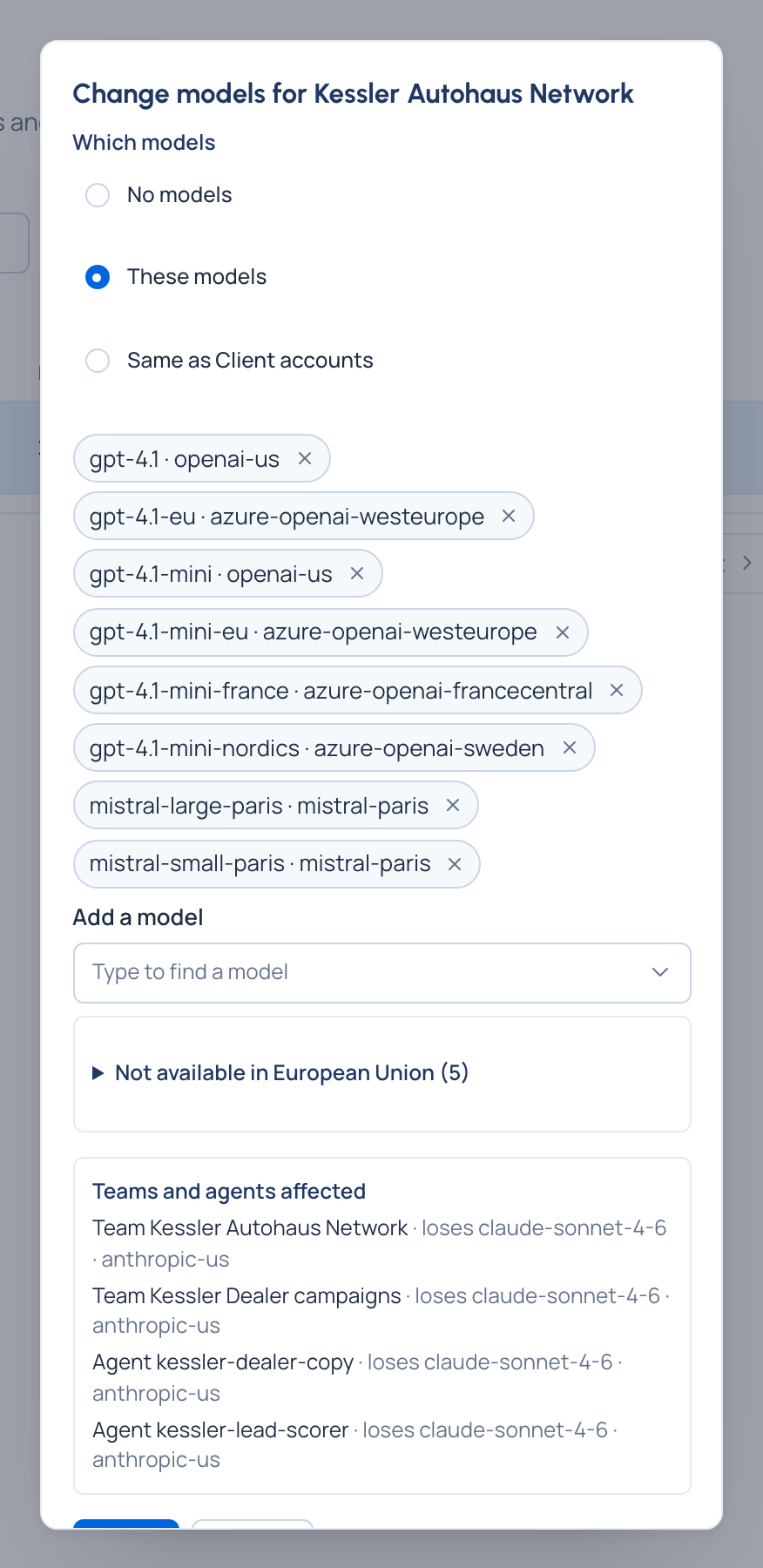
- Choose Change models.
- Under Which models, pick one:
- No models: keys for the team can't call anything.
- These models: only the ones you list. Type in Add a model to find one (an alias finds its model too); take one off the list beside its name. At most 500 models in one list.
- Same as the team above: a sub-team follows its parent.
- Every model: top-level teams only, set by an organisation admin.
- Choose Preview the change. You see Keys affected, with the keys that Stops working first, and Teams and agents affected, each with what it gains or loses.
- Choose Apply. If keys would stop working, the button says how many: Apply, and stop 3 keys.
Steps: an agent's models
- Open Applications & agents, choose the agent and open its Models section.
- Choose Change models and pick No models, These models or Same as its team. Every model is offered only to agents of the whole organisation, with no home team.
- Preview the change, then Apply.
An agent can only have models its team allows. An application has no list of its own: each agent in it keeps its own.
How the levels fit together
- A new top-level team starts with No models until an admin chooses; a sub-team follows the team above; the Org group starts with every model. A new agent follows its team.
- A team can only have models the team above allows. Asking for more is refused: "Some of these models are outside what the level above allows."
- Narrowing a team removes those models from the lists below it (the preview says its list is trimmed). Widening it again doesn't bring them back.
- A key may call all of what its team or agent allows, or only some, chosen when the key is issued.
- A model that's switched off stays in lists, marked switched off, but can't be called.
- In Enterprise, a region rule narrows it further: models outside the area are listed under Chosen, but left out here and their calls are refused (Keep calls in a region Enterprise; what Enterprise includes depends on the features your licence includes).
Check it worked
The team's Models tab says the new choice in bold, and What keys here may call now lists the models its keys may call. A notice confirms the change, for example "Models for Kessler Autohaus Network changed. 3 keys stopped working." On Model access › Teams, the team's row reads its new word. People in the team see the change on Your account › Models.
Give one person an extra model
When one person needs a model their team doesn't have, an organisation admin can give it to them in that team without widening the team:
- On the team's Members tab (or the person's Teams & roles tab), choose Extra models beside them.
- Pick the Model, give a Reason (shown with the extra model and kept in the audit log) and, if you like, Until (optional) a date.
- Choose Give extra model. The member's row then says how many they have ("+2 extra models").
Giving one to yourself waits for a second organisation admin. Remove takes one away: their keys stop calling it at once, unless the team allows it.
Related
- See who can call a model
- See the models you may call
- Create teams and sub-teams · Add an agent · Issue a key
- Give a model an alias
- Concepts: Model access
Good to know
- If someone else saved the same list while you were editing, saving says so: Reload shows theirs, then make your change again.
- An extra model you give yourself waits in Approvals until a second organisation admin decides.