Send data to your BI tools Enterprise
Purpose: analysts want AI cost and usage beside every other cost, in the tools they already use, without anyone running exports by hand. Vidai drops new data on a schedule into S3-compatible storage, an SFTP folder or a webhook, with a manifest and checksums so your side knows every file arrived whole.
BI push comes with Enterprise; what Enterprise includes depends on the features your licence includes. On Community, use the exports you start yourself on Money › Cost › Exports.
Before you start
- You're an organisation admin.
- You have one of:
- a bucket in S3-compatible storage (Amazon S3, MinIO, Google Cloud Storage and others), its endpoint, and an access key id and secret access key that may write to it;
- an SFTP server: host, port, username, folder, a password or private key, and the server's host key fingerprint;
- a webhook address and a signing secret.
Steps
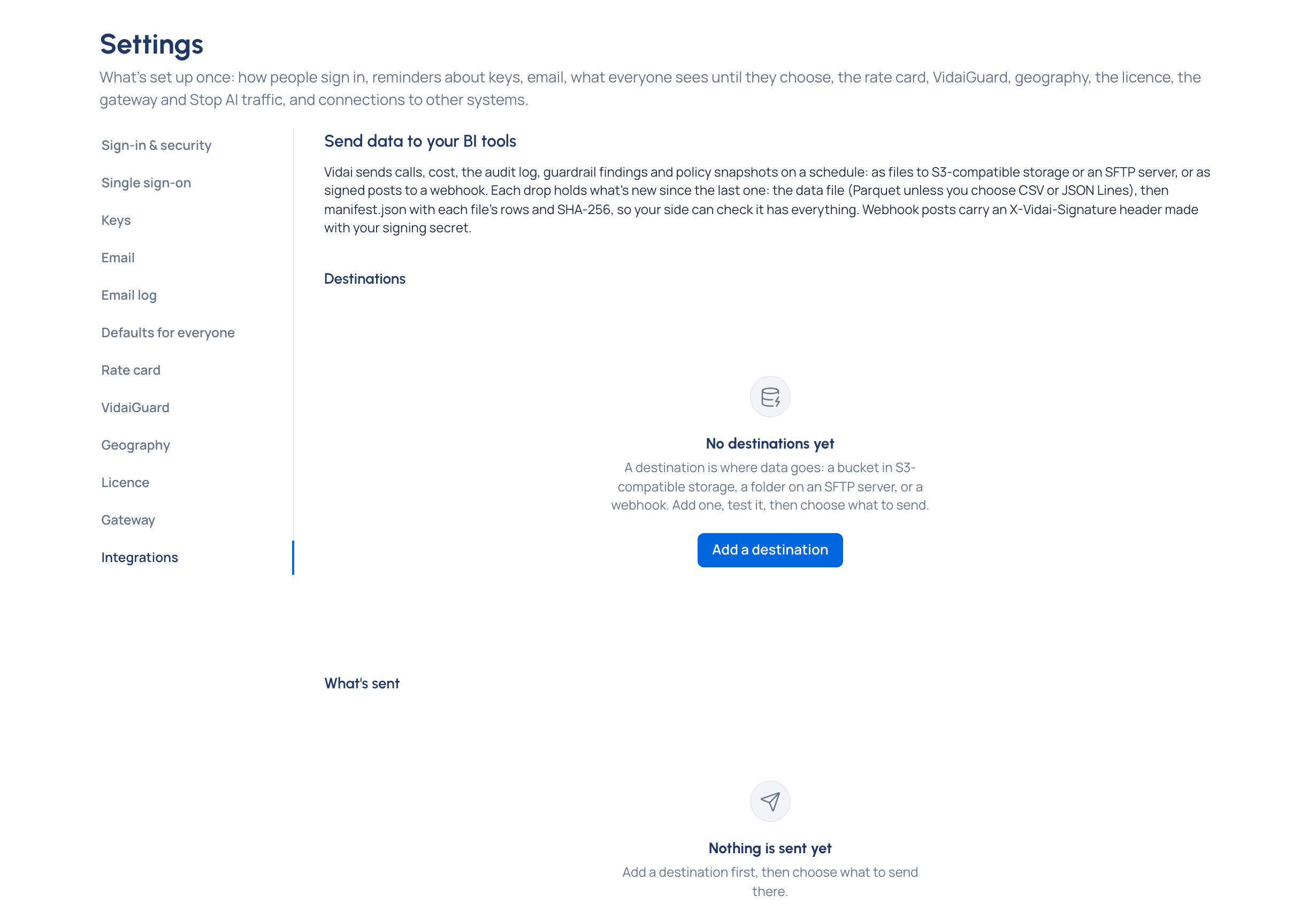
- Open System › Settings › Integrations.
- Choose Add a destination, give it a name (for example Warehouse), choose where it sends and fill in its details. Choose Add destination.
- Choose Test on the destination. For storage and SFTP, Vidai writes and removes a small test file; for a webhook, it sends a signed test post.
- Choose Send data: the destination, the data (calls, daily cost, the audit log, guardrail findings or policy snapshots), the format and how often (every hour or every day). Choose Start sending.
Formats, per destination: storage and SFTP take Parquet (the default: compact, and numbers stay numbers), CSV or JSON Lines, all with the same columns. A webhook gets a signed post for each drop, always as JSON Lines.
The SFTP host key fingerprint: ask whoever runs the server, or run ssh-keygen -lf on its public host key (for
example /etc/ssh/ssh_host_ed25519_key.pub) and copy the part that starts SHA256:. Vidai checks it on every
connection and sends nothing if it differs.
Check it worked
- Test says connected, or why not and what to check.
- The first drop comes within a few minutes. The schedule shows the next drop and Working, Paused or Failed a number of times since it last worked.
- Delivery history lists each drop: when, which data to which destination, Delivered or Failed, how many rows, and each file with its size and SHA-256.
Each drop holds what's new since the last one: the data file, then manifest.json with each file's rows and SHA-256.
A reader that sees the manifest knows every file is there. On SFTP, files are written under a temporary name and
renamed once complete.
Good to know
- When a drop fails, nothing is skipped: the next delivery that works catches up. Home's Needs attention says when deliveries keep failing.
- Secrets are stored encrypted and never shown again. Changing where a destination points asks for the secret again.
- A destination's kind can't be changed: add a new one.
- Stop ends a schedule; Delete on a destination stops its schedules. Delivery history and files already delivered stay.
- Webhook posts carry
X-Vidai-Signature: sha256=…, made with your signing secret.