Make single sign-on required Enterprise
Once everyone signs in through your identity provider, passwords in the Control room become a door nobody needs. Make single sign-on required and they close, for everyone but the emergency admin and the exceptions you choose, each with a reason. A check shows first who would be signed out.
Part of single sign-on, on the Enterprise edition; what Enterprise includes depends on the features your licence includes.
Before you start
- Single sign-on is Optional and people are signing in with it: Connect single sign-on.
- You signed in with single sign-on yourself, or you're the emergency admin. Anyone else is told "Sign in with single sign-on yourself first", so the switch never signs out the person making it.
- Ask every organisation admin to sign in once with single sign-on while it's Optional: their first single sign-on links their account with their password, which can't be reset by email once it's Required.
Steps
- Open Settings › Single sign-on. In step 6, under Single sign-on, choose Required, then Make it required….
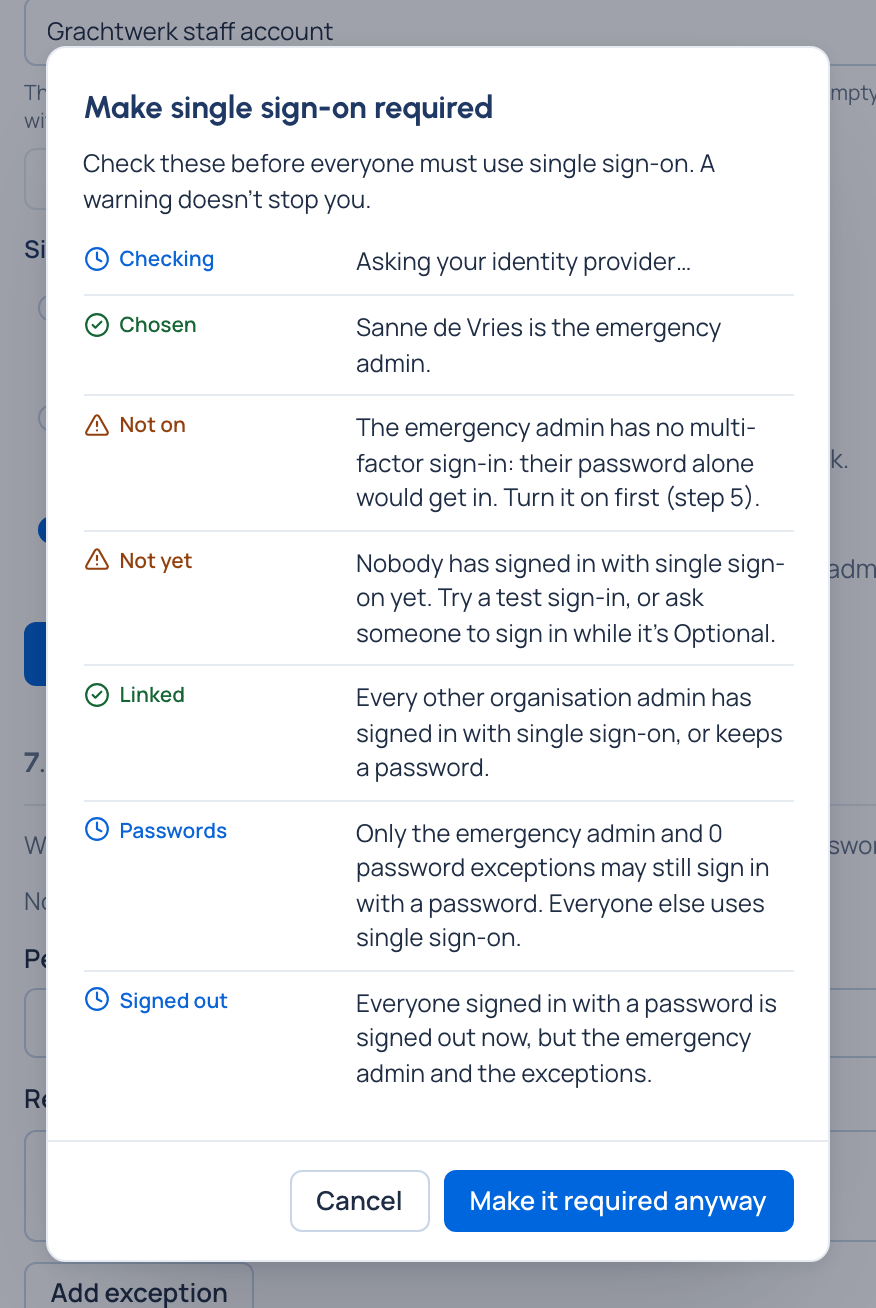
- Read the check:
- your identity provider answers (a test runs as it opens);
- an emergency admin is chosen (required: Vidai refuses without one);
- the emergency admin uses multi-factor sign-in;
- how many people have signed in with single sign-on, and when last;
- organisation admins who haven't signed in with single sign-on yet, by name;
- who keeps a password: the emergency admin and the exceptions;
- how many will be signed out.
- Confirm. A warning doesn't stop you: the button then reads Make it required anyway.
Add a password exception
For a contractor outside your directory, or a second admin during a move: in step 7, Password exceptions, add the person with a reason. They may still sign in with a password. Home's Needs attention counts the exceptions, so they don't linger.
Check it worked
The state at the top reads Required. Password sessions ended at once; people see "Your organisation now signs in with single sign-on" and Continue with single sign-on on the sign-in page.
What changes for everyone
- A password sign-in, an older reset link, or an invite accepted with a password is refused, except for the emergency admin and the exceptions. Forgot your password? sends them nothing.
- Add person offers only an invite; people accept it by signing in with single sign-on.
- Reset password on someone's page offers Allow them a password (with a reason) instead.
- The emergency admin can't be disabled, deleted or lose their organisation role until another is chosen.
Good to know
- Service accounts and API tokens never use single sign-on, and keep working.
- To go back, switch to Optional: passwords work again.