Your first compliance policy
A regulation on paper protects nobody until something acts on the calls. In half an hour you'll take one regulation's recipe, make it a named policy that watches your real traffic, read what it found, and switch on the evidence an auditor can check without trusting you. Nothing is stopped along the way: you see what the policy would do before it does it.
For: Compliance officers Enterprise and organisation admins (on Community, an organisation admin does all of it). You need: calls already flowing through the gateway: see Try Vidai in 15 minutes or Set up your organisation.
What Enterprise includes depends on the features your licence includes. Tamper evidence (step 4) is Enterprise; on Community, the audit log is chained in every edition, and the last section says how to check it.
flowchart LR
  A[Follow a regulation] --> B[Apply its recipe<br/>Observing]
  B --> C[Findings on<br/>real calls]
  C --> D[Tamper evidence on]
  D --> E[Verified]
1. Say which regulation you follow
- Open Policies › Regulations. Regulations you don't follow yet are under Not followed.
- Choose Follow … beside yours, for example Follow PCI DSS…. Proof › Retention & legal hold opens with a preview of the record periods it raises. Nothing has changed yet.
- Under Recommended policies, untick them all for now: you'll apply one yourself in the next step, to see each part. With none ticked, the button reads Choose … with the regulation's name; choose it.
The regulation now shows as Followed, and its recipes come first on Policies, marked Recommended: you follow …. The details: Follow a regulation.
2. Apply its recipe
- Open Policies › Policies and choose Start from a template….
- Choose Use… on the recipe, for example Keep card numbers out.
- Under Where it applies, add the teams whose calls it should cover, such as Fjordair. Answer whatever else it asks, such as what to do when a card number is found.
- Name the policy so anyone can tell what it's for ("PCI DSS: card numbers out, Fjordair"). It starts Observing.
- Choose Check what it changes: each part it would make, where, and how many keys it reaches now. Nothing is made yet.
- Choose Create the policy. Every part is made in one change: all of them or none.
The details: Apply a recipe.
3. Read what it found
Let the team's calls run for a while; a day of real traffic tells you more than a test.
- On the policy. Open it on Policies › Policies. While it observes, What enforcing would have done shows, for the last seven days and the keys it reaches now, the findings by category and what would have been done.
- On Findings. Open Policies › Guardrails and the Findings tab: every call where something was found, with its team, key and category. Open the call shows the whole record in Request logs, with Decided by the guardrail and Part of your policy.
- Not a real problem? Choose False positive? on the finding and Mark as false positive, so you know which patterns to tune before you enforce.
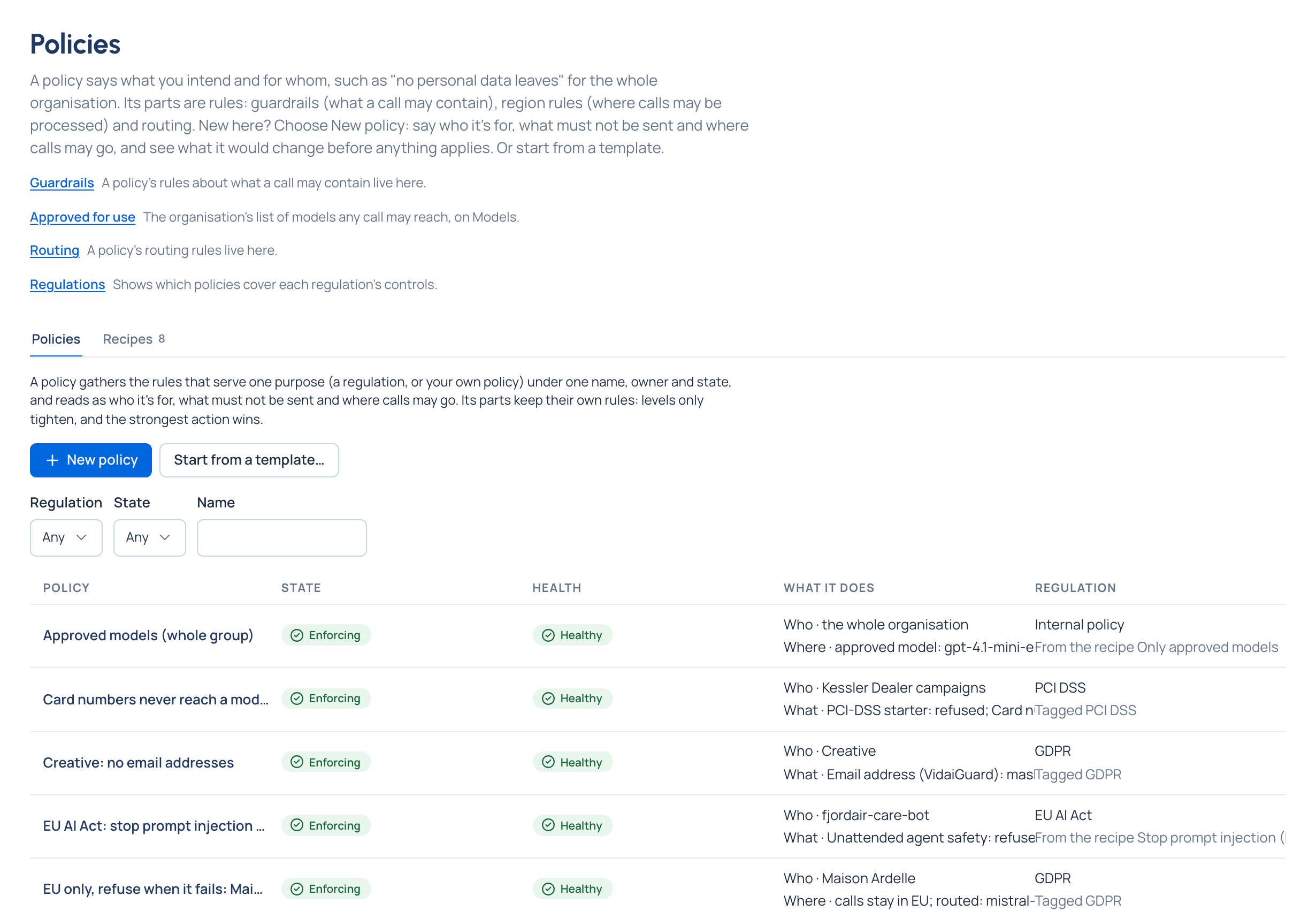
When you're satisfied, Start enforcing… shows what it reaches before anything changes. The details: Watch first, then enforce and Review findings.
4. Switch on tamper evidence Enterprise
Findings are only as good as the proof behind them. Tamper evidence seals Vidai's records and has the gateway record each call, so a change or a gap shows. Calls made before you switch it on stay unattested, so do it early.
- An organisation admin opens Proof › Evidence. The Tamper evidence card reads Off.
- They choose Record tamper evidence, then Switch on and restart the gateway. Pick a quiet moment: the gateway restarts for a few seconds.
- Once the gateway records, the card shows The gateway's signing key, Not confirmed. Someone on the gateway's
machine runs
vidai_server evidence keyand reads out thekey_id. If it matches, choose Confirm the gateway's key, then They match: confirm.
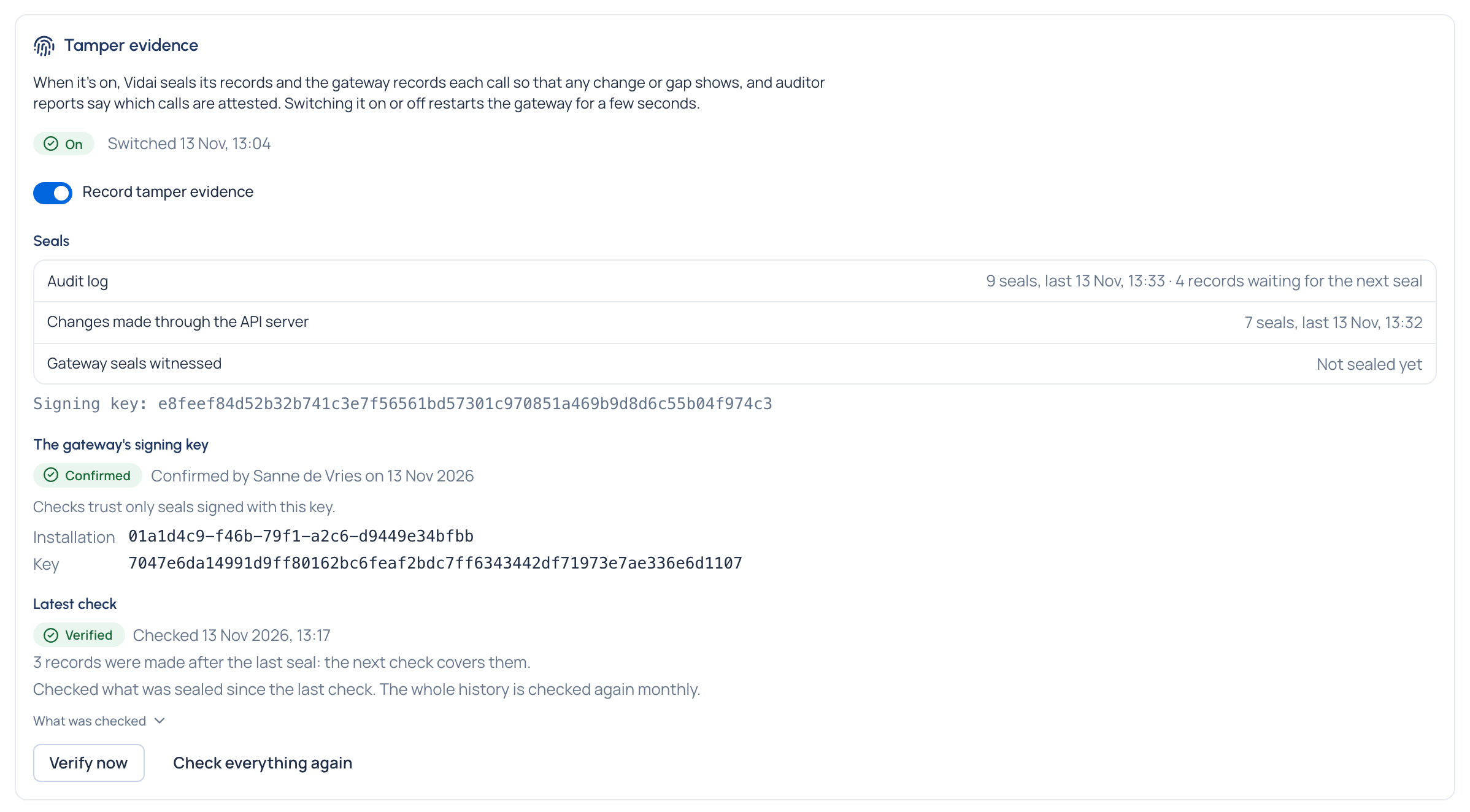
The details: Switch on tamper evidence.
5. See it verified Enterprise
- On Proof › Evidence, find Latest check on the Tamper evidence card and choose Verify now.
- Wait while it reads Checking every record and seal.
- The result should read Verified: every record and seal on both sides is intact and in order.
Partly verified means something couldn't be checked, often a gateway key not yet confirmed; it names what, so fix it and verify again. What each result means: Verify the evidence.

What you have now
- A regulation you follow, with its record periods set.
- A named policy built from its recipe, watching the calls of the teams it covers, with findings you've read.
- Records sealed on both sides and verified, so an auditor can check them without trusting you.
Vidai never tells you you're compliant: a recipe sets controls, and you decide when they're enough.
Where to go next
- Coverage, control by control: Read the compliance dashboard.
- Hand evidence over: Ask for an auditor report and Produce an evidence pack.
- Read any call in full: Investigate a call.
- Why it's built this way: Named compliance policies.
Good to know
- On Community, check that the audit log wasn't altered instead: Check the audit log's chain.
- PCI DSS is marked Needs an archive the product doesn't provide: it expects storage that can't be altered, so keep a copy of your records there as well.
- Vidai also verifies by itself every day, and the whole history every 30 days.
- Following a regulation can raise how long records are kept; if it clashes with your ceiling, an organisation admin decides: Decide a retention clash.