Follow or cancel your own request
Purpose: when a change you asked for needs a second person, you shouldn't have to chase anyone to learn where it stands. Asked by you shows each request with its state, who decided it and their note or reason, and lets you withdraw one before anyone acts on it. Organisation admins also get All: every request ever made, decided ones included, for a review or an audit. In every edition.
Before you start
- You asked for a change that needs approval: for example joining a team, a role, moving a team, or lifting a budget or guardrail for a few hours as a group admin. Decide a request waiting for you lists the kinds.
- All is for organisation admins.
Steps: follow your requests
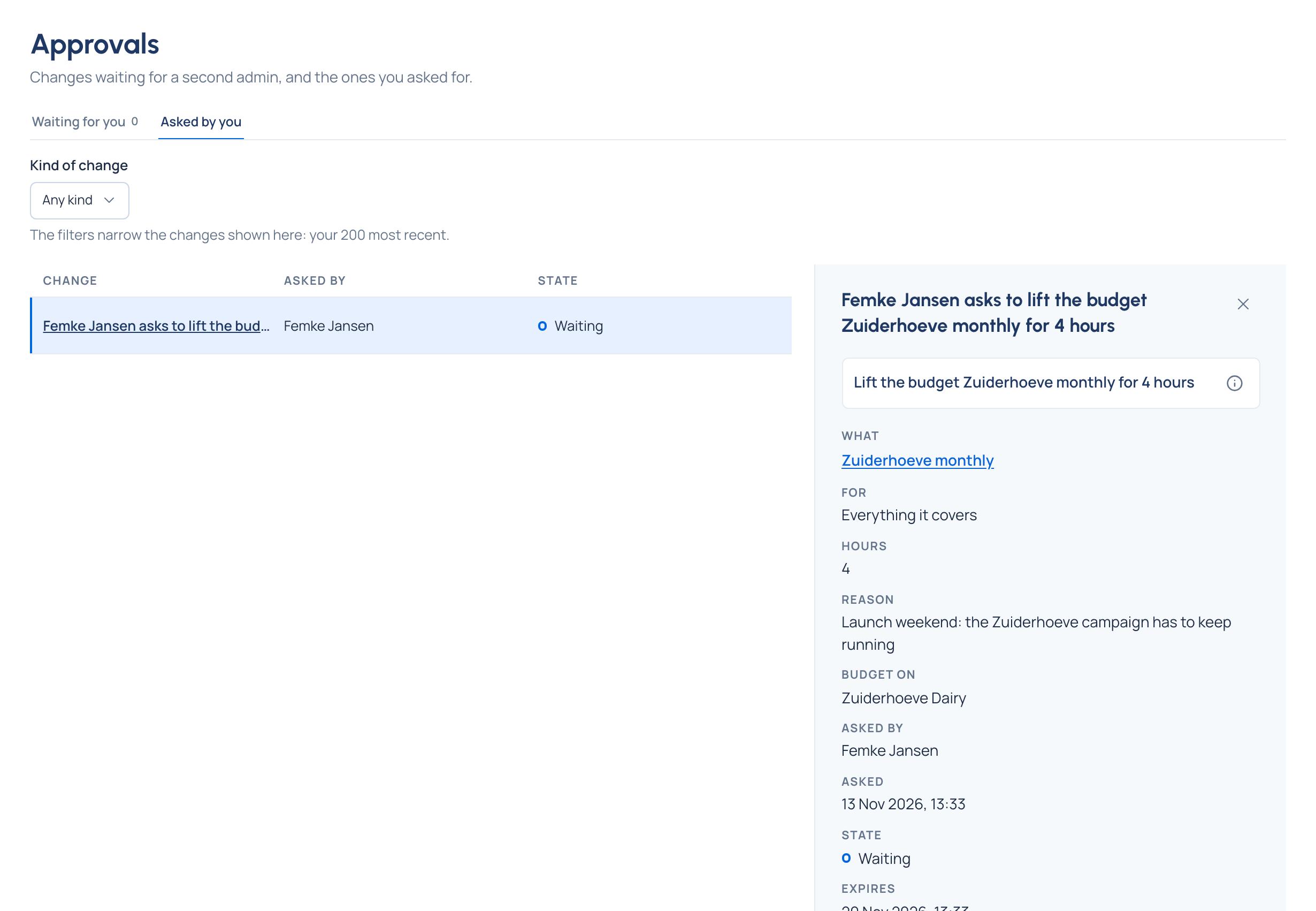
- Open Approvals and choose Asked by you.
- Each request shows its Change in words, its State and when it Expires:
- Waiting: nobody has decided it.
- Approved: the change is made.
- Refused: nothing was changed.
- Cancelled, Expired, or Closed: no longer applies.
- Choose a request to see it beside the list: Asked, Decided by and when, and the Reason or note they gave. ⓘ (Why this needs approval) says who may decide it, so you know who to talk to.
Steps: cancel a request
- On Asked by you, choose the request while it reads Waiting.
- Choose Cancel request. "Your request was cancelled." Nothing is changed.
If someone decided it while you had it open, it isn't cancelled: the page says who and when ("Already approved by Ana Ruiz at …") and the request shows its real state.
Steps: see every request (organisation admins)
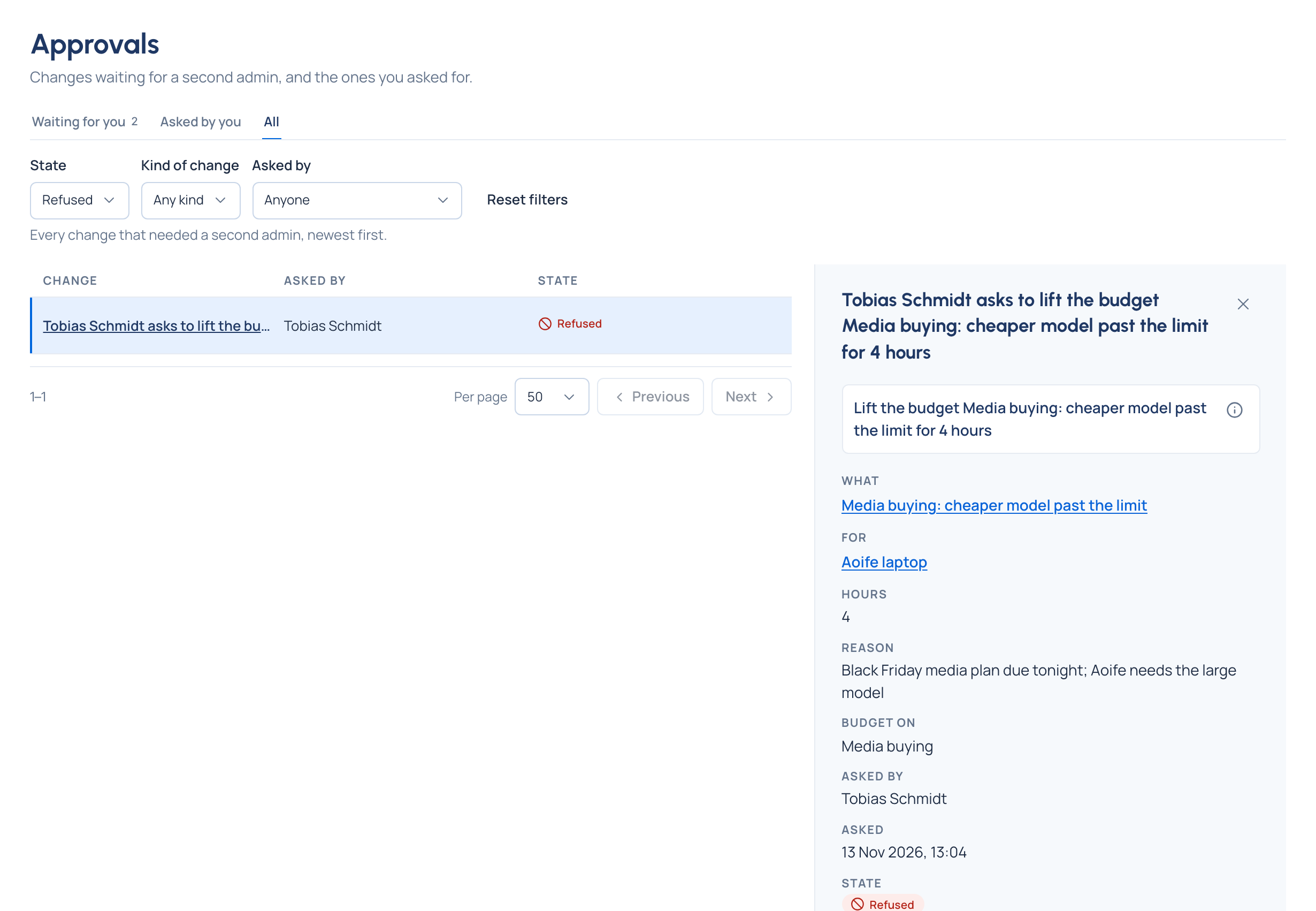
- Open Approvals and choose All: every change that needed a second admin, newest first, a page at a time.
- Narrow it with State (Waiting, Approved, Refused, Cancelled, Expired, Closed: no longer applies), Kind of change and Asked by. Older pages are included in what the filters find. When nothing matches, the list says "No approvals match"; Clear filters shows them all again.
- Choose Per page (25, 50 or 100) and move with Previous and Next.
- Choose a request to read who asked, who decided, when, and why.
Check it worked
- A cancelled request reads Cancelled under Asked by you, and leaves Waiting for you for everyone who could have decided it.
- On All, the filters and page size you chose are still there next time you open it, on any device.
Related
- Decide a request waiting for you
- Exempt a key or lift a guardrail for a while
- When a budget is reached
- Search the audit log
Good to know
- You can't approve your own request, whatever your role.
- Only a waiting request can be cancelled. To undo an approved change, change it back the usual way.
- Asked by you shows your 200 most recent requests; its filters narrow those. All has no such limit.
- Every request has its own link (it's in the address when you open one), and it opens even after it's been decided.