Stop all AI traffic
Purpose: a provider key has leaked, an agent is running away, a model is answering things it mustn't. Stop AI traffic stops every AI call through the gateway, on every gateway node, at once. Calls already running finish; nothing is lost or deleted; the Control room keeps working. When you release it, every key, agent and model works exactly as before.
For a smaller stop, use the switch on the one thing that's wrong: suspend a key or an agent, or switch a provider or model off.
Before you start
- You're an organisation admin.
- Have the reason ready: it goes in the audit log, and everyone sees it.
Steps: stop
- Choose Stop AI traffic in the top bar (on every page), or Stop all AI traffic… in System › Settings › Gateway.
- Give the Reason, for the audit log.
- Type your organisation's name to confirm.
- Choose Stop all traffic.
Check it worked
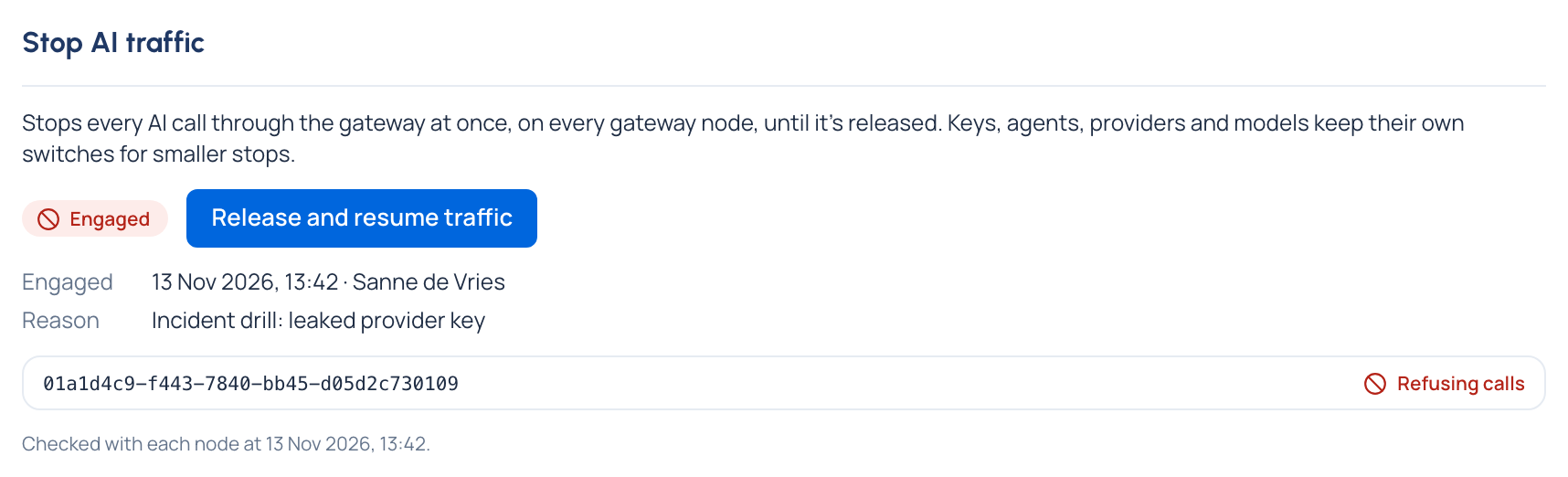
A notice on every page says AI traffic is stopped. System › Settings › Gateway shows Engaged, who set it and why, and each gateway node: Refusing calls, or Still serving calls for a node that hasn't taken the change yet (Vidai keeps trying). Not taken everywhere means at least one node disagrees: a partial stop never reads as a full one.
Apps get 503 with the code ai_traffic_suspended, and their refused calls are listed in Request logs.
Steps: resume
- Choose Resume AI traffic in the top bar.
- Give a reason.
- Choose Release and resume traffic. Calls go through again as each key, agent and model allows.
Related
Good to know
- Both actions are in the audit log (AI traffic stopped, AI traffic released) with the reason: evidence of oversight for the EU AI Act.
- The gateway keeps the switch on each node; Vidai sends it to every node and reads each one back.
- Stop AI traffic is in every edition.