Set a budget
Purpose: stop a surprise bill before it happens. A budget tells the right people as spend fills up and, if you choose, stops calls or sends them to a cheaper model at the limit.
Before you start
- Who can: organisation admins and Finance, at any level (themselves included); group admins on their teams and the people, agents and keys in them, never on themselves or their own keys. Only the levels you may set a budget on are offered, and Limit spend isn't offered to someone who may set none.
- Prices first: a budget counts what calls cost. Models with no price can't be counted, and under a stop or route budget the keys it covers can't call them.
- Decide the currency. One budget, one currency: calls priced in others don't count.
Steps
- Open Money › Budgets and choose Limit spend.
- Why: choose the purpose (to keep spending within a limit, your own choice, a regulator's rule, or a legal or contractual duty) and a Name people will recognise, such as "Support team, monthly".
- Whose spend: choose Set at (Organisation, Environment, Team, Application, Person or agent, or Key), then which one. Type the start of a name to narrow a long list.
- How much, and how often:
- Currency: the currencies your organisation spends in are offered, each with what was spent in the last 30 days ("EUR · €1,364.00 spent in the last 30 days"), the organisation's default price currency first. For another, choose Another currency… and type its code.
- Limit: an amount above 0, such as 500 or 12.50.
- Period: Each day, Each month or For all time. Days and months start at midnight in the organisation's time zone.
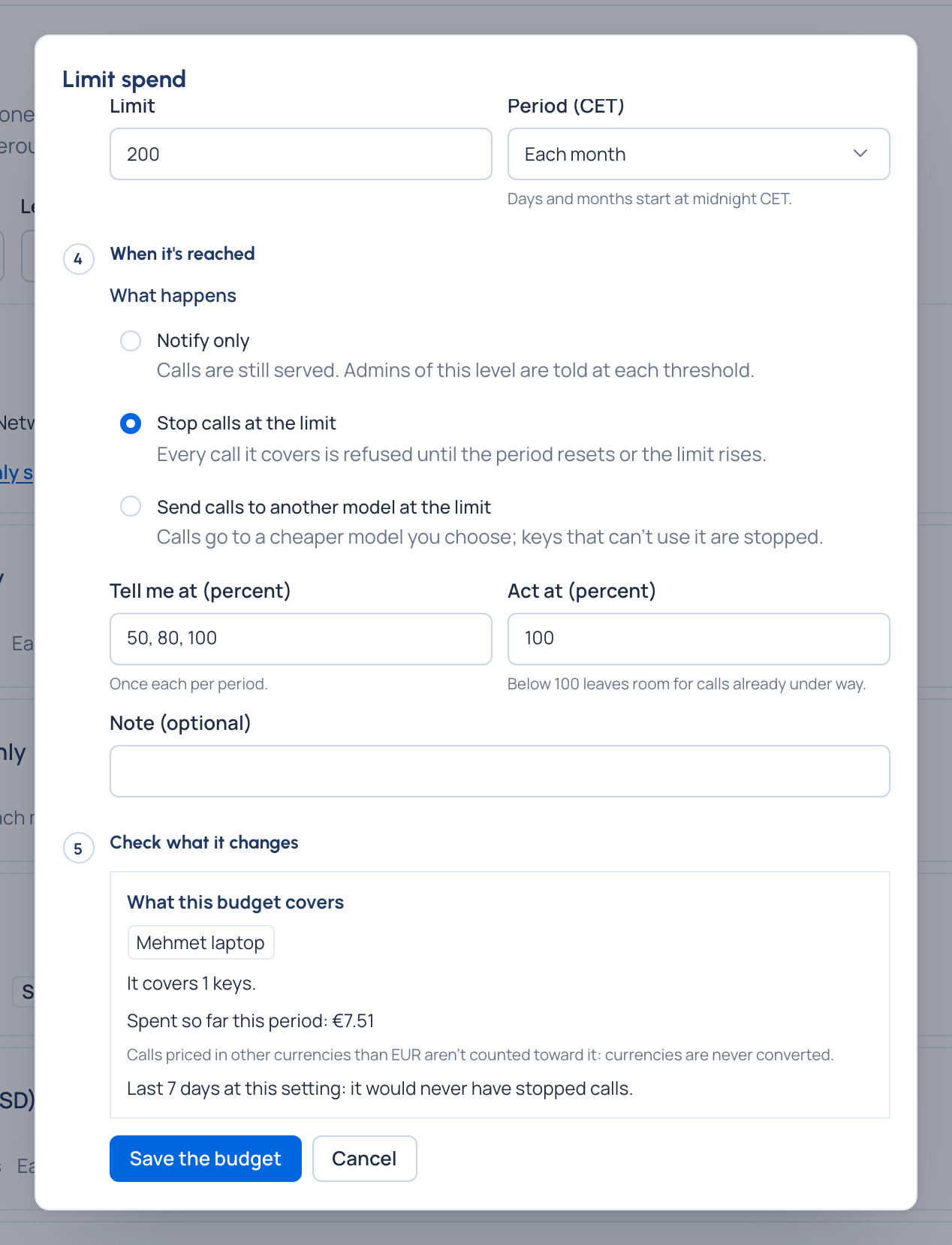
- When it's reached, choose What happens:
- Notify only: calls are still served; people are told at each threshold.
- Stop calls at the limit: every call it covers is refused until the period resets or the limit rises.
- Send calls to another model at the limit: choose the provider, then the model in Send calls to. Only models every key it covers may use are offered; the rest are listed under Not available, with why.
- Tell me at (percent): the thresholds, such as
50, 80, 100. For stop and route budgets, Act at (percent): below 100 leaves room for calls already under way. - If you like, fill in Note (optional).
- Choose Check what it changes, and read it (below).
- Choose Save the budget.
What "Check what it changes" tells you
- What this budget covers: the keys it covers ("It covers 14 keys.") and the spend so far this period.
- Models with no price, which can't be counted. Under a stop or route budget, the keys can't call them while it's in force.
- Spend in other currencies that won't count: "This period: €4.50 won't count."
- It can never be reached first, when a budget above already covers every key with a lower limit in the same currency and period, with a link to it.
- A replay of the last 7 days: "Last 7 days at this setting: it would have stopped calls on 3 days, first on 5 Nov" (a route budget: sent calls to the other model; notify only: been at its limit), or that it never would have, and the day each threshold was first met.
Change anything and it asks you to check again.
Check it worked
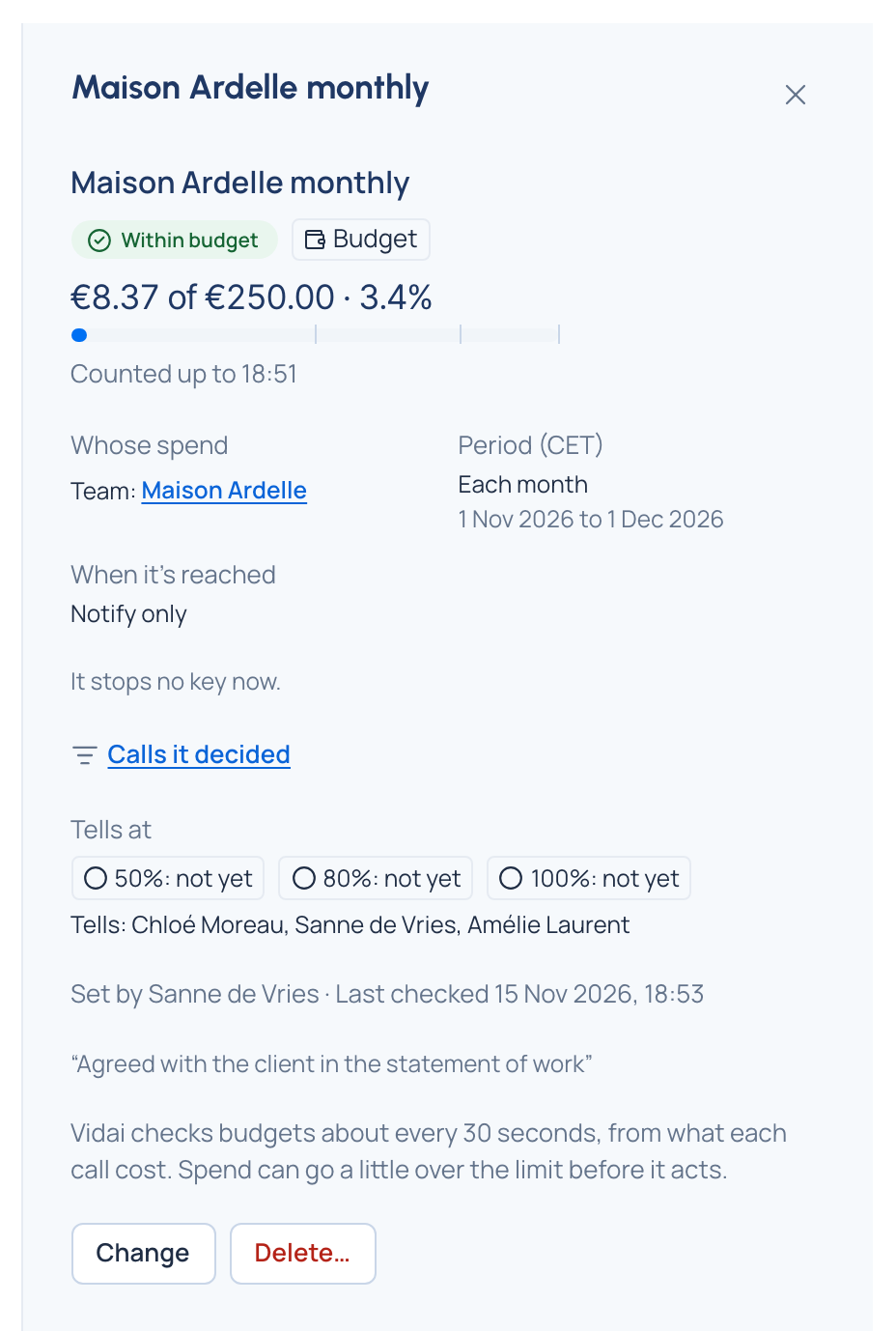
The budget is listed on Money › Budgets with its state (Within budget, Past a threshold or Reached), where it's set, the period, the kind, and its spend against the limit: "€3.20 of €10.00 · 32%". Its page says Counted up to a time once Vidai has checked it (Nothing counted yet before the first check).
Change or delete a budget
On its page, Change works the same way: Check what it changes, then Save changes. Where it's set, the currency and the period are fixed once saved; make a new budget to change them. Raising the limit above the spend lets stopped calls through again at once. Delete… ends whatever it was doing at once.