Add your own area, or map a location
Purpose: "in the EU" is only useful if Vidai knows where each provider's data is processed. Vidai ships with a
geography: each vendor's locations (Azure's westeurope, AWS's eu-central-1, …) map to an area, and areas sit
inside larger ones (Germany is in the European Union, which is in Europe). When yours differs, because you run models
in your own data centre or a contract names an area Vidai doesn't have, add it in System › Settings › Geography. Every
change shows which providers it moves before it's made.
Before you start
- You're an organisation admin. Organisation viewers can read Geography but not change it.
- Start with what Vidai already flags: Locations not mapped on Geography (shown only when there are some), or "Vidai doesn't know where … is" on Home's Needs attention, which opens the same place.
Steps: map a location Vidai doesn't know
- Open System › Settings › Geography. Under Locations not mapped, each provider shows its vendor and location, marked Area unknown.
- Choose Map to an area beside it. The Vendor and Location are filled in. To map one that isn't listed, choose Map a location under Locations and fill them in yourself (the location is the vendor's own name for it, as the provider uses it).
- Choose the Area it's in. If Vidai already maps the location, the dialog says where; yours takes its place.
- Choose Preview changes. It lists each provider that changes area, from and to, or says No provider changes area.
- Choose Apply. Vidai confirms, for example "eu-office-dc1 is now in European Union."
Steps: add an area of your own
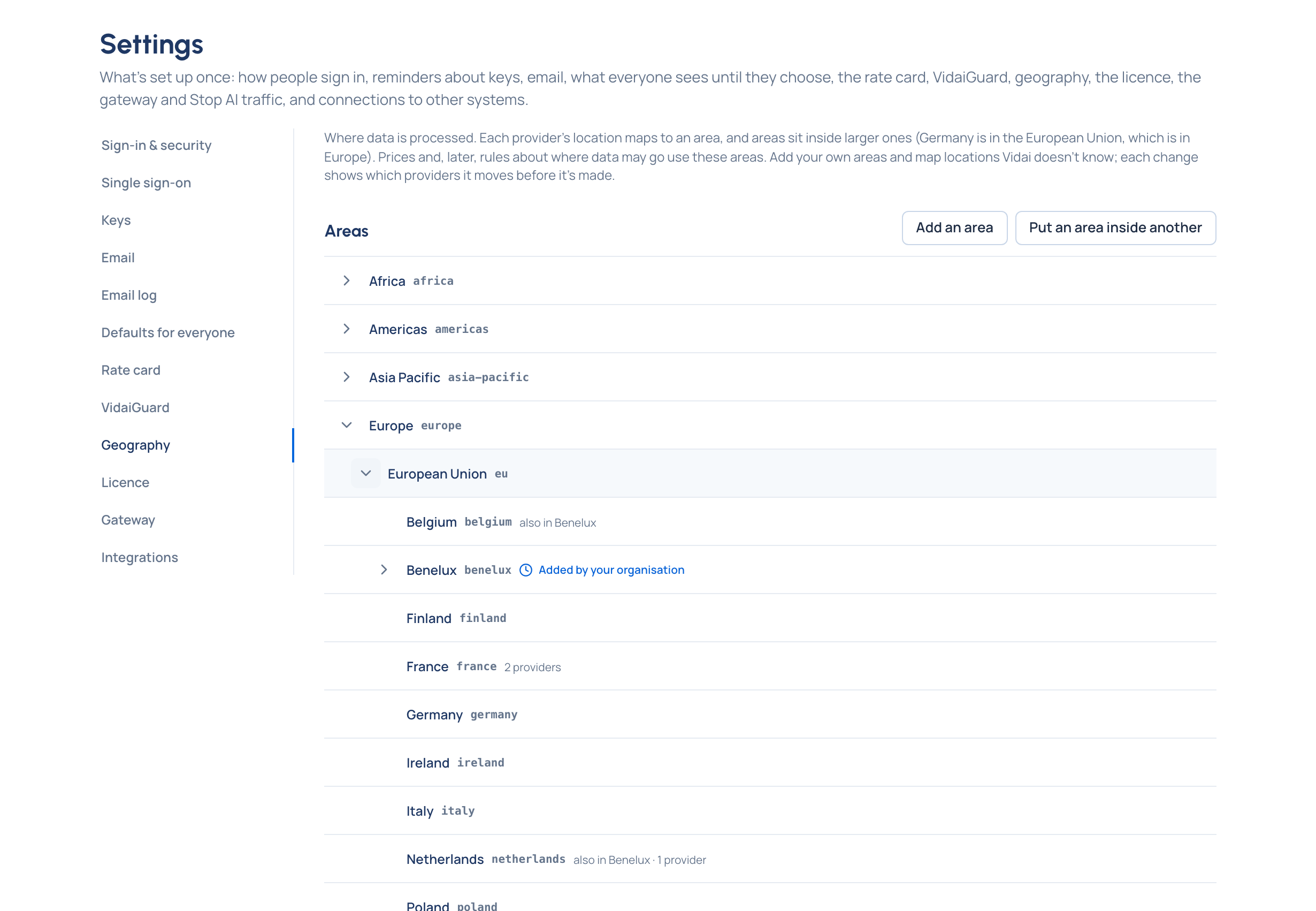
- On Geography, under Areas, choose Add an area.
- Give it a Code: lower case letters, digits and dashes, like
eea(at most 60 characters). It can't be changed later. - Give it a Name ("European Economic Area").
- Optionally choose the area it's Inside (optional), for example Europe.
- Choose Preview changes, then Apply. The area and its place are made together: if the place is refused, nothing is made and Inside says why.
Steps: put an area inside another
An area can be inside several: the UK is in Europe but not the European Union.
- Under Areas, choose Put an area inside another.
- Choose the Area and where it Goes inside.
- Preview changes, then Apply. Vidai confirms "… is now inside …".
Check it worked
- Areas shows yours in the tree, marked as added by your organisation, with how many providers process data in it. Open an area with its arrow to see what's inside; one inside several says "also in …".
- Locations, filtered by Vendor and Location or area, lists your location in its area.
- Added by your organisation lists your areas, each placing you made and your locations.
- The provider's Where it runs names the new area, and Locations not mapped no longer lists it.
- In Enterprise, your area is offered wherever you Keep calls in a region Enterprise (Keep calls in a region). What Enterprise includes depends on the features your licence includes.
Related
- Say where a provider runs, or add it in another region
- Keep calls in a region Enterprise
- Concepts: Regions and data residency
- Reference: Settings
Good to know
- A code already in use, or one Vidai keeps for itself (
global,unknown), is refused. - An area can't end up inside itself, directly or through another.
- Remove, under Added by your organisation, takes back an area, a placing or a location after asking. Providers that took their area from it go back to what Vidai's own geography says.
- An area that locations or providers are still in can't be removed until they move. Vidai's own areas and locations can't be removed.