See your teams and roles
What you can reach in the Control room follows your teams and roles. Your account shows both, in words, with where each role is held and when it ends, so you know what you can do and who to ask for more.
Before you start
- Anyone signed in.
Steps
- Open the menu under your name and choose Your account.
- Choose Teams & roles.
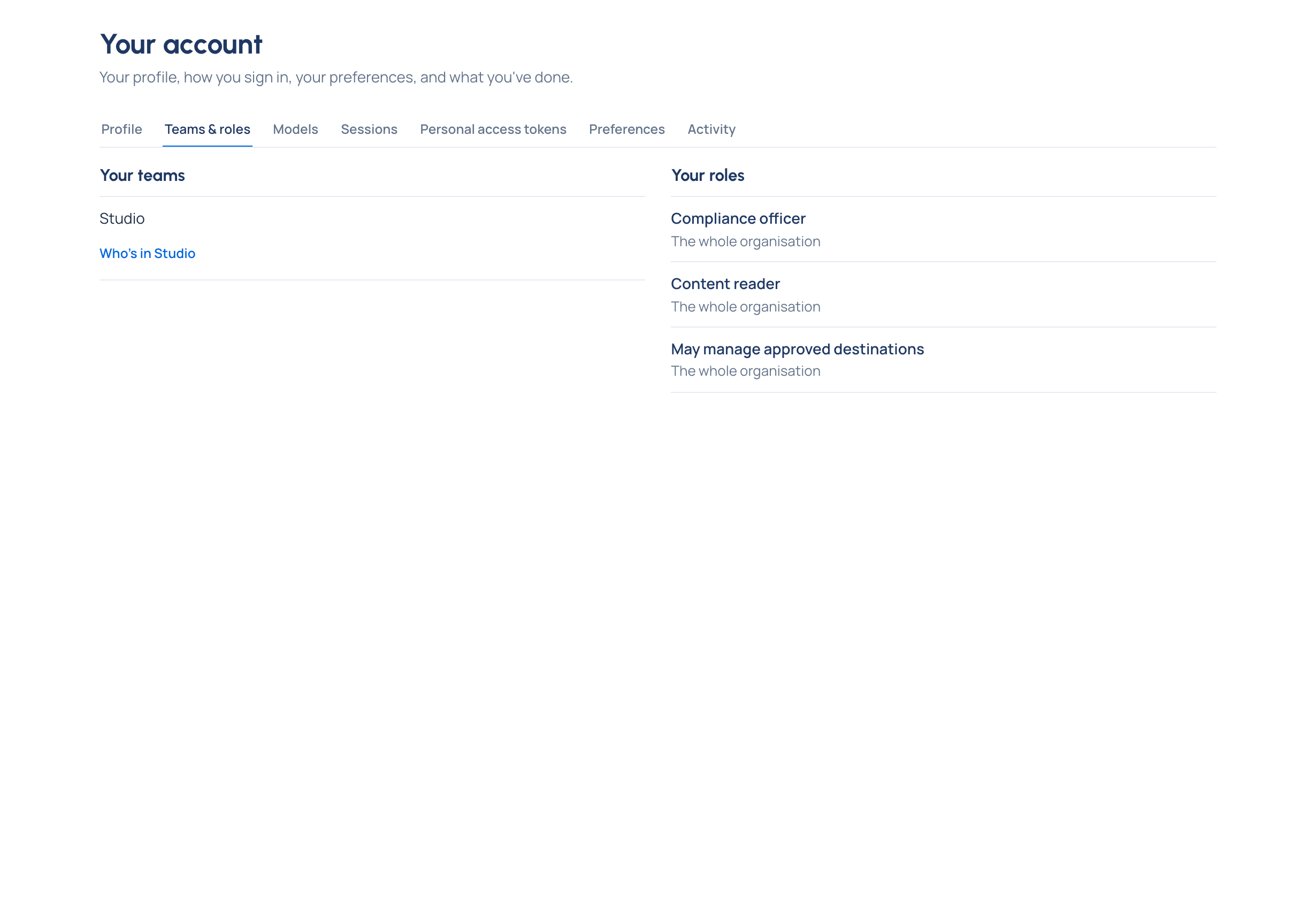
Read what you see
- Your teams: every team you're in, with the teams above it. The Org group, where everyone starts, is marked with its building. A membership with an end date says until that day.
- Who's in … under a team lists the people in it, with their emails (the Org group isn't listed: that's everyone).
- Your roles, in words, each with what it's held on and any end date:
| Role | What it means for you |
|---|---|
| (none) | You're a user: you use the models your teams allow, hold your own keys and see your own calls |
| Organisation admin | You can change everything |
| Organisation viewer | You see everything and change nothing; you hold no keys |
| Group admin | You run that team and every team inside it |
| Finance | You see every cost and look after prices, markups and billing periods |
| Compliance officer Enterprise | You run policies, risk and evidence for the whole organisation |
| Content reader | You may read what calls sent and got back, where the role is held |
| Owner of an agent / of an application / of a service account | You look after it and its keys or tokens |
| May approve budget overrides, May approve guardrail overrides, May manage approved destinations | Permissions given on their own, beside any role |
Need a change?
Admins change teams and roles: a group admin for their teams, an organisation admin for everything. A role given with an end date ends by itself.
Related
- See the models you may call
- Give someone a role: the admin's side.
- What a user can do