Work with Home and Needs attention
Purpose: nobody should have to patrol twenty pages to find the key that expires tomorrow or the model with no price. Home lists what needs you, each item with what it means and a button that takes you to where it's put right. What you can't fix yourself says who can.
Before you start
Anyone signed in has Home. What it shows depends on your role: a user sees their own keys and usage; an admin sees everything they look after.
What Home shows
| Card | Who sees it |
|---|---|
| Protect your account | The first admin, right after setup, until multi-factor sign-in is on (Not now puts it away) |
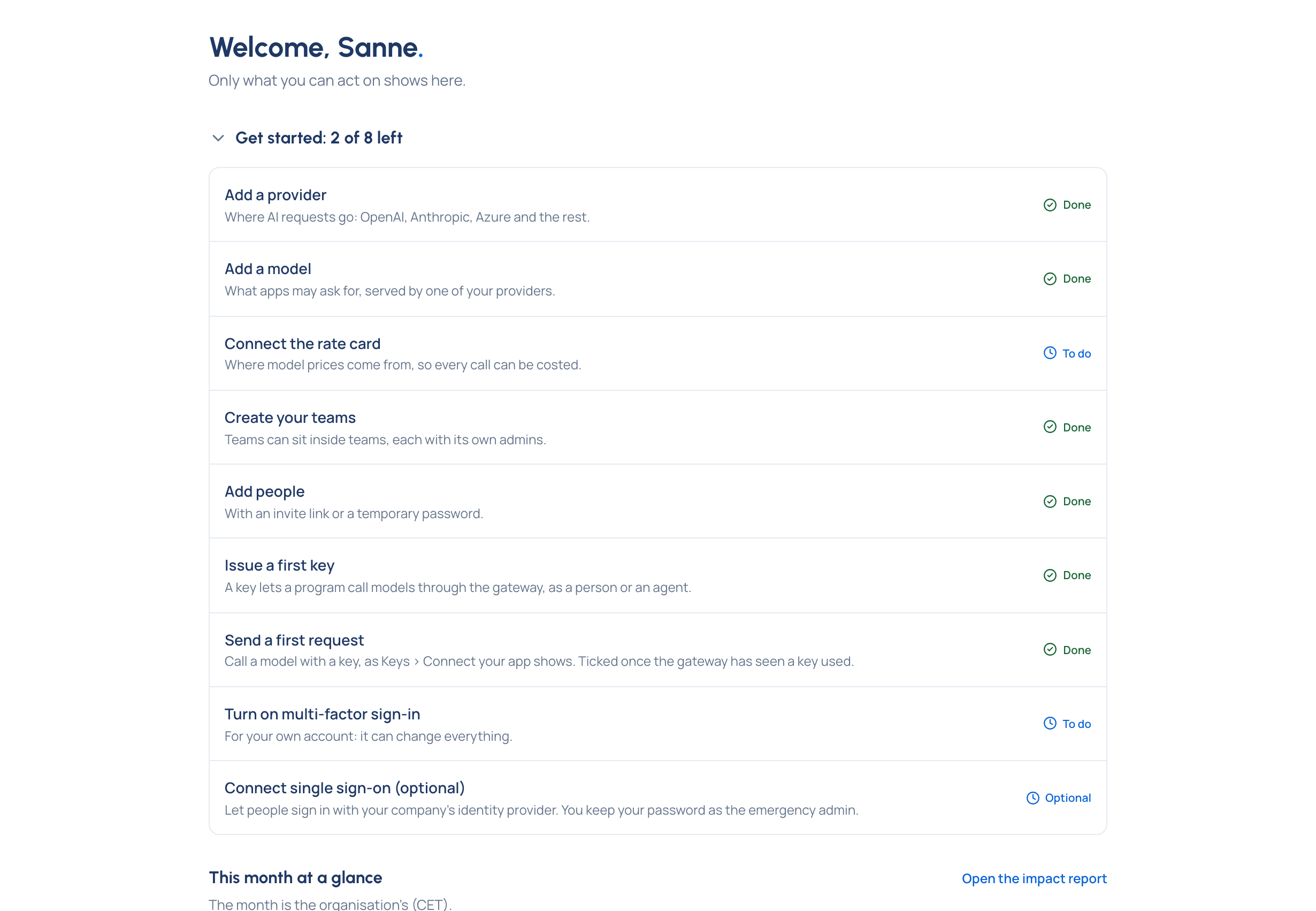
| Get started, with how many steps are left | Everyone, with the steps their role needs |
| This month at a glance (or Your teams this month) | Organisation admins and viewers (group admins) |
| Your usage this month | Everyone |
| Needs attention | Everyone with something to see |
| Waiting for you | Anyone with approvals to decide |
| What you manage | Anyone who manages teams, agents, applications or service accounts |
| Tidy up | Organisation admins and viewers |
| Organisation at a glance | Organisation admins and viewers |
Put an item right
- On Home, find the item under Needs attention. A line at the top counts them ("2 keys expire in the next 14 days").
- Read what it means, then choose its button: Set its price, Choose models, Extend, Replace, Open key, Add an organisation admin and so on.
- Put it right on the page that opens.
Something to fix disappears once it's fixed. With more than five items, About narrows the list to keys, teams, models, providers, the rate card, routing or other things, and Search finds one by name. Admins can switch to Only mine.
Snooze or acknowledge
- Snooze… hides an item from you for a day, a week, 30 or 90 days. It comes back when the snooze ends unless it's been put right.
- Acknowledge (notices only) hides it from you until it happens again.
- Organisation admins can choose For whom: Everyone when snoozing, or Acknowledge for everyone…, with a reason that's recorded in the audit log.
- Show snoozed and acknowledged (N) lists what's hidden, who hid it, why and until when. Show again brings one back.
Check it worked
- The count beside Home in the menu and on the bell goes down.
- A snoozed or acknowledged item is listed under Show snoozed and acknowledged.
The bell
The bell in the top bar counts the same things on every page, with changes waiting for your decision. Choose it to see the first few, each with a link; Open Home shows the rest. With nothing to do, it says you're all caught up.
Good to know
- Others who look after an item still see it unless it was hidden for everyone; only organisation admins can bring back one hidden for everyone.
- Notices clear by themselves after 30 days unless an organisation admin changes it: Set defaults for everyone.
- Months on Home count on the organisation's clock, wherever you are.