Create teams and sub-teams
Teams are how Vidai knows who pays and who may call what. Build them like your organisation: departments, client accounts, projects, with sub-teams inside. Each team's models, budgets, guardrails and region rules reach everyone and every key inside it, and its group admins run it without waiting on you.
Before you start
- Organisation admins create top-level teams and teams anywhere. Group admins create sub-teams inside the teams they run.
- Every organisation starts with the Org group, made at setup, where everyone starts. It allows every model until you give it a list, and it can be renamed but not moved or deleted.
Steps
- Open Teams. To make a sub-team, first open the team it goes in.
- Choose New team.
- Name it. Two teams with the same parent can't share a name; teams in different places can.
- Optionally add a Description of what it's for (up to 1000 characters) and a Contact: where to reach the team, for example a shared mailbox. On the Enterprise edition you can also keep its calls in a region, such as the EU.
- Create it. Then open its Models tab and choose which models it may call.
Then fill it: Add member (or Add several) on its Members tab, and give it a group admin: Make someone a group admin.
Check it worked
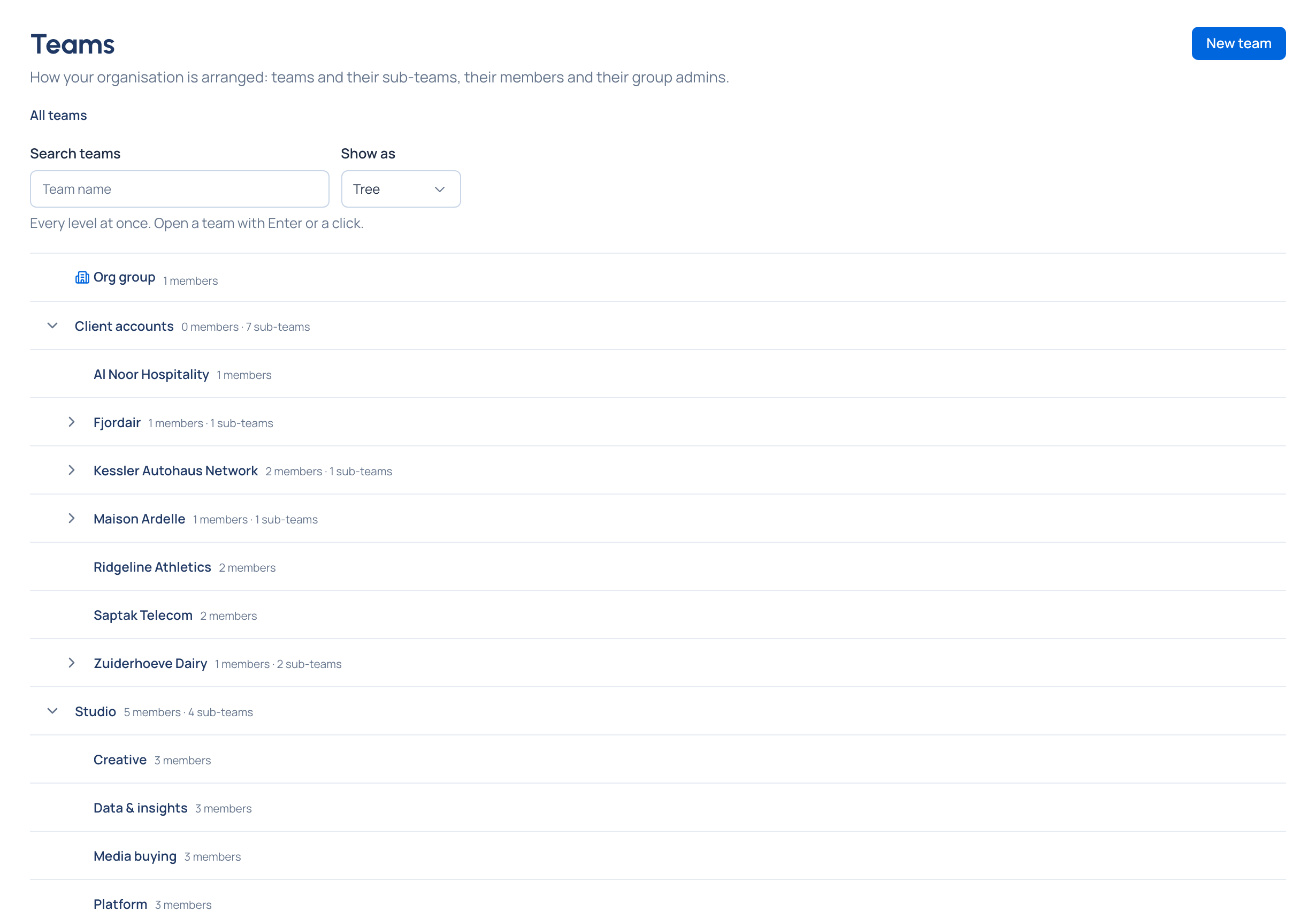
The team is listed at its level, with its models in a word: All, Same as parent, 12 listed or None. Show as: Tree shows every level at once. On Home, Create your teams is ticked.
Change a team's description, contact or place
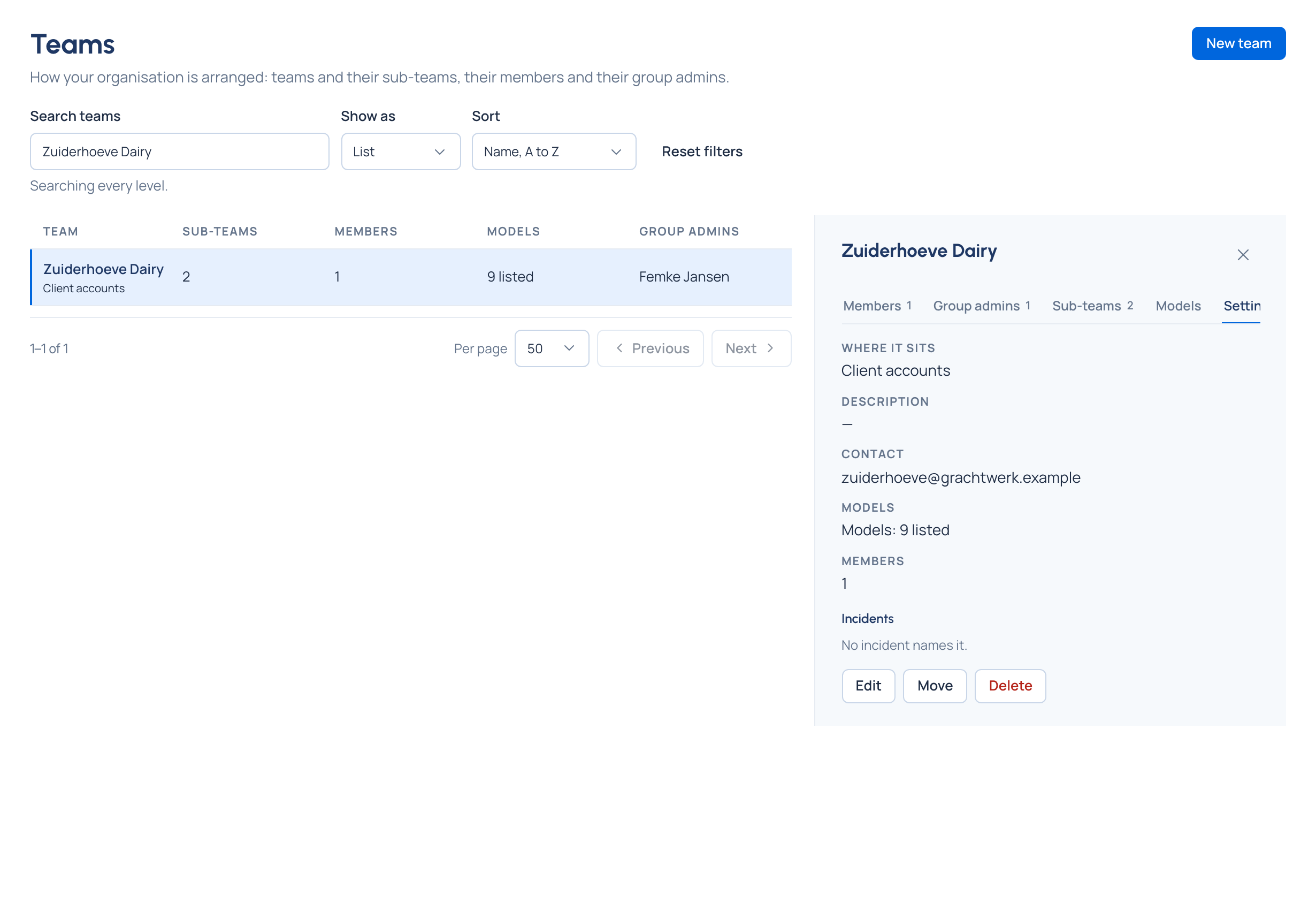
A team's Settings tab says what it is at a glance: Where it sits (the teams above it, or Top level), its Description, its Contact, its Models and how many Members it has. On the Enterprise edition it also lists the Incidents that name the team, with each one's severity, state and dates.
- Open Teams, choose the team and open its Settings tab.
- Choose Edit to change its Name, Description (empty it to remove it) or Contact (any text: a person, a shared mailbox, a chat channel, up to 254 characters). Renaming keeps its members, admins and roles.
- Choose Save. Vidai confirms "… was saved."
Move and Delete sit beside Edit: see Move a team. Each button shows only if you may use it on that team.
Good to know
- A new top-level team starts with no models until an admin chooses; a sub-team follows the team above it. Home's Needs attention flags a team that allows no models, with Choose models.
- Delete keeps its members in your organisation; they just leave the team, and its group admin roles end. A team with teams inside, or with keys still acting for it, can't be deleted until those are moved or revoked.
- A team's cost isn't on its page: open Cost and break it down by team.