Decide a request waiting for you
Purpose: some changes are too important for one person to make alone: an admin giving themselves more access, a team moved to where its admin doesn't run, a budget or a guardrail lifted for a few hours. Vidai holds each one as a request in words until the right second person decides, and keeps who decided, when and why. Nobody waits on a ticket queue, and nothing widens quietly. In every edition.
Before you start
- You may decide the request: team and role changes go to organisation admins or the team's group admins; lifting a budget to organisation admins and Finance; lifting a guardrail to Compliance officers Enterprise. An organisation admin can give Approve budget overrides or Approve guardrail overrides to anyone else. What Enterprise includes depends on the features your licence includes.
- You never decide a request you asked for yourself.
What arrives here
Each request reads as a sentence, for example "Femke Jansen asks to lift every guardrail part of GDPR: personal data stays out (Zuiderhoeve, Kessler) for 2 hours". The kinds:
| Request | Who decides |
|---|---|
| Joining a team, or adding someone to one | Organisation admins, or group admins of the team |
| Moving someone between teams | Organisation admins, or group admins of the team |
| Moving a team under another, or to the top level | Organisation admins, or group admins of the team |
| Extra models for someone in a team | Organisation admins, or group admins of the team |
| A role: organisation admin, organisation viewer or group admin, for someone or for a service account | Organisation admins, or group admins of the team |
| Lifting a budget for up to 24 hours | Organisation admins and Finance, or whoever has Approve budget overrides |
| Lifting a guardrail policy, or every guardrail part of a compliance policy, for up to 24 hours | Compliance officers, or whoever has Approve guardrail overrides |
Why this needs approval says which reason applies: they're giving themselves more access; they don't run where it's going, so that team's admin must agree; it gives a service account they control more access; or it lifts a budget or a guardrail policy.
How these requests are made: Exempt a key or lift a guardrail for a while and When a budget is reached.
Steps: decide one
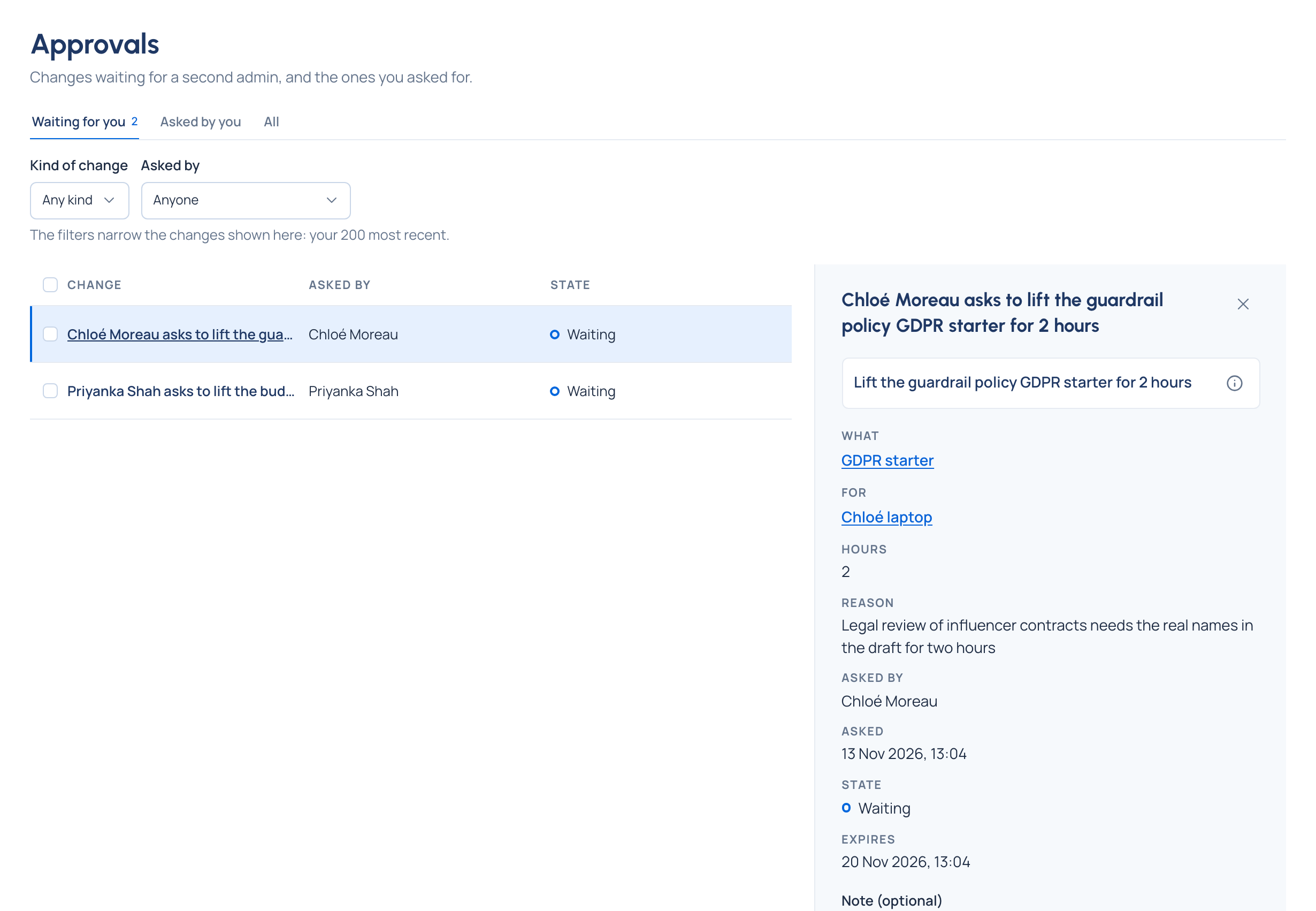
- Open Approvals. The number beside it in the menu, and the Waiting for you card on Home, say how many wait for you. Review them on Home opens it too.
- On Waiting for you, choose a request. It opens beside the list, starting with what it changes ("Add Noor El Amrani to Zuiderhoeve Social").
- Choose ⓘ (Why this needs approval) to see why it waits and who may decide.
- Read the details: who it's for, the team, Until for a time-limited change, or, for a lift, What, For, Hours and the Reason given. A budget lift also says Budget on: the team, key or application the budget covers. What and For open the budget, policy or key on their own pages.
- Decide:
- Approve, with an optional Note (optional) the person who asked will see. "Approved. The change is made."
- Refuse: give a Reason (required; the person who asked sees it) and choose Refuse. "Refused. Nothing was changed."
Steps: decide several at once
- On Waiting for you, tick the requests, or tick Select every change shown.
- Choose Approve selected or Refuse selected.
- Read the list of changes in words. To approve, add a Note (optional) kept with each decision; to refuse, give one Reason for all.
- Confirm. Each change is checked again as it's approved, then made.
- What happened lists each one as Approved or Refused, or why it failed. Already decided elsewhere lists apart any that another admin decided first, or that were cancelled or expired meanwhile, each in words ("Already approved by Ana Ruiz at …"); those are left as they are. Choose Done.
To find requests in a long list, use Kind of change (Joining a team, Moving between teams, Moving a team, A role) and Asked by. Reset filters shows them all again; when nothing matches, the list says "No approvals match" and Clear filters does the same.
Check it worked
- The request leaves Waiting for you. The person who asked sees it as Approved or Refused, with your note or reason, under Asked by you.
- An organisation admin sees it on All with Decided by you and when.
- An approved change is made at once; an approved lift starts then and ends by itself.
Related
- Follow or cancel your own request
- Exempt a key or lift a guardrail for a while
- When a budget is reached
- Give someone a role
- Concepts: Exceptions and approvals
Good to know
- A request you can see but someone else decides says "Another admin decides this one."
- If it was decided, cancelled or expired while you had it open, your decision isn't applied: the page says what happened ("Already approved by Ana Ruiz at …", "Cancelled by the person who asked. Nothing was changed.", "Expired before anyone decided. Nothing was changed.") and the request shows its real state. Nothing happens twice.
- A request that isn't decided by its Expires time reads Expired; one that no longer applies reads Closed: no longer applies.
- If nobody but the person asking could approve it, the request is refused when it's made, with how to fix it: an organisation admin gives someone the right to approve it.
- On Community there are no Compliance officers: an organisation admin gives Approve guardrail overrides to someone, or to themselves.
- Waiting for you shows your 200 most recent requests; its filters narrow those.
- Held price changes from the rate card aren't decided here: see Decide a held price change.
- Every request has its own link, which opens even after it's been decided.