Connect the rate card
Purpose: give every model a price from one published source, kept up to date on a schedule, before your first call. Calls made while a model has no price stay unpriced on Community, so connect it before traffic starts.
Before you start
- You're an organisation admin. Finance has no Settings: while no rate card is connected, Money › Prices tells Finance an organisation admin connects one.
- You have the rate card feed's address and its key.
Steps
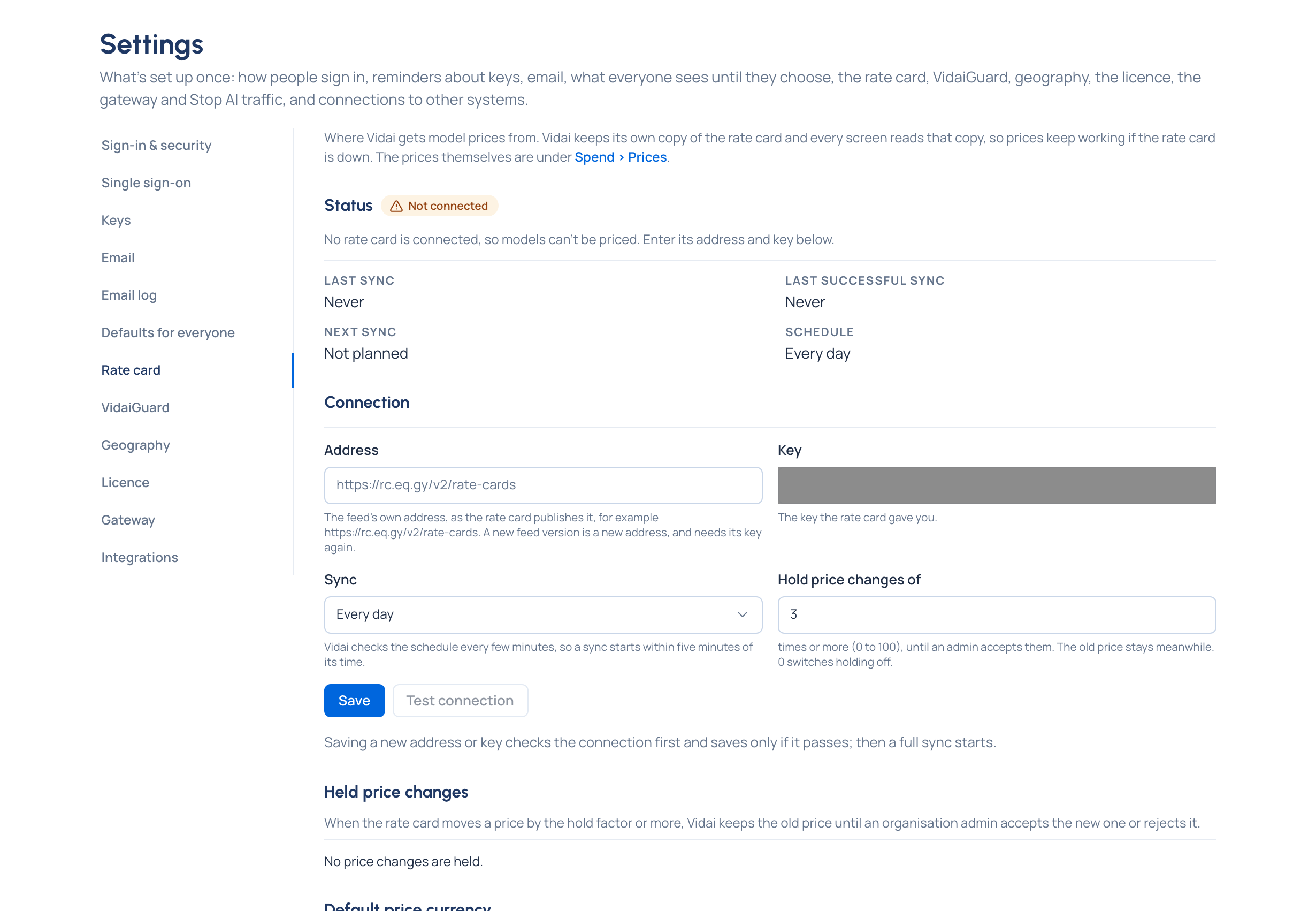
- Open System › Settings and choose Rate card.
- Enter its address: the feed's own address, as the rate card publishes it, for example
https://rc.eq.gy/v2/rate-cards. - Enter its key. Once saved, it's never shown again, only "ends in …".
- Choose Test connection. It answers at once: connected, with the schema, how many prices it has and a few examples; or why not, in words. Testing saves nothing.
- Choose Save. The address and key are checked again, then a full sync starts.
- Optionally set Sync (every hour, 6 hours, 12 hours, day (the default) or week, or off) and Hold price changes of (3 times by default; 0 switches holding off).
Check it worked
- Status reads Up to date after the first sync, with what it fetched and what that meant for your models (newly priced, price changed, lost their price, now need review).
- Money › Prices › Overview counts your models as Priced, Free, Needs review and so on, per provider.
Good to know
- Vidai keeps its own copy of the rate card, so prices keep working while the rate card is down. Disconnect stops syncing; prices already on file keep working.
- Sync now fetches only what changed; Fetch everything again fetches the whole card.
- A new feed version is a new address, and it needs its key again.
- Default price currency (US dollars unless you change it) decides which card prices a model whose line is published in several currencies, when the provider doesn't choose. Work with several currencies
- Sync history lists every sync with its counts.