Set sign-in and security for everyone
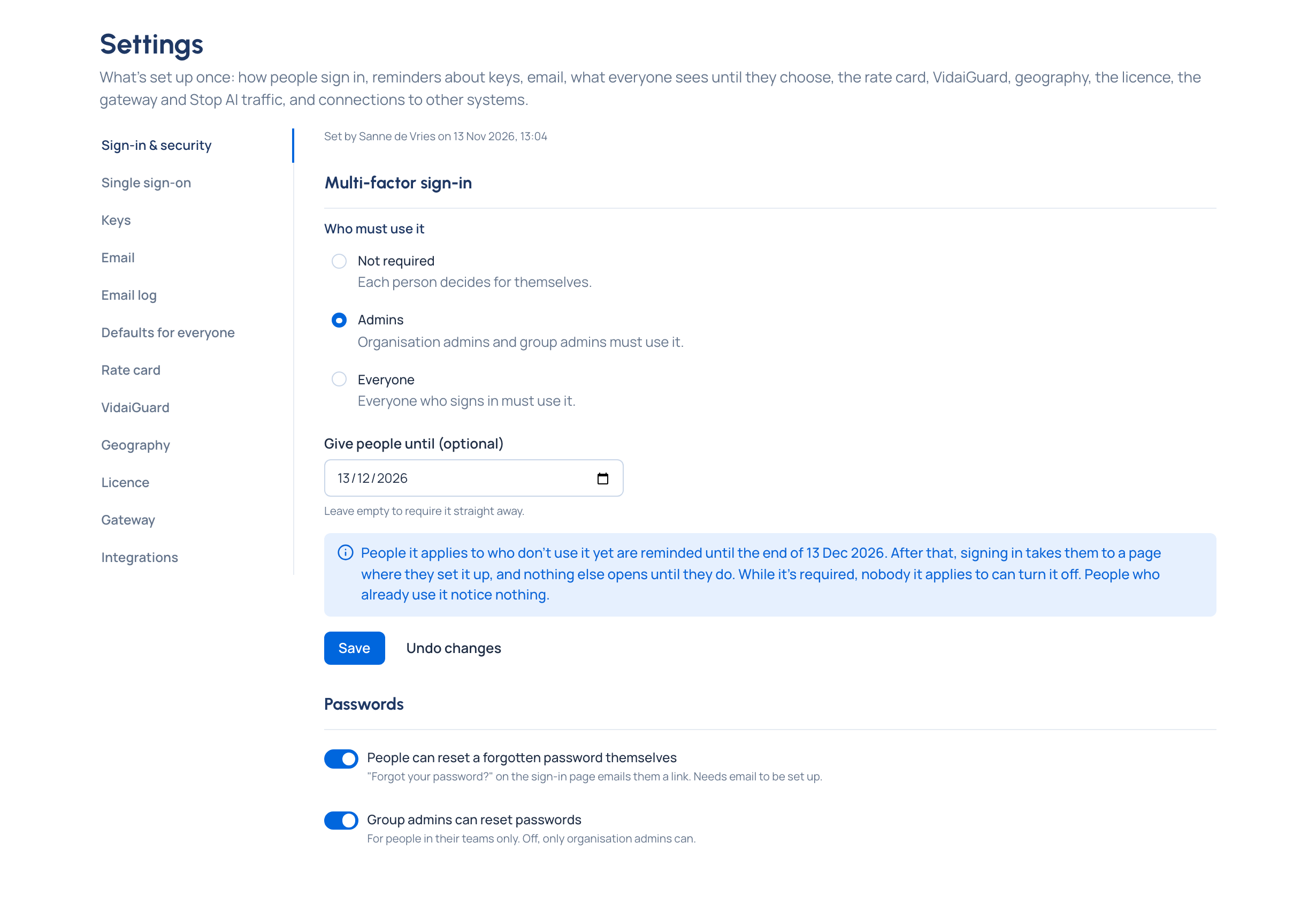
How people sign in is the front door to every key, budget and policy you hold. Settings › Sign-in & security sets the rules for the whole organisation on one page: who must use multi-factor sign-in, whether people can reset a forgotten password themselves, and whether group admins may reset passwords for their teams. Each change takes effect at once and is recorded in the audit log with your name.
Before you start
You're an organisation admin. Open Settings › Sign-in & security. The line at the top says who changed these settings last, and when ("Set by … on …").
Steps
Multi-factor sign-in
Under Multi-factor sign-in, choose Who must use it (Not required, Admins or Everyone), optionally a date in Give people until (optional), and Save. The full task, and what people see, is in Require multi-factor sign-in.
Who may reset passwords
Under Passwords, two switches. Each is saved the moment you flip it:
- People can reset a forgotten password themselves: Forgot your password? on the sign-in page emails them a link. It needs email to be set up. Off, the page says "Only admins can reset passwords now."
- Group admins can reset passwords: for people in their teams only. Off, only organisation admins can.
Turn the first on when you have email, so a forgotten password doesn't wait for an admin. Turn the second on when your teams have their own admins who should get their people back in.
Check it worked
The line under the switches confirms each change, for example "People can now reset a forgotten password themselves." or "Group admins can reset passwords for their people." The audit log records it with your name.
How long a sign-in lasts
Everyone's sessions follow the same two limits, both set when Vidai is installed (in the installation's configuration, not in Settings):
- After a while without activity, a session ends. Two minutes before, a window counts down with Stay signed in and Sign out, and nothing unsaved is lost while the person decides.
- A maximum length: however active someone is, a sign-in ends when it reaches it. The window says so, and signing in again brings them back to the same page.
The sign-in page tells people which of the two ended their session. See Sign in.
Good to know
- Passwords need at least 12 characters and are checked against common and breached passwords. Vidai doesn't force periodic changes, following current guidance.
- Under single sign-on Enterprise (part of the Enterprise edition; what Enterprise includes depends on the features your licence includes), your identity provider's own rules protect the sign-in; these settings protect Control room passwords where people still have one.
Related
- Require multi-factor sign-in
- Reset someone's password or multi-factor sign-in: what group admins can do once allowed.
- Reset a forgotten password: what people can do themselves.
- Connect single sign-on Enterprise
- Sign in