Manage a provider's keys and connection
Purpose: provider keys are held once, by the gateway, never in your apps. That makes rotating one an admin task of a minute, not a redeploy of every service. This page covers the keys the gateway uses to call a provider, and the connection settings around them.
Before you start
- You're an organisation admin. Organisation viewers see the keys' last four characters and nothing to change.
Steps: rotate a provider key with no outage
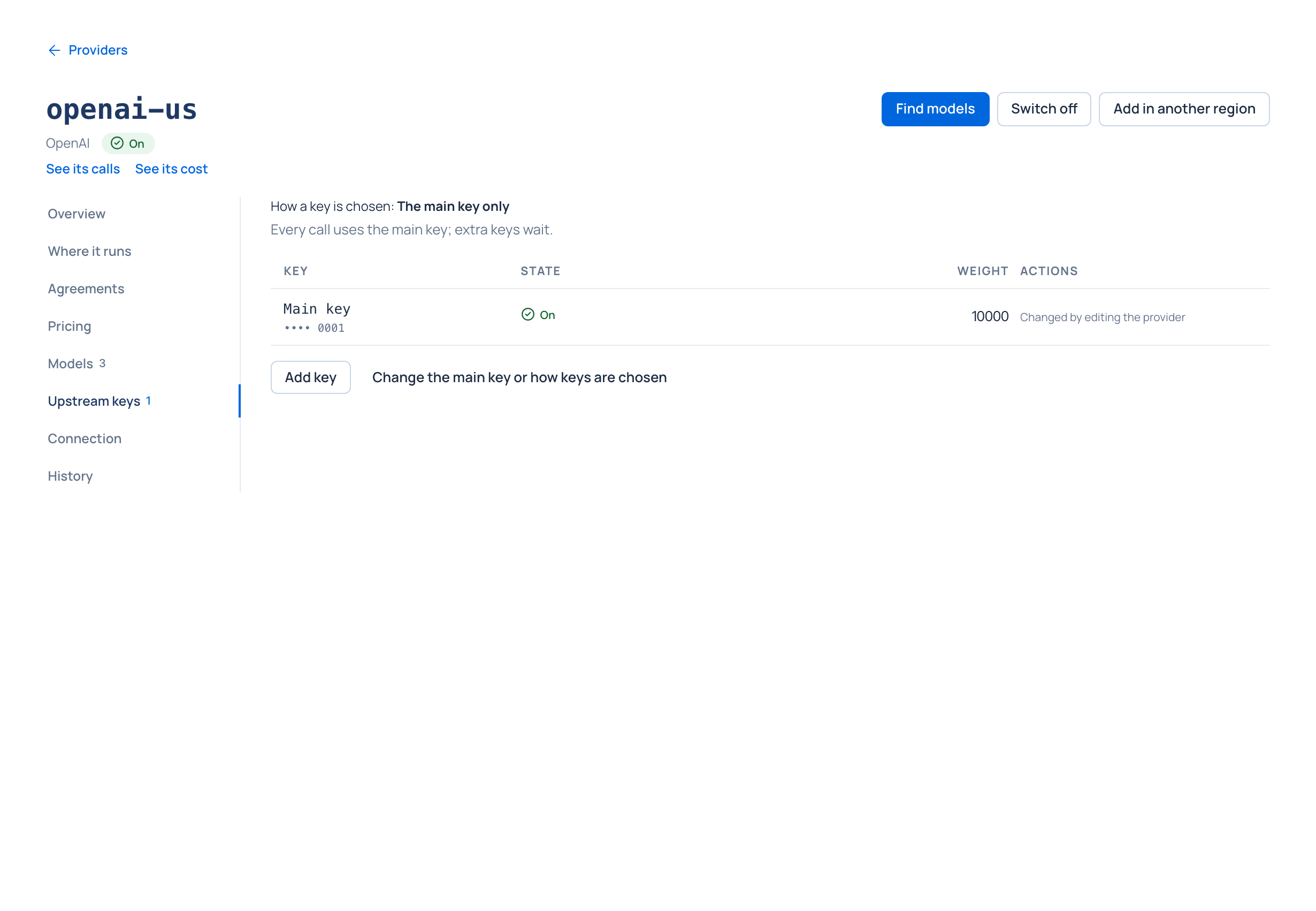
- Open the provider and its Upstream keys section.
- Choose Add key: a name of your own (for example
backup), the new key, and a Weight (it starts with the main key's, so they share calls equally). - Check calls are served with it: each answer's
x-vidai-provider-keyheader names the provider key used (its name, never the secret). - Choose Make main key on the new key. Switch on Remove the old main key to drop the old one in the same step, or keep it as an extra key until you've revoked it at the provider.
Steps: split calls across keys
- In Upstream keys, choose Change the main key or how keys are chosen.
- Under How a key is chosen, choose Each key in turn, A key at random or By weight.
- With By weight, each key's Weight (a whole number from 0 to 10000) is its share: the list says, for example, "10000, about 50% of calls".
Use extra keys to replace a key without a break, or to split calls between projects at the provider.
When a key is out of service
When the provider refuses a key or rate-limits it, the gateway takes that key out for a while and the provider's other keys carry its calls. In Upstream keys it reads Out of service, with why, in words:
- the provider refused the key (401 or 403): it may need replacing, so rotate it as above;
- the provider said too many requests (429): this passes by itself.
Beside it, Tried again at says when the gateway tries the key again, and with more than one gateway instance, on how many it's out ("Out on 1 of 2"). Home's Needs attention says the same, with when it's tried again ("in 5 minutes"), and Check its keys. A key you switched off yourself reads Switched off instead.
Steps: change the connection
- Open Connection and choose Change the connection.
- Change what you need:
- Address: a new address needs the API key again (stored keys never go to a new address); remove any extra keys first.
- New main key: leave it empty to keep the current one.
- How usage is read, and the API version (Azure OpenAI).
- AWS credentials (Bedrock): an access key id and secret, temporary credentials with a session token, or the gateway's own AWS credentials. Give a New AWS session token before temporary credentials expire.
- Files API and batches and Responses API: Served, Not served, or The gateway's default for its kind.
- Save, then choose Test connection to check the saved address and key now.
Check it worked
Test connection says the connection works and how many models the provider lists. The provider's Overview shows its last check, and its History records the change and the test.
Related
Good to know
- Extra keys don't add capacity: providers set their limits per organisation, project or deployment, not per key.
- Remove stops the gateway using a key at once.
- A provider keeps its name and kind of API for good; to use another kind, add another provider.
- If someone else saved the provider while you were changing it, the form asks you to Reload and make your change again.