See and end your sessions
Left yourself signed in on a shared computer, or lost a laptop? See every device where you're signed in, and end any of them from here at once. That device needs your password to get back in.
Before you start
Anyone signed in.
Steps
- Open the menu under your name and choose Your account, then the Sessions tab.
- Under Where you're signed in, each device shows its browser (for example "Firefox on macOS"), the address it connects from, when it signed in and when it was last seen. This device comes first.
- Beside the device to end, choose Sign out, then Sign out again to confirm.
- With two or more other devices, Sign out on every other device ends them all in one go.
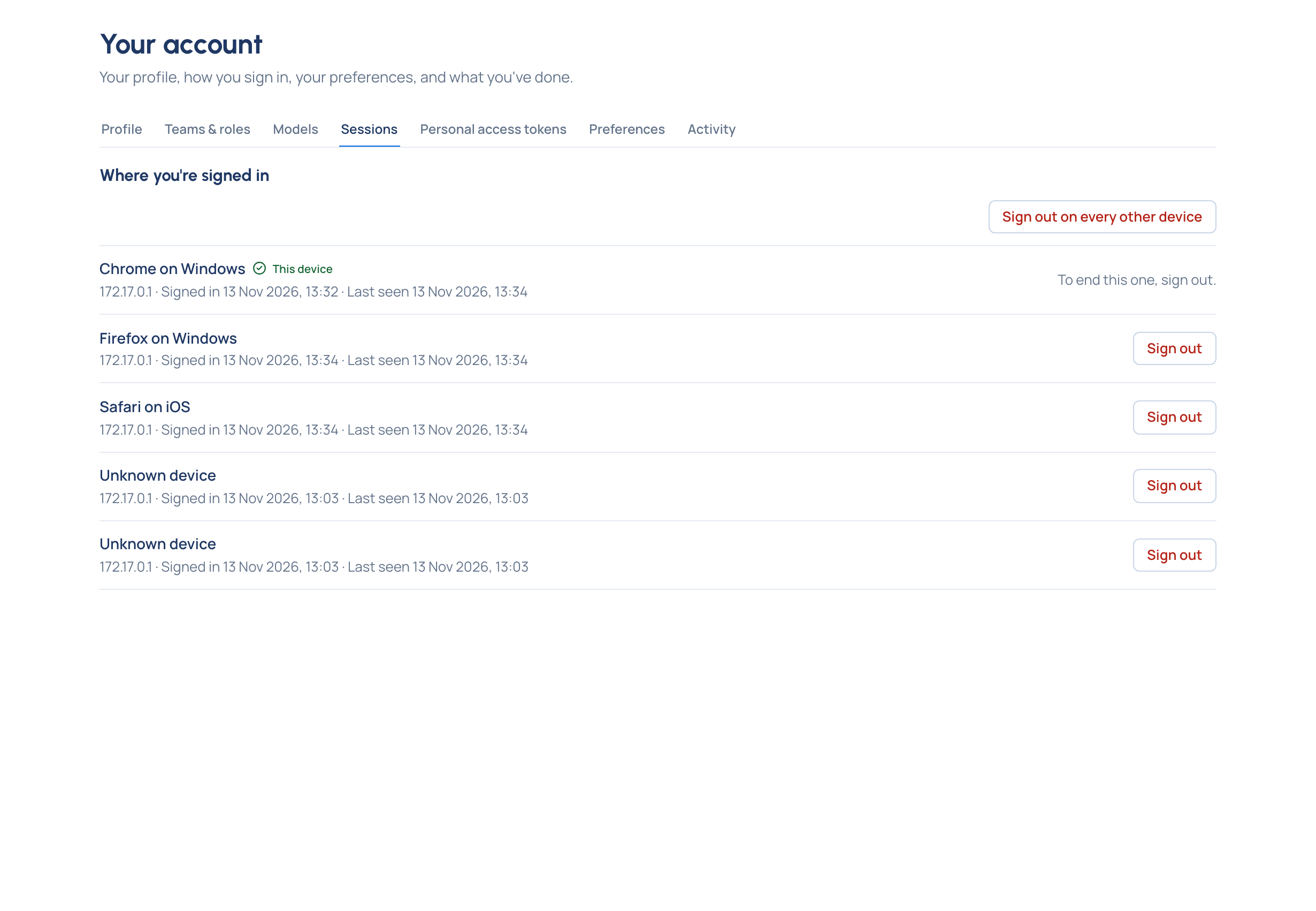
To end this device's session, sign out from the menu under your name.
Check it worked
The page says "Signed out on …" with the device's name, and the device leaves the list. Whoever uses it next is asked to sign in.
Good to know
- Changing your password, or turning on multi-factor sign-in, signs you out on your other devices too.
- An organisation admin can sign you out everywhere from your page on People, for example after a lost laptop.
Related
- Change your password
- Sign in: why a session ends and what the sign-in page says.
- See your activity: your sign-ins and failed sign-ins.
- Reset someone's password or multi-factor sign-in