Accept an invitation and sign in for the first time
An admin added you to the Control room. Accepting sets your own password (or links your company sign-in), so only you can get in, and nobody else ever needs to know it.
Before you start
You have one of these from an admin:
- An invite link, by email or handed to you. It works once, for 7 days.
- A temporary password, handed to you. It works until you replace it.
If your organisation asks for multi-factor sign-in, have an authenticator app on your phone.
Steps
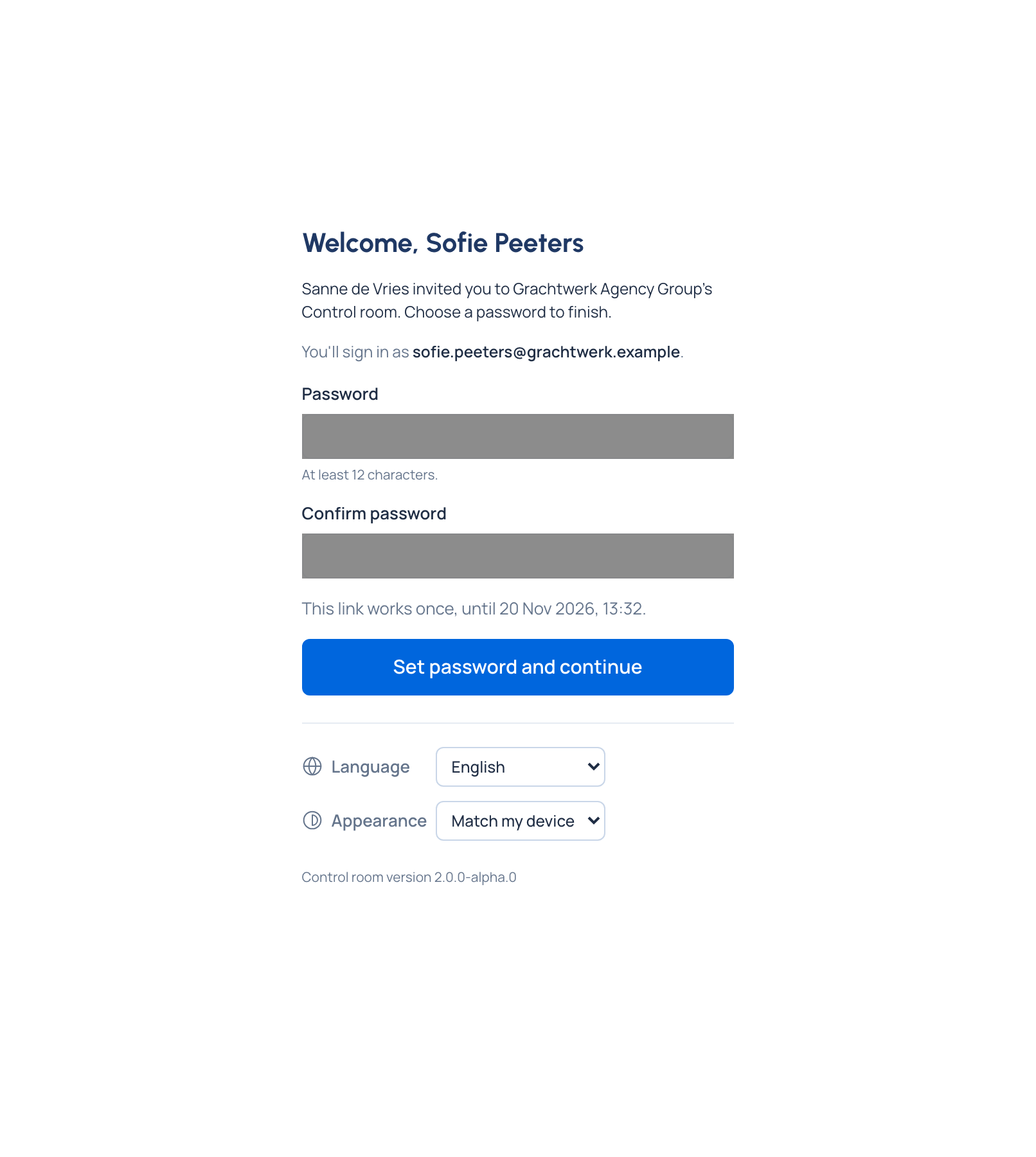
- Open the link. The page greets you by name ("Welcome, Sofie"), says who invited you and to which organisation, and shows the email you'll sign in with.
- Type a Password of at least 12 characters, then the same in Confirm password.
- Choose Set password and continue. You're signed in and land on Home.
- Open the Control room's address and sign in with your email and the temporary password.
- Choose a new password opens, naming the admin who gave you the temporary one. Enter the Temporary password, then a New password and the same again in Confirm new password.
- Choose Save and continue. You land on Home.
On the Enterprise edition, your organisation may sign in through its identity provider.
- Single sign-on Required: the invite page says your organisation signs in with single sign-on and offers only Continue with single sign-on. Sign in at your identity provider as the invited email; that accepts the invite.
- Single sign-on Optional: the invite offers single sign-on first, and a password below it. Either works.
If you're asked to set up multi-factor sign-in
When your organisation requires it, the next page is Set up multi-factor sign-in, and nothing else opens until it's done:
- Choose Turn on multi-factor sign-in.
- Scan the QR code with your authenticator app (on the phone itself, choose Open in your authenticator app; or type the key it shows into the app).
- Type the six-digit code the app shows in Code from your app, then choose Turn on.
- Your Recovery codes show once: each one signs you in once if you lose your phone. Keep them somewhere safe, then choose Done.
- Choose Continue. The rest of the Control room opens.
If your organisation has given people until a date, you see a reminder with that date instead, and can set it up from your account in the meantime: Turn on multi-factor sign-in.
Check it worked
You're on Home, and your name is on the account menu at the top right. From now on, sign in with your email and your new password (and a code from your app, if you turned it on).
If something goes wrong
| You see | What to do |
|---|---|
| "This link isn't valid any more" | It was already used, it expired, or a newer invite replaced it. Ask whoever invited you, or an organisation admin, for a new one. If you already set your password, just sign in |
| "Use at least 12 characters." | Choose a longer password; a short phrase works well |
| "This password is too common or has appeared in a data breach." | Vidai checks every new password against known breached passwords. Choose another |
| "That isn't your current password." | The temporary password doesn't match. Check it with the admin who gave it to you |
| "You don't have an account here yet." (single sign-on) | Your identity provider sent an address that has no account or invite here. Sign in there as the email you were invited with, or ask the admin who invited you |
Related
- Your first key and request: what to do next.
- Reset a forgotten password
- Invite people: the admin's side.
- Signing in: questions