Confirm a new email address
When an organisation admin changes the email you sign in with, Vidai doesn't switch you over on trust: a link goes to the new address, and only someone who can read that inbox can confirm it. Until then, nothing changes for you.
Before you start
An organisation admin has changed your email, and your organisation has email set up. A message with a confirmation link has arrived at your new address.
Steps
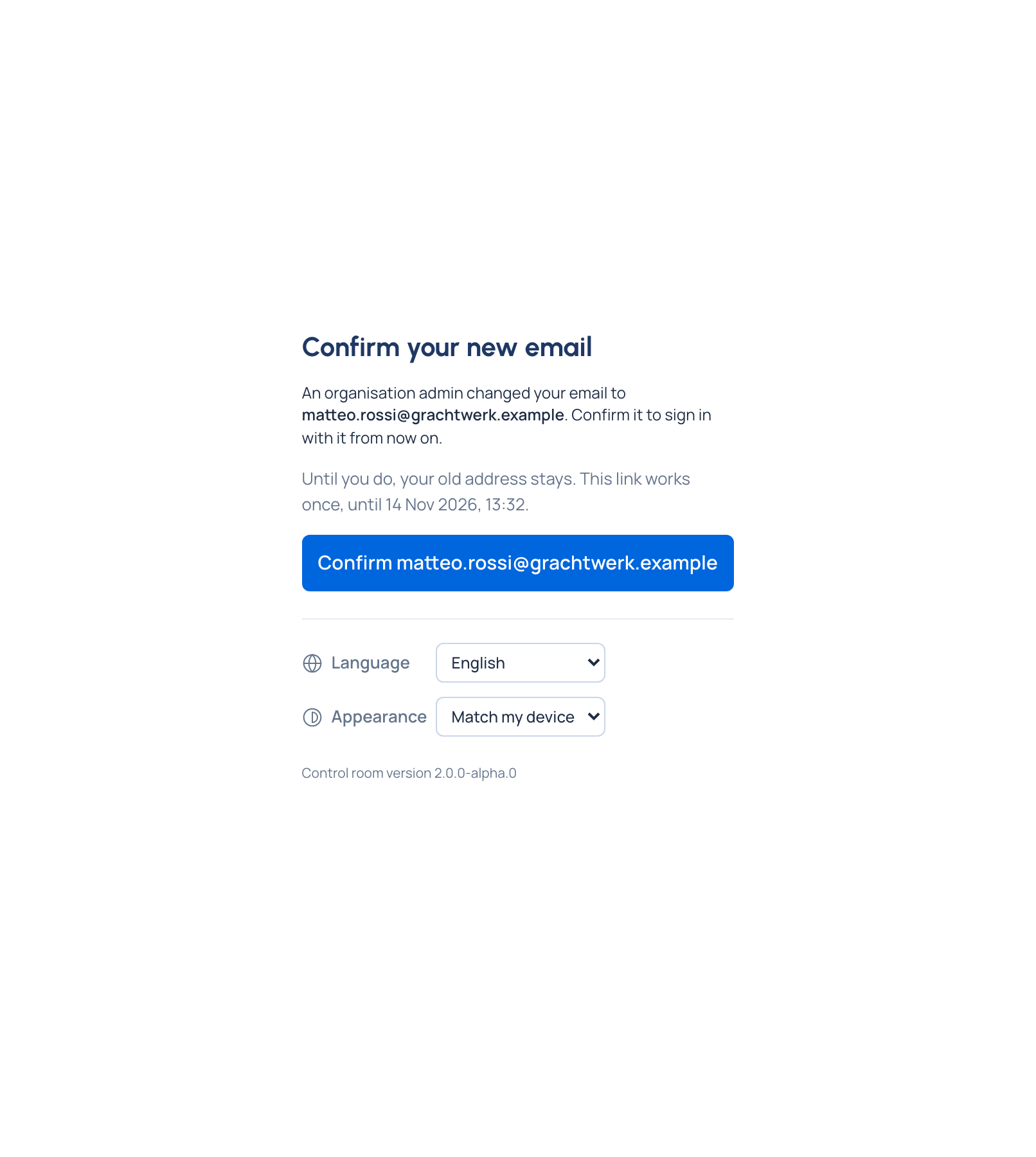
- Open the link in the email. Confirm your new email says an organisation admin changed your email, and to what.
- Choose Confirm (the button names the new address).
- Your email is changed says you sign in with the new address from now on, and that your old address has been told. Choose Go to sign in.
Check it worked
Sign in with the new address. Your account › Profile shows it.
If something goes wrong
- You haven't confirmed yet: your old address keeps working. The admin's view of you says "Waiting for … to confirm".
- "This link isn't valid any more": the link was used, has expired, or a newer change replaced it. Ask an organisation admin to change your email again; a fresh link is sent.
- No email arrived: check your spam folder. Without email set up in your organisation, an admin's change applies straight away and no link is sent.
Related
- Reset a forgotten password
- Reset someone's password or multi-factor sign-in: the admin's side.