Create an environment
A test key shouldn't run up production cost or reach production models. Environments keep them apart: each says who may issue keys there and how long those keys may live, and can carry its own region. You don't need one to start: the default environment exists from the start and is ready for everyone.
Before you start
- Everyone can read environments; only organisation admins add, change or delete them.
- default always exists, is marked Default, keeps its name and can't be deleted. At first, anyone may issue their own keys there, and agents' owners their agents' keys. You can change that, and its longest key life.
Steps
- Open Environments and choose New environment.
- Name it in lower case, like
stagingorproduction: a letter first, then letters, digits or dashes, up to 32 characters. -
Choose Who may issue keys here:
Choice Who issues keys Organisation admins Only organisation admins Group admins of the agent's team Group admins of the key's (or agent's) team, and organisation admins The agent's owners An agent's owners, and the admins above them Anyone for their own use People for themselves; agents' owners for their agents -
Optionally set Longest key life (days): 1 to 3650. Keys issued or extended here must expire within it. Empty means no limit.
- Optionally say What it's for. On the Enterprise edition, optionally Keep calls in a region: keys issued here then reach only models placed in that area.
- Choose Add environment.
Check it worked
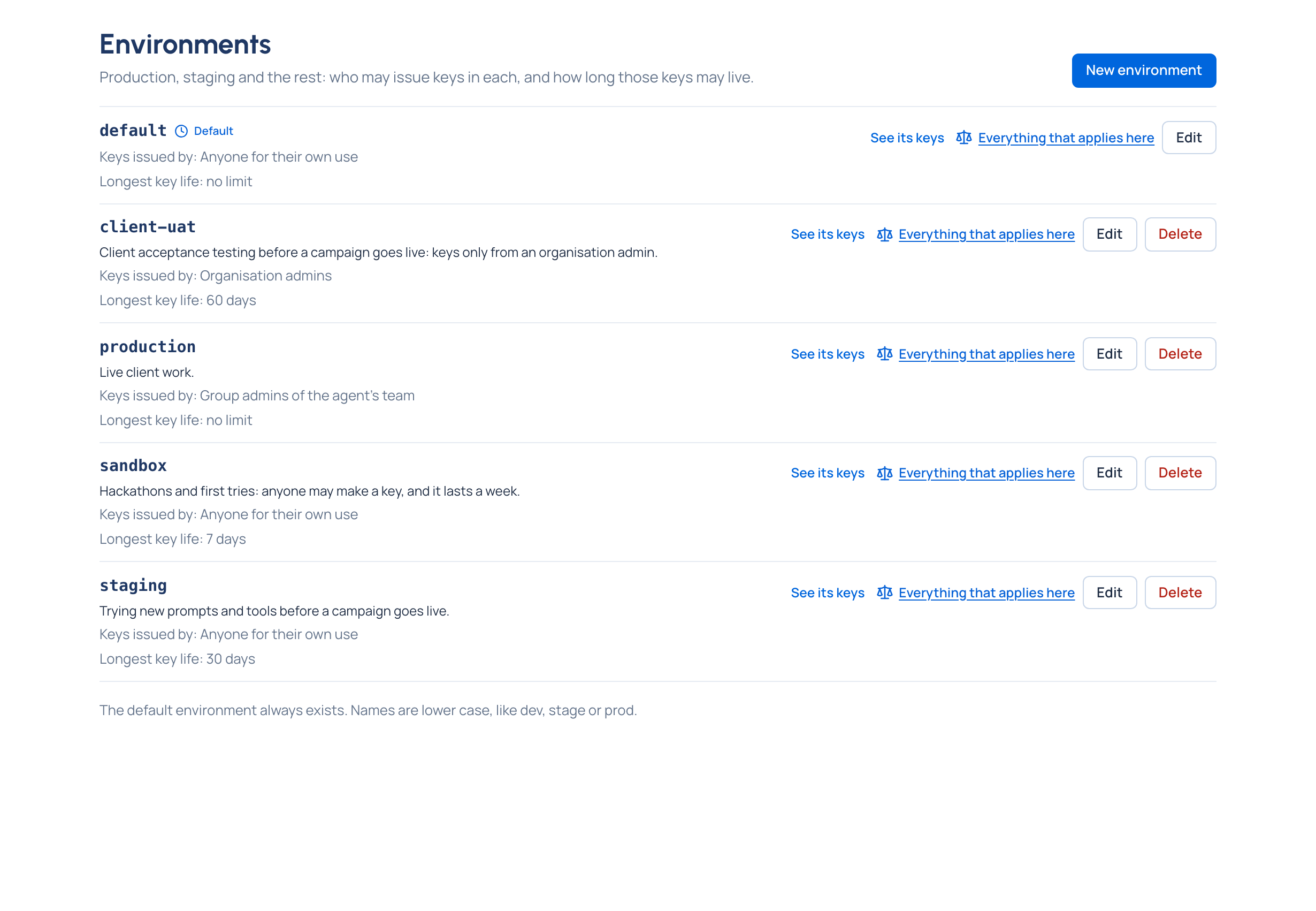
The environment is listed with Keys issued by and Longest key life. In Issue a key, people who may issue there see it offered; others see it under Environments not available, with its rule, so a stricter environment is never a surprise. See its keys opens Keys filtered to it.
Change or delete one
- Edit changes the name (not for default), who may issue, the longest key life and what it's for. Changing a region shows first which keys lose models.
- Delete removes one that has no live keys. If it still has some, the dialog says how many and names the first of them; See the keys in … opens them. Revoke or move them, then delete.
Good to know
- Each key works in one environment. An agent isn't tied to one: give it a key in each environment it runs in.
- Moving a key between environments replaces its secret: see Move a key to another environment.
Related
- Issue a key
- Give an agent a key
- Concept: Environments