Name your organisation and set its time zone
Purpose: a month that ends at midnight in Amsterdam shouldn't end at 01:00 because the server runs on UTC. Set the organisation's time zone once, and every cost period, budget, billing lock, review date and dashboard counts days the way your finance team does. Set its name, and people see it beside Control room, on Home and in every email.
Before you start
- You're an organisation admin.
- If billing periods are already locked, know that locked days never move (see below).
Steps
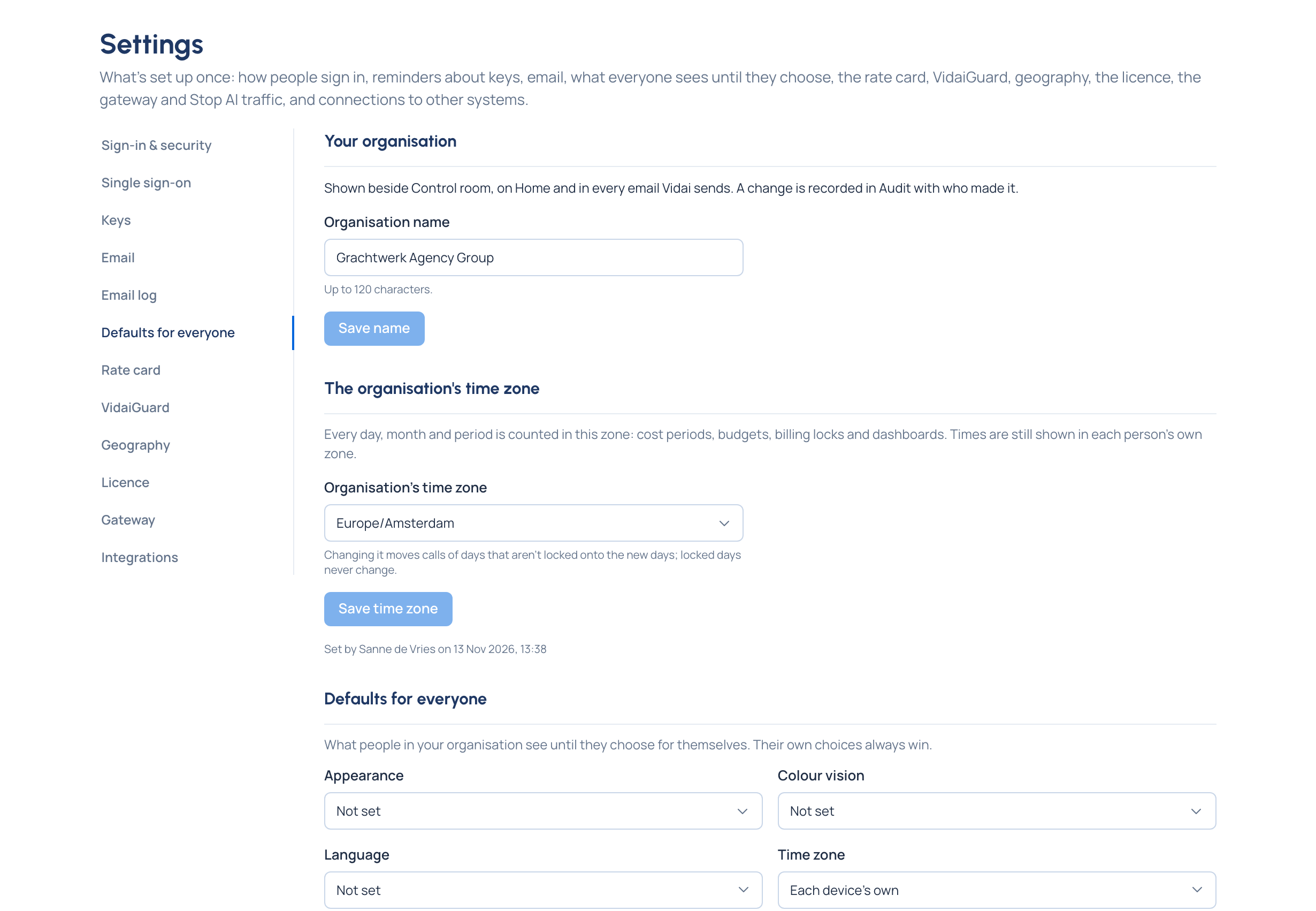
- Open System › Settings › Defaults for everyone.
- Under Your organisation, change Organisation name (up to 120 characters) and choose Save name.
- Under The organisation's time zone, open the list and type to narrow it: each zone shows its offset now. Choose your zone, for example Europe/Amsterdam.
- Choose Save time zone.
Check it worked
- The new name shows beside Control room for everyone at once, and emails use it.
- The top bar shows the organisation's day and zone for everyone, for example "Mon 2 Nov · CET" (on a phone, the zone only).
- Under the time zone, the page says who set it and when.
Good to know
- Times are still shown in each person's own zone; only days, months and periods follow the organisation's.
- Changing the zone moves calls of days that aren't locked onto the new days. Locked days never change.
- The zone starts as UTC.
- An authenticator app keeps the organisation name it was set up with.
- Both changes are recorded in the audit log, with the name before and after.