Add a provider
Purpose: give the gateway a provider to call, whether a public API (OpenAI, Anthropic, Mistral, Google), a cloud deployment (Azure OpenAI, AWS Bedrock, Google Vertex AI) or your own machines (Ollama, any OpenAI-compatible server). Vidai says where it will run and how its models will be priced before you save, so data residency and cost are right from the first call.
Before you start
- You're an organisation admin.
- You have the provider's API key. For a regional address (OpenAI's EU region, for example) the key must be made for that region. AWS Bedrock signs in with AWS credentials instead of a key.
Steps
- Open Models & routing › Providers and choose Add provider.
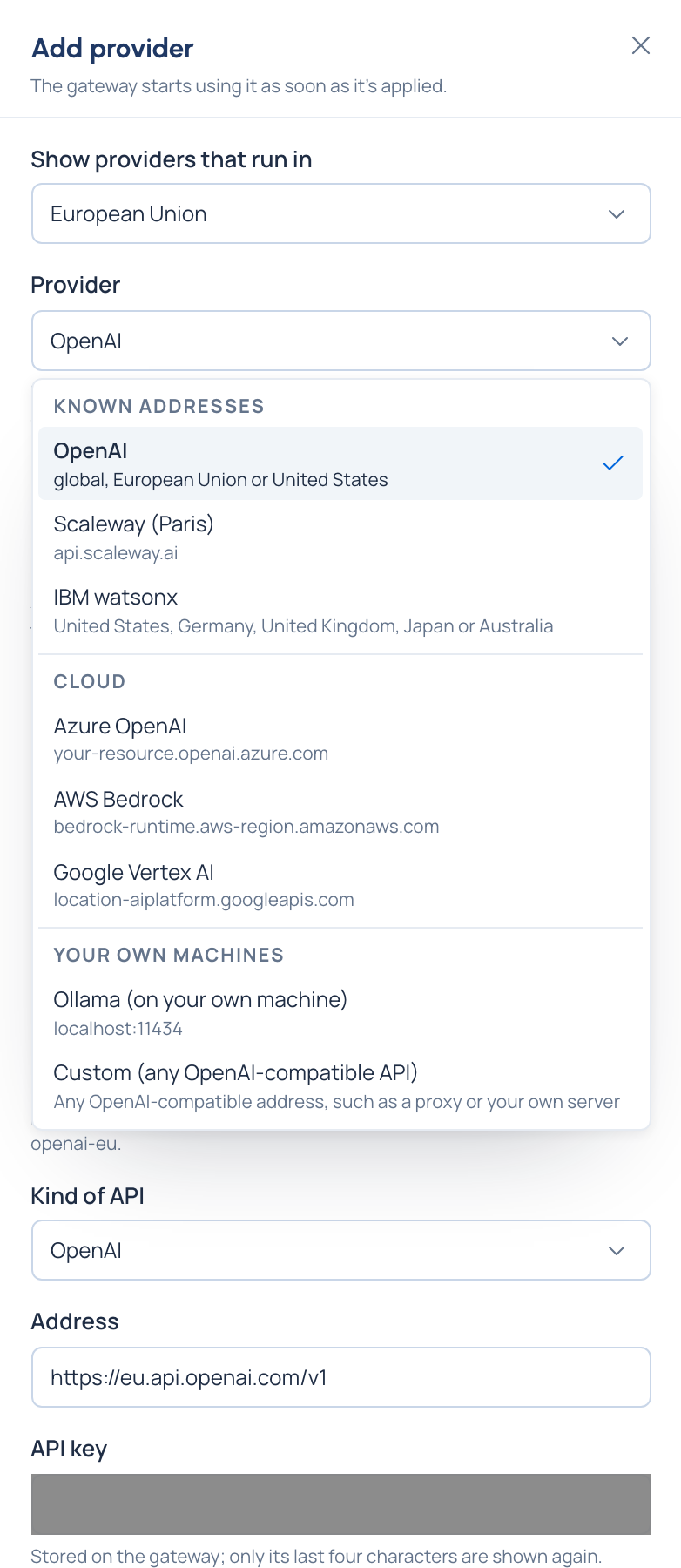
- Under Show providers that run in, leave Anywhere or choose an area such as European Union. Only providers that can run there are listed, and the ones left out are named under the list.
- Under Provider, type to search or open the list. It's grouped into Known addresses, Cloud and Your own machines, and each entry says where it can run (for OpenAI: "global, European Union or United States"). Picking one fills in the kind of API, the address, how usage is read and a name. Choose Custom for any other OpenAI-compatible address.
- Region (for providers with more than one): each region becomes a provider of its own, with its own models. To add several at once, tick the regions and give the key once: Vidai tests the key on each region's address and adds only the regions where it works, saying Added or why not beside each.
- Check Name, Kind of API, Address and API key. For the clouds the address is built from its own fields: Azure's Resource name, Vertex AI's Google Cloud location and Project ID, Bedrock's AWS region.
- Choose Test connection (OpenAI, Anthropic, Gemini and Azure OpenAI kinds). Nothing is saved; the key is never shown. It says whether the connection works and how many models the provider lists, or what's wrong, in words: the key isn't accepted, the address can't be reached, or the address answers like another kind of API.
- Read Where it will run. For a known address Vidai works it out, for example
eu · European Union (worked out by Vidai). For anything it can't work out (Custom, Ollama, your own server) give a Location in your own words and the Area its data is processed in. To decide it yourself for a known address, switch on Set it myself now and say why. - Priced from: leave Work it out from its kind, choose a provider on the rate card, or Not priced.
- How a key is chosen: the main key only, each key in turn, a key at random, or by weight. Extra keys are added later, on the provider's page.
- Leave Find models now ticked when the provider can list its models, and choose Add provider (or Add 3 providers when you ticked several regions).
Check it worked
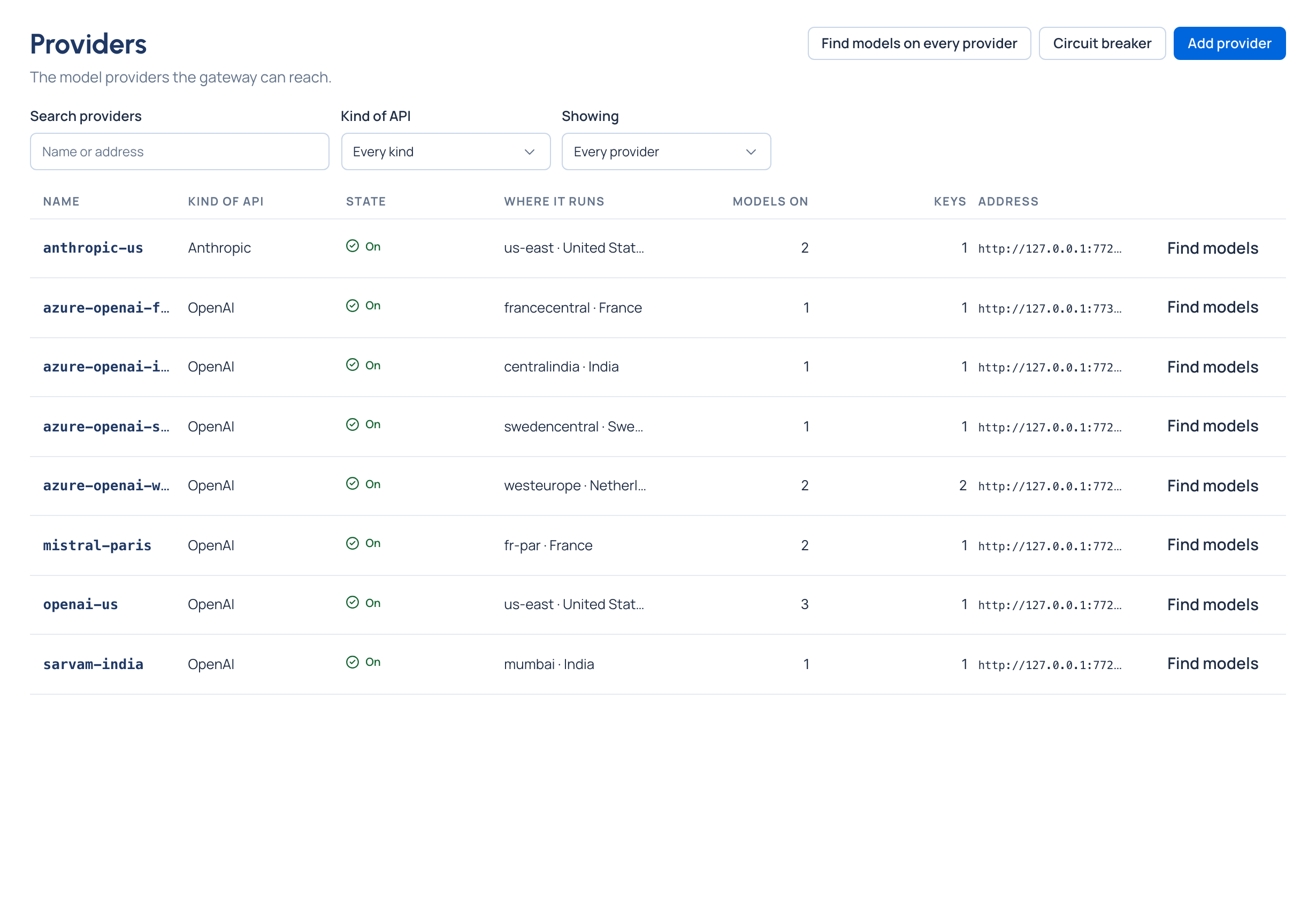
The provider's page opens and says it was added, with any warnings (for example Not priced). With Find models now it opens on Models and follows the search; otherwise it offers Find models and adding models by hand. The provider is listed on Providers with its state On and where it runs.
If something goes wrong
- Saved in Vidai, but the gateway refused it: Vidai keeps the provider so you can fix it. Check the address with Change the connection, or Delete it.
- The region doesn't match the provider's address: change the AWS region or the address.
- A provider with this name already exists: choose another name.
- Couldn't connect to the address: the test runs from Vidai's own network, and the gateway may reach addresses it can't (a private network, for example). Find models, which the gateway runs, is the better check there.
Related
- Find a provider's models and switch them on
- Say where a provider runs, or add it in another region
- Manage a provider's keys and connection
Good to know
- Anthropic and Google AI Studio have no EU address: in the EU, reach Claude through AWS Bedrock and Gemini through Google Vertex AI.
- A known address you place somewhere other than its preset is added as your own setting, with
-customon its name, and Vidai warns that it can't check where it really runs. - Azure OpenAI's test checks the address and key only: Azure lists what a resource could deploy, not its deployments, so you add each deployment as a model by hand.
- Bedrock and Vertex AI can't be tested before adding; the form says so.
- Bedrock with no access key uses the AWS credentials in the gateway's own environment; temporary credentials need a new session token before they expire.
- The gateway translates between request formats, so apps keep their SDK whichever address you choose: the address decides where data is processed and how models are listed.