Sign in
Sign in once and you land where you meant to go: Home, or the page someone sent you a link to. If a session ends while you're working, the sign-in page says why and takes you straight back to that page afterwards, so nothing has to be found again.
Before you start
You have an account here: an admin invited you, or gave you a password. You know the Control room's address.
Steps
With a password
- Open the Control room's address. The sign-in page opens.
- Type your Email and Password, then choose Sign in.
- If you use multi-factor sign-in, the page asks you to Enter your code: type the 6-digit code your authenticator app shows for Vidai Control room and choose Continue. Spaces don't matter. Lost your phone? Choose Use a recovery code instead and type one of the codes you saved.
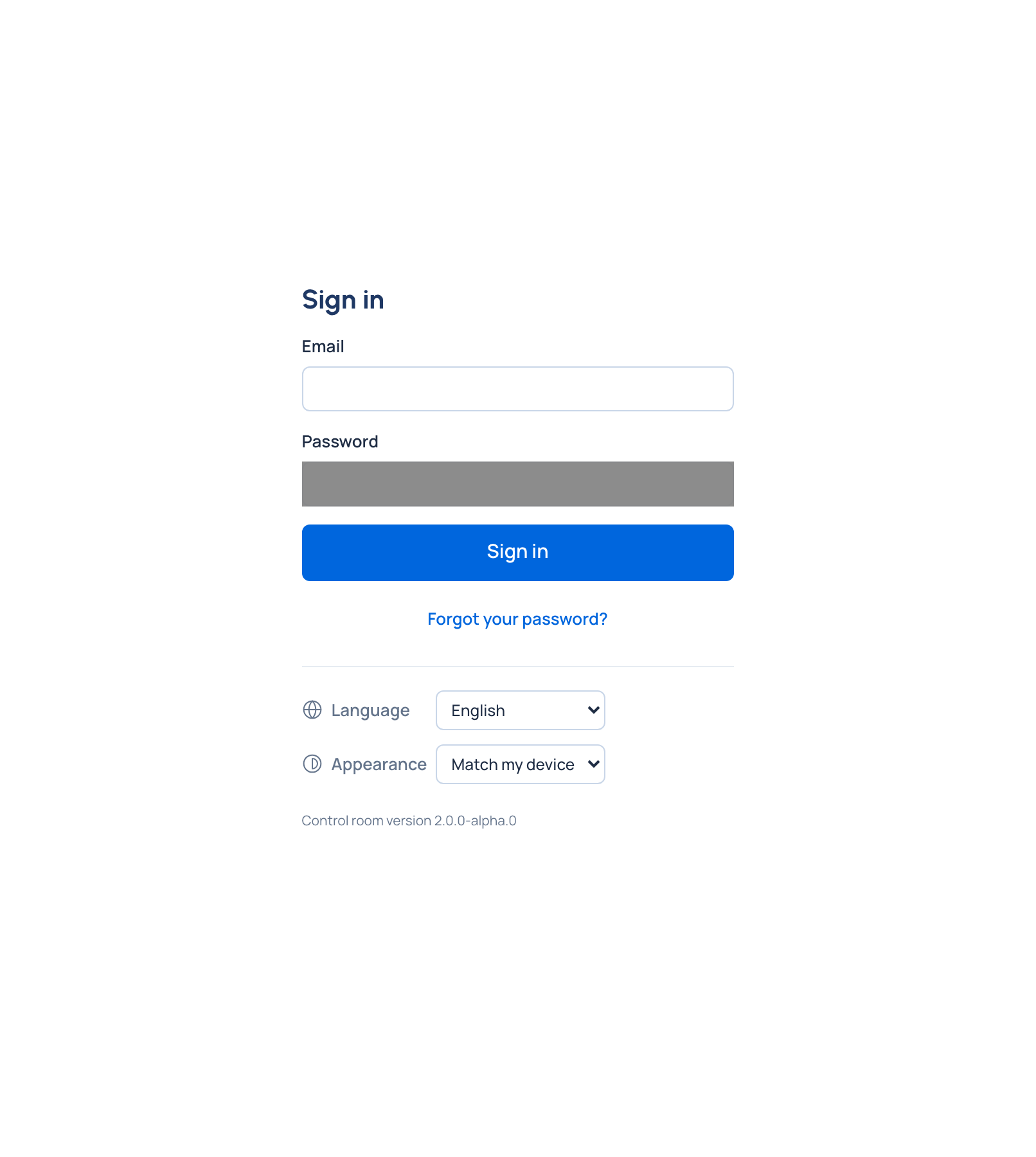
Two things can come first:
- A temporary password. If an admin gave you one, the page Choose a new password opens before anything else. See Change your password.
- Multi-factor sign-in required. If your organisation requires it and you don't use it, Set up multi-factor sign-in opens, and the rest of the Control room opens once it's on. See Turn on multi-factor sign-in.
With single sign-on Enterprise
Single sign-on is part of the Enterprise edition; what Enterprise includes depends on the features your licence includes. Where your organisation has switched it on:
- Choose Continue with single sign-on at the top of the sign-in page. Your organisation may have named it after its provider, for example Continue with Okta.
- Sign in at your company's identity provider. You come back signed in, on the page you were opening.
While single sign-on is optional, the email and password form stays below the button. When it's required, the page says "Your organisation signs in with single sign-on." and offers only the button. The small Sign in with a password link under it is for the emergency admin and anyone given a password exception.
The first time, as an organisation admin, the page asks for your Control room password once (and your code, if you use multi-factor sign-in) to link your account. After that, single sign-on goes straight in.
Check it worked
You're on Home, or on the page you were opening. Your name is on the menu at the top right.
Staying signed in
For your security you're signed out after a while without activity. Two minutes before, a window You'll be signed out soon counts down. Choose Stay signed in to carry on, or Sign out. Anything you haven't saved stays on the page while you decide.
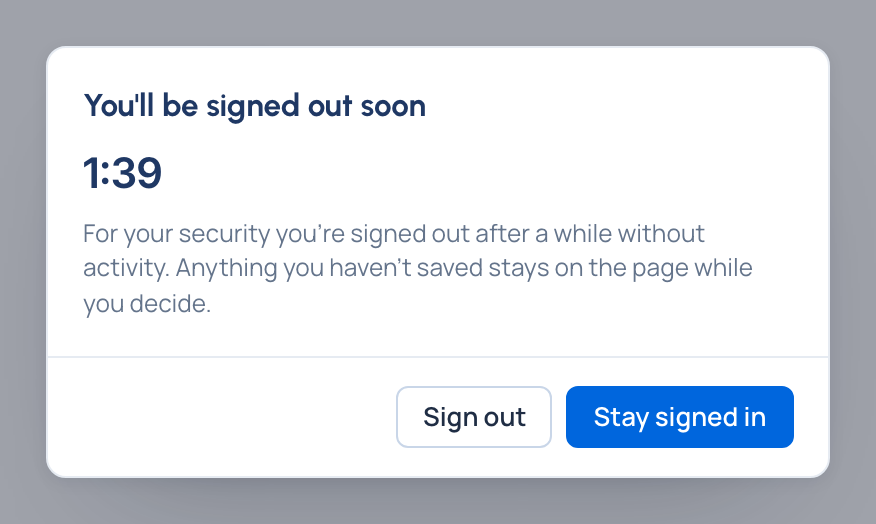
A sign-in also has a maximum length. When a session reaches it, the window says so and offers only Sign out: sign in again and you come back to the same page.
When you've been signed out
The sign-in page says why, with your email already filled in, then takes you back to where you were. The reasons:
- a while without activity, or the sign-in reached the longest time it lasts;
- you signed out, in this window or another one;
- this device was signed out from another one, or by an admin;
- your password was changed: sign in with the new one;
- your account was disabled: ask an admin if you think it's a mistake;
- your multi-factor sign-in was reset: you may be asked to set it up again;
- your organisation now signs in with single sign-on: choose Continue with single sign-on.
To sign out yourself, open the menu under your name and choose Sign out.
If something goes wrong
- "That email and password don't match." Check both. The page answers the same way whether or not the address has an account, so nobody can use it to find out who works with you.
- "Too many sign-in attempts. Try again in N seconds." Wait, then try again.
- "That sign-in took too long to finish." The code step waits only a few minutes. Type your password again, then the new code from your app.
- Forgot your password? Choose Forgot your password? under Sign in: see Reset a forgotten password.
- Single sign-on sent you back with a reason (no account here, your account is turned off, your identity provider didn't answer): see Signing in: questions.
Good to know
- Signing out ends your Control room session only. With single sign-on, Continue with single sign-on may let you straight back in, because your identity provider still remembers you.
- Before you sign in you can change the language and choose light or dark at the bottom of the page. The Control room's version is there too, to quote if you contact support.
Related
- Turn on multi-factor sign-in
- See and end your sessions: sign out a device you've left signed in.
- Reset a forgotten password
- Signing in: questions