Dashboards
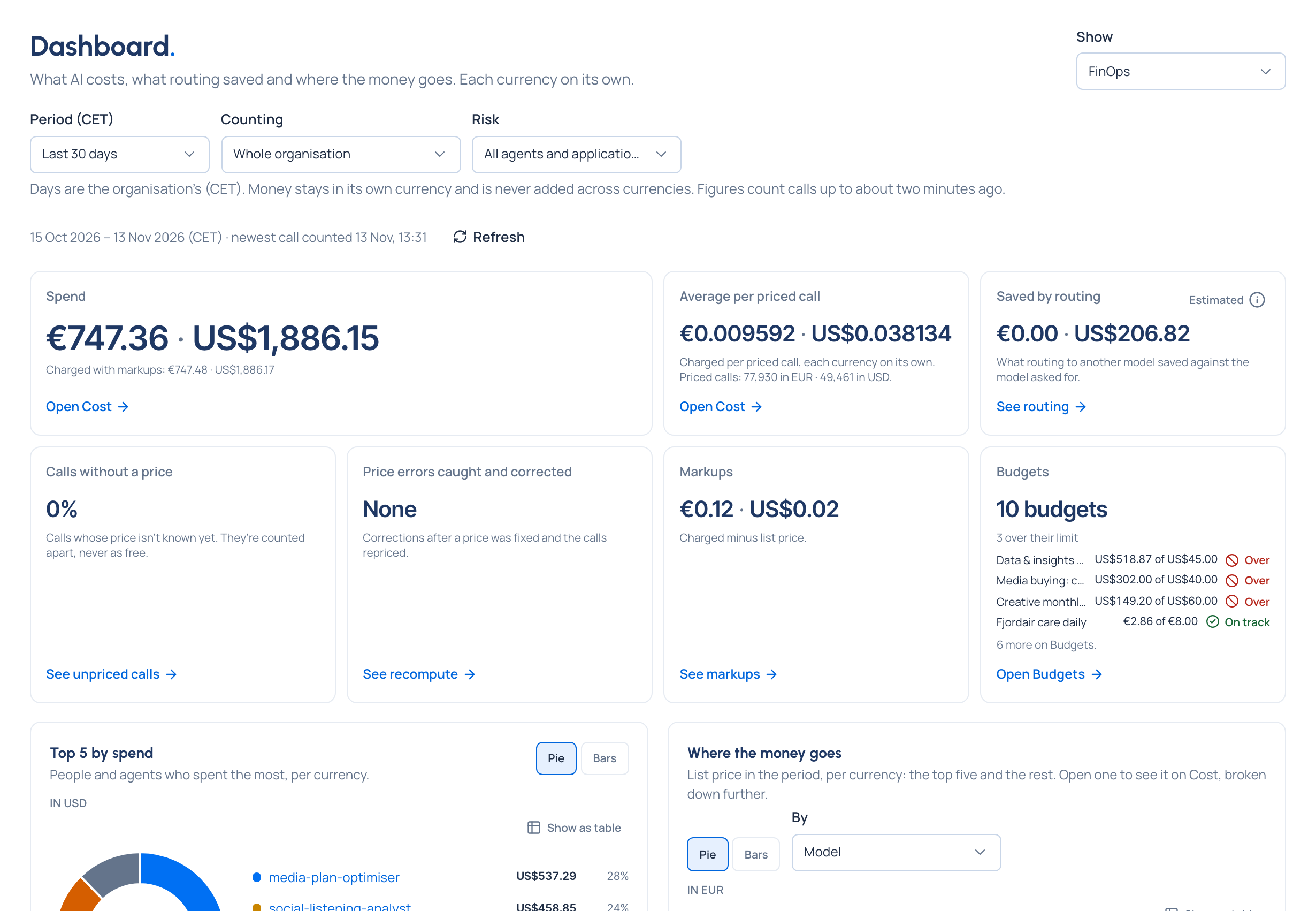
What you gain: the picture your role answers for, ready when you open it. No report to build, no query to write: the Admin, FinOps and Compliance views, and an impact report you can forward to leadership. Every figure links to the list behind it.
Open Dashboard in the menu. Show, at the top right, switches between the views you have.
| View | For | It answers |
|---|---|---|
| Admin | Organisation admins, group admins, organisation viewers | Is AI traffic healthy? What failed, what was refused, what's down, what needs attention |
| FinOps | Finance, organisation admins, group admins | What we spent, where the money goes, what routing saved, how budgets stand |
| Compliance Enterprise | Compliance officers, organisation admins, group admins | How calls were protected, where protection is in place, where findings come from |
| Impact report | Organisation admins, viewers, group admins, Finance, Compliance officers | What Vidai did this period, as outcomes you can forward |
Guides
- Read your dashboard: choose the view, period, scope and risk level, and read any figure.
- Read the Admin dashboard, including outages.
- Read the FinOps dashboard
- Read the Compliance dashboard Enterprise
- Share the impact report with leadership: CSV or PDF.
- Read Home at a glance: this month's figures and your own usage on Home.
Who sees what
| Person | Views |
|---|---|
| Organisation admin | Admin, FinOps, Compliance Enterprise, Impact report |
| Group admin | Admin, FinOps, Compliance Enterprise and the Impact report, for their own teams only |
| Organisation viewer | Admin and the Impact report: every figure, without links to the lists behind them |
| Finance | FinOps and the Impact report |
| Compliance officer Enterprise | Compliance and the Impact report |
| Everyone else | No Dashboard; their own usage is on Home |
Vidai decides who gets which view; the Control room shows what it offers. The Compliance view and the Compliance officer role come with Enterprise; what Enterprise includes depends on the features your licence includes. On Community, Show doesn't offer Compliance.