Set your first budget
A provider's invoice tells you what was spent a month too late. A budget counts every call as it's priced, tells the right people as the spend fills up, and can stop calls at the limit. In ten minutes you'll have one on a team, checked against the team's real calls from last week, with spend tracked against it from then on.
For: Finance and organisation admins (a group admin can do the same on the teams they run). You need: calls already flowing, with prices: see Try Vidai in 15 minutes or Set up your organisation. A budget counts what calls cost, so a model with no price can't be counted.
1. See what the team spends now
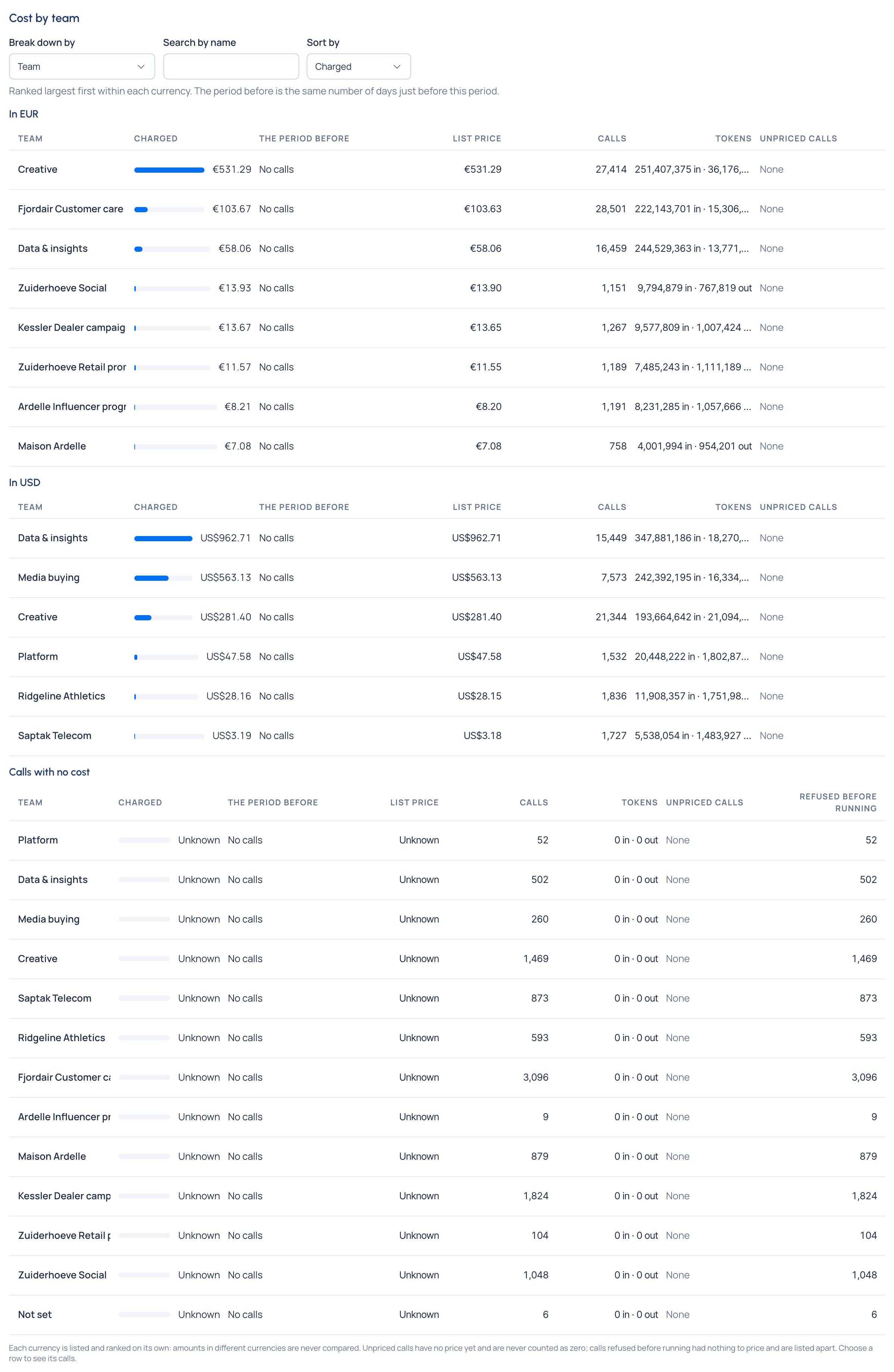
Open Money › Cost. Spend is broken down by team, person, application, agent, model and more, each currency on its own: amounts in different currencies are never added together. Pick the team you want to limit and note what it spent last month, in which currency. The details: See where the money goes.
2. Make the budget
- Open Money › Budgets and choose Limit spend.
- Why: choose the purpose, such as keeping spending within a limit, and a Name people will recognise ("Kessler Autohaus Network, monthly").
- Whose spend: Set at Team, then the team.
- How much, and how often: choose the Currency (each is offered with what was spent in it in the last 30 days),
a Limit such as
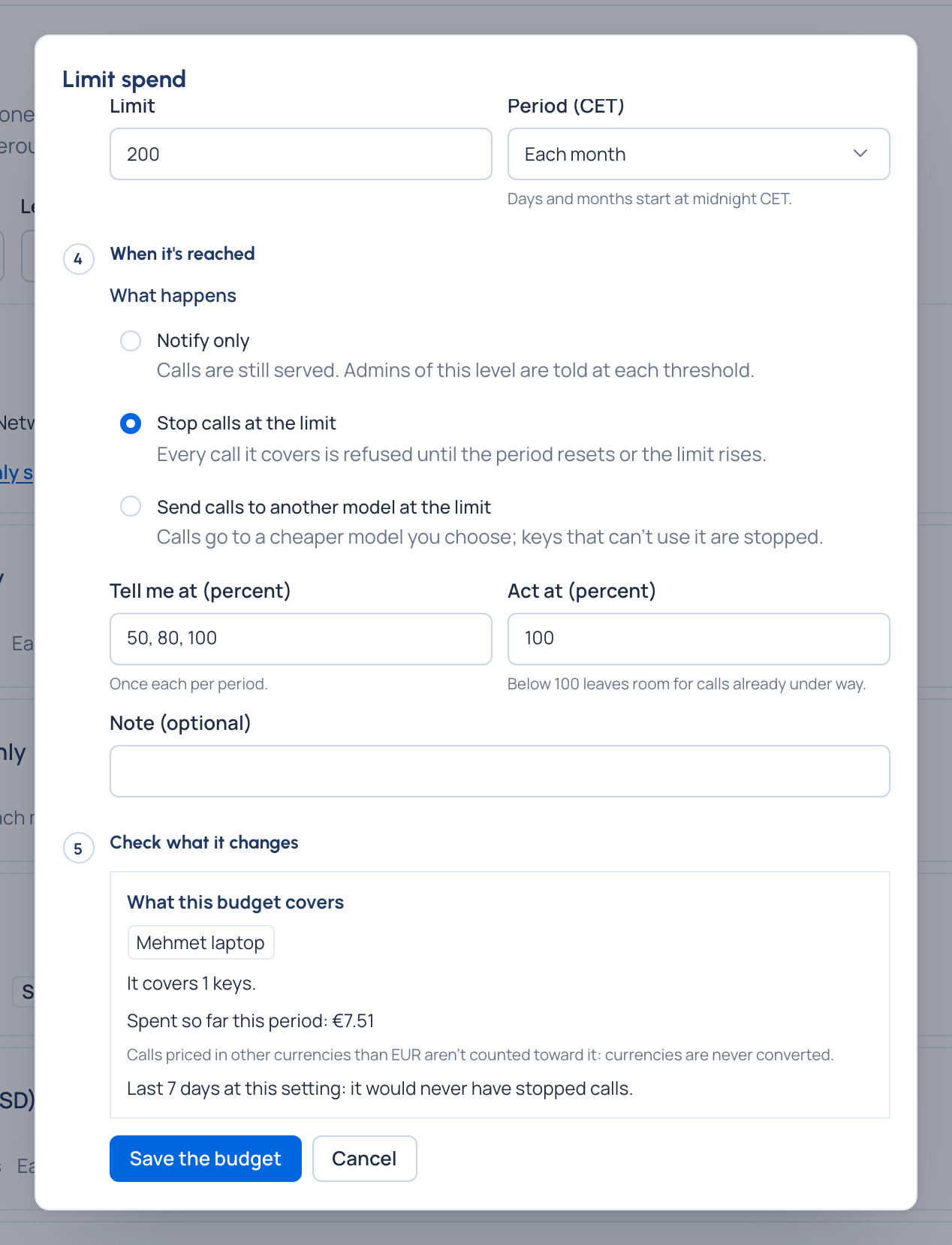
2000, and the Period, Each month. - When it's reached: for a first budget, choose Notify only. Calls are still served; people are told at each threshold. You can make it stop calls later, once you trust the numbers.
- Tell me at (percent): keep
50, 80, 100, or choose your own.
3. Check it before you save
Choose Check what it changes. Nothing is saved yet. Read:
- What this budget covers: how many keys it covers and what they've spent so far this period;
- any models with no price, which it can't count, and any spend in other currencies that won't count;
- a replay of the last 7 days: whether, at this setting, it would have been at its limit, and on which day each threshold was first met.
If last week would have reached the limit on most days, raise the limit or expect the warnings early. Change anything and it asks you to check again. Then choose Save the budget.
4. See who is told, and track it
Open the budget from Money › Budgets. Its page shows the spend against the limit ("€640.00 of €2,000.00 · 32%"), Counted up to a time (budgets are checked about every 30 seconds), and under Tells at each threshold as told or not yet. Tells: lists who is told: the organisation's admins and Finance, whoever set it up, and the admins of the teams above it.
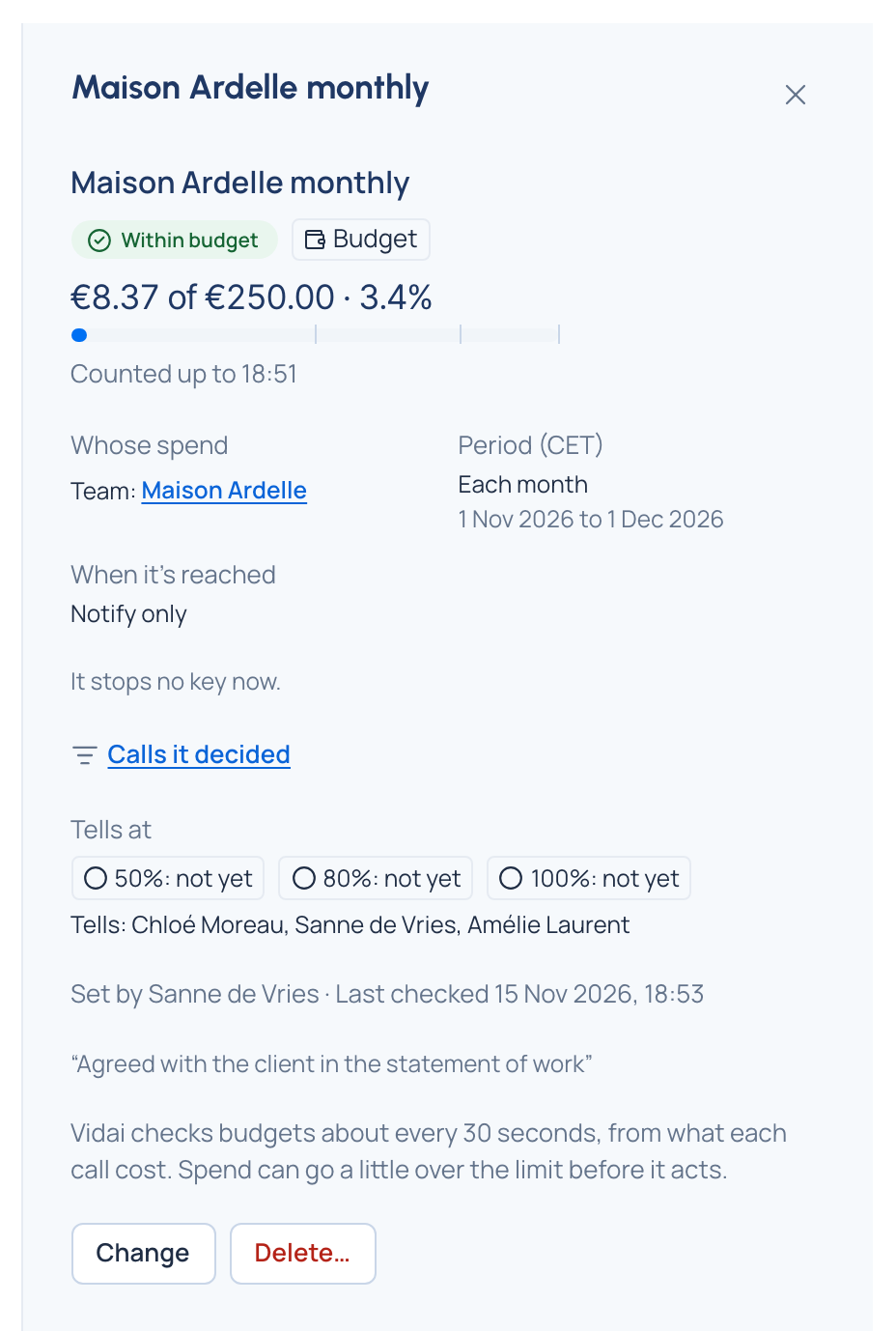
When a threshold is passed, each of them sees Budget … passed 80% in Home's Needs attention and the bell, once a period. On Dashboard, the FinOps view shows what the budgets in force have spent, per currency, with Open Budgets for each one's limit and pace.
What you have now
- A team's monthly spend limited in one currency, checked against its real calls before it was saved.
- The right people told at 50%, 80% and 100%, without anyone watching a report.
- Spend tracked against the limit as calls are priced, on the budget's page and on the dashboard.
Where to go next
- Make it act at the limit, by stopping calls or sending them to a cheaper model: Set a budget and When a budget is reached.
- Budgets on the organisation, an environment, an agent or a key at once: Budgets at several levels.
- The money picture for a period: Read the FinOps dashboard.
- Why budgets are built this way: Budgets that act.
Good to know
- One budget, one currency, one period. Where it's set, the currency and the period are fixed once saved; make a new budget to change them.
- A budget can only count priced calls. Calls waiting for a price are listed apart on Cost, never counted as free.