Users
The Users page is where humans live in the VIDAI Control Plane. Every person who logs into the console, every person who owns API keys, every person who appears as the "actor" in the audit log: they're a row on this page. Their role decides what they can do; their group memberships decide which models they can call and which guardrail policies apply; their account state (active / disabled) decides whether any of that matters today.
If you're managing automated callers (bots, scheduled jobs, integrations) those are agents, not users. They have their own page at Agents and their own application container at Applications. The two systems look similar deliberately; they share most of the underlying mechanics.
When you'd open this page
- A new colleague joins and needs control plane access. Create an account for them.
- Someone leaves the company. Disable them (and that disables all their keys too, in one click).
- An auditor asks "who has admin rights?" Sort by role.
- HR asks "this person changed teams." Update their group memberships, which automatically re-applies the new team's model access and guardrail policy.
- A user reports they can't call a model they expect to. Open their row, check the effective allowed-models list, and see which group is contributing what.
- An employee was using their personal account for an automated service. Convert that account to an agent so the audit trail matches the reality.
The page at a glance
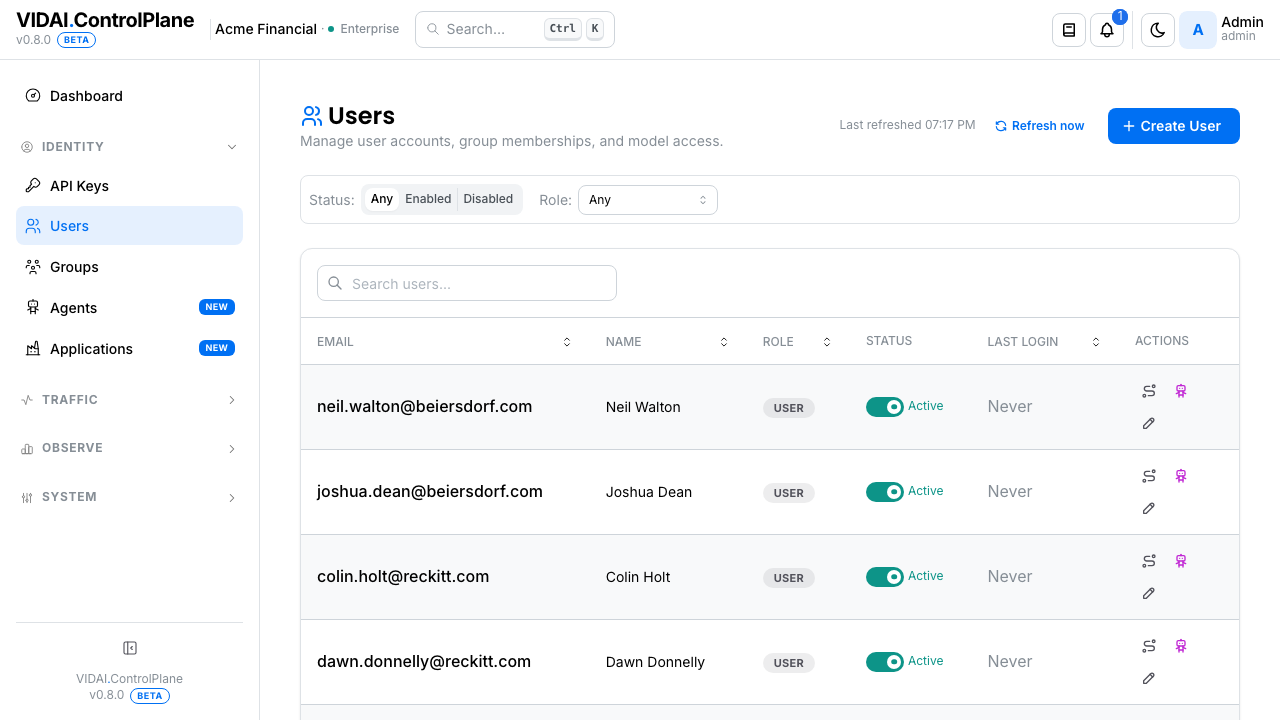
The list is paginated and searchable. Search matches across email and name and runs against the control plane (so it covers users on every page, not just the visible rows).
The columns:
| Column | What it shows |
|---|---|
| The user's email: the canonical identifier for humans. Agents land here too with a placeholder because agents don't have email by design (see Agents). | |
| Name | Display name. Optional; many rows are email-only. |
| Role | The platform role: admin, user, or bi_read_only. Agents wear an agent_principal badge (greyed because agents don't sign in). |
| Status | A toggle switch. Flipping it disables the account immediately and cascades to every API key the user owns. |
| Last Login | The most recent successful sign-in. — for users who've never signed in (typical for users created for keys-only access patterns). |
The action column has a pencil icon (open the edit modal). The edit modal is where almost all the interesting work happens.
💡 Pro tip. The inline status toggle is the everyday "make this account stop working right now" action. It's safer than delete (reversible, audit-trail-preserving) and faster than the danger-zone flow.
What you do on this page
Create a new user
- Click Create User. The user-create modal opens.
- Fill in the form:
- Email: must be a routable domain. Reserved
suffixes like
.local,.test,.example, and.invalidare rejected. - Name: optional display name. Useful in the audit
log when an email like
[email protected]doesn't speak for itself. - Role:
user(default),admin, orbi_read_only. See the role table for what each one grants. - Temporary password: they'll be forced to change it on first sign-in, so any keylogger seeing the temp doesn't matter beyond the first login.
- Initial groups: optional. Adding them to groups at creation means their effective model access and guardrail policy is applied from the first request, not after a follow-up edit.
- Click Create.
The new row appears on the list immediately. There's no email notification. Share the temporary password out of band (an in-person handoff, an internal-only Slack DM, or a one-time link from your password manager).
⚠️ Watch out. Share the temp password through a channel that isn't going to log it. Pasting into a public Slack channel, a generic team email, or a bug-tracker comment is exactly how temp passwords leak.
📌 Worth knowing. Until the user signs in for the first time, the Last Login column shows — and the user can't appear as an actor in the audit log. Once they change the temp password, they're a "real" user with full audit attribution.
Disable a user (the everyday case)
When someone leaves the team, takes parental leave, or you need to stop a possibly-compromised account fast, the inline toggle is the right tool.
- Find the row (search by email or name).
- Flip the Status toggle off.
- Done.
Three things happen at once:
- The user can't sign into the console.
- Every API key they own is disabled within seconds.
Callers using those keys start getting
401 Unauthorized. - The audit log records the change with you as the actor.
The action is reversible: flip the toggle back on and everything re-enables. The keys come back active.
💡 Pro tip. For a "person left the company, nobody's investigating" case, disable is the right first move. You can revisit later (delete, reassign, archive) once you've inventoried what they were responsible for.
Edit a user's identity, role, or memberships
Click the pencil icon on any row to open the edit modal.
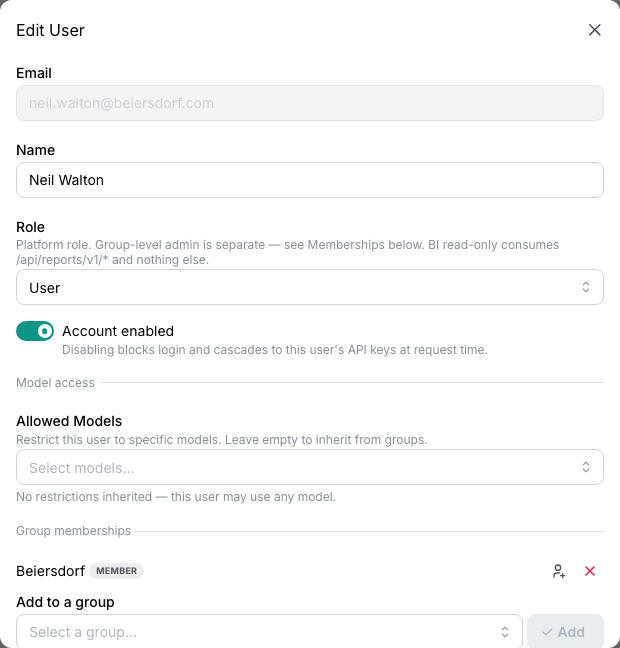
The modal has five regions, top to bottom:
Identity
- Email is read-only after creation. (Email changes break audit-log continuity; they live in your identity provider, not here.)
- Name is editable.
- Role flips between
user,admin, andbi_read_only. Changing role takes effect on the user's next request or page load. There's no "are you sure" prompt today.
Allowed Models
This decides which models the user is permitted to call. The list can be empty (meaning "inherit from groups") or populated (meaning "exactly these, regardless of groups").
The display has three states:
- Inherited (no override): shows the per-group breakdown: which group contributes which models. Effective access = intersection across all groups.
- Override active: orange "User override active" badge plus a Reset to inherited button. The override list wholesale-replaces what groups would contribute.
- No restrictions: the user has no override and their groups don't restrict either. The user can call any registered model their keys are allowed to call.
📌 Worth knowing. The override is wholesale, not additive. If you want "the group's models plus one more," set the union explicitly on the user. Listing "one more" alone removes the group contribution.
⚠️ Watch out. Narrowing a user's models also narrows what their keys can call (the effective set is the intersection of user + key allow-lists). If the user's keys reference models you're now removing, those calls start returning
403 model_not_allowed. Audit the keys before tightening.
Group memberships
Each group the user belongs to is listed with a role badge and two actions:
- Toggle role: flip between Member and Group admin. Group admin is scoped to that group only. They can manage that group's members and view group settings, but it does not grant platform admin. (See the role table below for the platform-vs-group distinction.)
- Remove ✕: remove the user from this group.
Below the list, an Add to a group picker lets you add the user to any group they're not already in.
When you add or remove a membership:
- The user's effective
allowed_modelsrecomputes immediately. - The user's effective
guardrail_configrecomputes. - Both push to every API key the user owns within seconds.
💡 Pro tip. Add users to groups at creation time rather than as a follow-up edit. The first call they make then sees the right policy from the start, instead of being denied because the policy "didn't apply yet."
Convert to Agent
Sometimes a person's account ends up running an automated service: a one-off script became a nightly job, a personal key got embedded in a deployment. Converting the user to an agent updates the row's identity model so the audit trail matches the reality.
The button opens a confirmation that explains exactly what moves:
- The row's
subject_kindflips fromhumantoagent_principal. - The user disappears from the Users list and starts showing on the Agents page.
- All their API keys carry over and are now agent-owned.
- The user can no longer sign in (agents don't have a sign-in path).
- Audit-log history is preserved.
This is reversible only via support, by re-converting an agent back to a human via the API. Don't do it lightly.
API Keys deep-link
A "View this user's keys →" link at the bottom takes you to the API Keys page filtered to this user. The keys page shows an orange "Filtered by user, click to clear ✕" chip at the top so you know you're looking at a subset.
Danger zone
Behind a Show advanced danger zone toggle. Type the user's full email to confirm before the Delete user button enables.
Deletion is permanent for the user record. Their keys don't disappear: they're reassigned to you (the admin performing the delete), and a separate switch in the danger zone controls whether those keys arrive active or disabled:
- "Disable keys before deleting" checked (default): the keys are disabled first, then reassigned. Safe; nothing keeps serving traffic on a deleted user's credential.
- "Disable keys before deleting" unchecked: the keys transfer to you still active. Use when a production service depends on a key and you'll re-assign it cleanly afterward.
After deletion, the audit log records both the user removal and the key reassignment.
⚠️ Watch out. Delete is for permanent removal (GDPR right-to-be-forgotten, true duplicate accounts). For everyday lifecycle (someone leaving, on leave, being investigated), use the Status toggle. It's reversible, preserves the user record, and keeps audit attribution intact.
Promote / demote between roles
Roles are a three-way split: user, admin, bi_read_only.
To change someone's role:
- Open their edit modal.
- Change the Role dropdown.
- Save.
The new role takes effect on their next request through the control plane and on their next sidebar render in the console (i.e. as soon as they reload the page).
📌 Worth knowing. There's no "last-admin" guard today. If you demote the only admin in the system, nobody can re-promote them through the console. (You'd have to use the admin API directly with the deployment root credentials.) Always have at least two admins before doing role changes on any of them.
Convert a user to an agent
You inherited a deployment where someone's personal account is calling the control plane from a CI pipeline. You want the audit log to say "the CI pipeline did this," not "Alice did this." Convert the row.
- Open Alice's edit modal.
- Click Convert to Agent.
- Read the confirmation. The dialog spells out what's moving (the row, the keys, the audit history) and what's being removed (sign-in capability).
- Confirm.
After the convert, Alice's row is gone from this page. She shows up on Agents. Her keys still work; the application that owns them keeps running. The audit log retains the historic attribution to "Alice" up to the moment of conversion, then attributes new actions to the agent.
If she's still actually a person (not just an automated caller), don't convert. Create a fresh user for her, and re-assign the agent-owned keys to a service-only owner.
The user-level guardrail policy is gone
You may have used an older console where you could edit a user's guardrail policy directly on this page. That surface was removed because:
- The composition rules across user / group / key are subtle (they're wholesale-replace, not deep-merge), and having the field on the user page led to admins setting policies they didn't intend.
- Most policy decisions belong at the group / application level: set the policy once on the team, and every member inherits it.
- Where a policy needs to differ for a single key (a customer-support bot allowed to discuss competitors, for instance), the key-level override on API Keys is the right place: narrow, obvious, easy to audit.
If you specifically need a user-only override, it's available via the admin API. The console deliberately doesn't surface it.
Reference
Role reference
The console has two layers of role: platform role (set on this page in the Identity section) and group role (set per-membership in the Memberships section). They're distinct.
Platform roles
| Role | Sign in? | Sees in sidebar | Can do |
|---|---|---|---|
| admin | Yes | Everything | Manage every user, key, group, application, agent. Configure providers, models, routing, fallback, guardrails, rate limits. View every page. |
| bi_read_only | Yes | Dashboard + BI Tables + Settings | Read-only access to dashboard panels and the BI Tables data exports. No edit anywhere; no other admin pages. Designed for embedded BI tools and analyst seats. |
| user | Yes | Dashboard (limited) + their own API Keys + Settings | Manage their own keys (mint, edit, disable, delete). View their own profile. Cannot see other users, cannot configure anything. |
| agent_principal | No | n/a | Internal: automated identities. Listed as agent_principal on the role badge but lives on the Agents page, not here. Cannot sign in. |
Group roles
| Group role | Scope | What it grants |
|---|---|---|
| Member | One specific group | The user inherits the group's allowed-models and guardrail policy. No admin power within the group. |
| Group admin | One specific group | Can add / remove members from this group, view the group's settings. Does not grant platform admin or visibility into other groups. |
A user can be a regular platform user but a Group admin in Marketing: they can manage Marketing's membership but can't access the Settings or Audit Log pages.
Composition: how a user's effective access is computed
Two fields compose differently. Both compute on every request, so changes propagate within seconds (no cache to purge).
Allowed models: set-intersection across groups
effective_allowed_models =
    user.allowed_models  (if user override is set)
    OR
    intersection of group.allowed_models for every group the user belongs to
    (empty list ⇒ no restriction)
If the user belongs to no groups and has no override, no model restriction applies.
Guardrail policy: wholesale-replace per top-level field
For each top-level field (rules, categories, excluded_rules, etc.):
    if user sets it → user wins, group(s) ignored for that field
    else if any group sets it → group wins (most-specific group wins on conflicts)
    else → system default
The merge is shallow. If a user explicitly sets
rules: [X], the group's rules: [Y, Z] is replaced
entirely, not unioned in. This is on purpose: when an
admin says "rules: [X]" on the user, they mean exactly
those rules.
💡 Pro tip. The edit modal's Allowed Models section shows the per-group breakdown when no override is set, so you can see at a glance which group is contributing what.
Action menu / inline actions
| Action | Where it lives | Effect |
|---|---|---|
| Status toggle | Inline on the row | Disable / enable. Cascades to all owned keys. Reversible. Audit-logged. |
| Edit | Pencil icon | Opens the modal. Identity, role, allowed-models, memberships, convert, danger zone. |
| Convert to Agent | Inside edit modal | Flips subject_kind to agent_principal. Row moves to the Agents page. Reversible only via support. |
| Delete | Inside edit modal → danger zone | Permanent. Keys reassign to you; switch controls active vs disabled. |
What gets written to the audit log
Every action on a user is logged:
- Create: actor, new user's email, role, initial groups.
- Edit: actor, before/after of every changed field.
- Status toggle: actor, new state, list of cascaded key changes.
- Add / remove from group: actor, group, role.
- Convert to Agent: actor, target user, before-state.
- Delete: actor, target user's full row at time of deletion, list of reassigned keys, whether they were disabled in the same operation.
Audit Log shows these.
Common questions
I disabled a user but they're still in the audit log as the actor of recent events. Why?
Audit-log attribution is "who was the actor at the time of the event." Disabling the user stops them from performing new events; it doesn't rewrite history. Every event from before the disable is still attributed to them, which is what you want for forensic accuracy.
A user has empty Allowed Models and no group memberships. Does that mean they can use anything?
Yes. With no override and no groups contributing a restriction, the effective set is "no restriction": the user (and their keys) can call any registered model. If you want a restrictive default, put the restriction on a group and add new users to that group at creation time.
Adding a user to a group that restricts models: do their existing keys still work?
Their existing keys are still authoritative for as long as their
allowed_modelslists the model. The restriction is the intersection of user + key; tightening the user side narrows what the key is allowed to do, even if the key's own list is wider. Existing keys keep working for any model that's still in the new effective set; calls to models the new intersection doesn't permit start failing with403 model_not_allowed.The Last Login column shows "—" but I know this user signed in last week.
The Last Login field updates after a successful password-based sign-in. SSO sign-ins (if your deployment uses SSO) update it the same way. If the user was created very recently with a temp password they haven't changed yet, the — is correct: the first password change is recorded as the first login.
Can I bulk-add many users to a group?
Not from the console today. The admin API supports it (the
add-membersendpoint takes a list of user ids). If you need to onboard a batch (an SSO sync, an HR import), use the API or speak to your VIDAI support contact.What happens to a user's request history when I delete them?
Request log entries reference users by id and by a denormalised owner-email at the time of the request, so deletion doesn't break historical lookups. The Request Logs page still shows the deleted user's email next to their old requests.
Can a user have two roles at once?
No. The platform role is single-valued. A user is exactly one of
user,admin, orbi_read_only. Group roles are independent and can be different per group: a user can be Group admin in Marketing and a regular Member in Sales without any conflict.The convert-to-agent button is greyed out.
Two reasons: - The user has signed in recently (within the last 24 hours). Agents don't sign in; converting an actively used human account to an agent is a footgun that the console blocks until they've stopped logging in. - The user holds the platform
adminrole. Converting the only admin to an agent would lock you out. Promote a different admin, demote this one touser, then convert.My BI team needs read-only dashboard access without any keys. What role do they get?
bi_read_only. They sign in, see only the Dashboard (read-only) and the BI Tables page, and can export CSVs. They can't mint keys or change anything.
Where to go next
- API Keys: every action on a user cascades into their keys. The keys page is where you audit the cascade.
- Groups: the policy unit. Most allowed- models and guardrail decisions belong here, not on individual users.
- Agents: automated callers. The flip-side of this page; when "convert to agent" is the right move, this is where the row lands.
- Applications: the container for related agents. The application's policy is what agent-owned keys typically inherit.
- Audit Log: every change you make on this page is recorded there.