Groups
Groups are how you set policy for many users at once. A team's allowed-models list, a team's guardrail policy, a team's rate limit: all live on the team's group row, and every member inherits them. When a person joins a team, you add them to the group; when they leave, you remove them. Their effective access recomputes immediately, and their keys re-sync within seconds.
This page is for teams: collections of human users. The parallel container for automated callers is applications; they look almost identical but live on the Applications page so the two identity universes stay visually distinct.
📌 Worth knowing. Older console builds mixed teams and applications onto a single Groups page. They've been split: Groups is teams-only now. If you've used the older shape, the muscle memory transfers: same shape, half the noise.
Team can mean two things — pick the shape that fits your deployment
The Groups page is deliberately generic. "Team" is the label the console uses because it works for the widest audience, but the same rows can carry either of two narratives depending on who you sell to and who you invoice.
- Internal-team model — the group is a department of a single organisation. Every user's email is on the same corporate domain. Chargeback flows inward: Finance distributes cost back to Engineering, Data Science, Marketing, etc. Examples of groups on this shape: Engineering, Data Science, Marketing, Applied AI, Customer Support. This is the shape most enterprise deployments start with.
- Customer-of-a-service model — the group is an external
customer you invoice. Users inside each group carry the
customer's own email domain (
[email protected],[email protected]). Chargeback flows outward: you invoice each customer for what they consumed this month. Examples of groups on this shape: Procter & Gamble, HSBC, NHS England, Stripe, Cleveland Clinic. This is the shape agencies, healthtech vendors, fintech SaaS, and any AI-native reseller uses.
Both shapes use the same page, the same fields, and the same policy machinery. The distinction is entirely narrative — you name the group after what it represents in your world. The Chargeback tab picks up the same team names when it renders the "Chargeback by team" section, so the story stays coherent from group creation through the invoice line.
Mixed shape is fine too — a few groups can represent internal departments alongside groups that represent external customers. The Chargeback tab lists all of them under one section, sorted by cost; you'll read them the way you named them.
💡 Pro tip. If you're the customer-of-a-service shape, resist the temptation to nest customers under a parent "All Customers" root. The nesting adds no policy value (you don't have a policy that applies to every customer as a class) and the Tree view stops being useful. Keep customers as flat root-level groups.
When you'd open this page
- A new team forms. Create the group, set their allowed models, set their guardrail policy, add the people.
- Someone joins or leaves a team. Add or remove them from the group; their keys re-sync within seconds.
- An audit asks "what models is the Marketing team allowed to call?" The team's row tells you.
- A new compliance rule needs to apply to one team but not others. Set it on the team's guardrail policy.
- An organisation reshuffle moves a department under a bigger umbrella. Adjust the parent so the sub-group inherits the umbrella's restrictions automatically.
- A team is dissolved. Delete the group; members and keys survive, only the policy contribution disappears.
The page at a glance
The page has two views, switchable at the top:
- List: paginated table. Best for bulk operations (search, sort, scan).
- Tree: nested accordion showing parent-child relationships. Best when groups have a hierarchy you want to see at a glance.
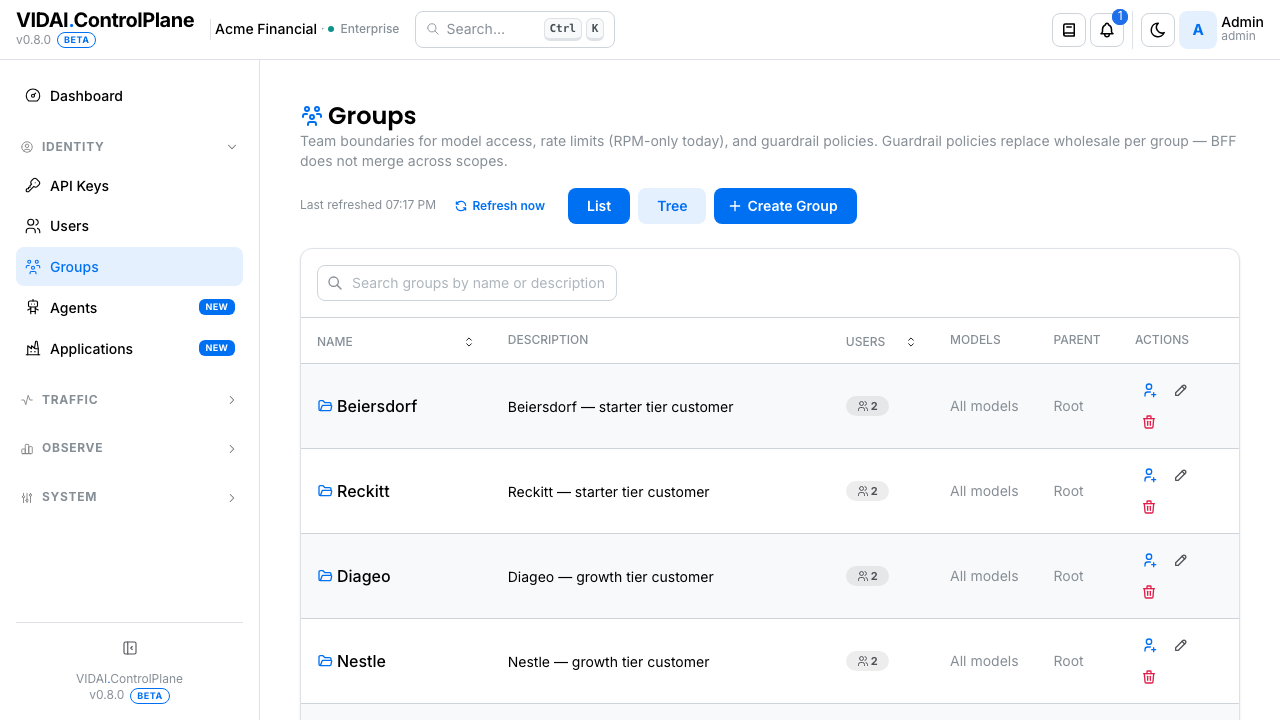
The list columns:
| Column | What it shows |
|---|---|
| Name | The team's name. Edit by opening the row. |
| Description | Free-text. Shown on the list and in the tree view. |
| Users | How many members the team has right now. Click-throughs to the Manage Users modal. |
| Models | The first two allowed models as chips, plus a "+N" if there are more. Empty = no team-level restriction. |
| Parent | The parent team's name if this is a sub-team; otherwise Root. |
Each row has three action icons: Manage Users, Edit, Delete.
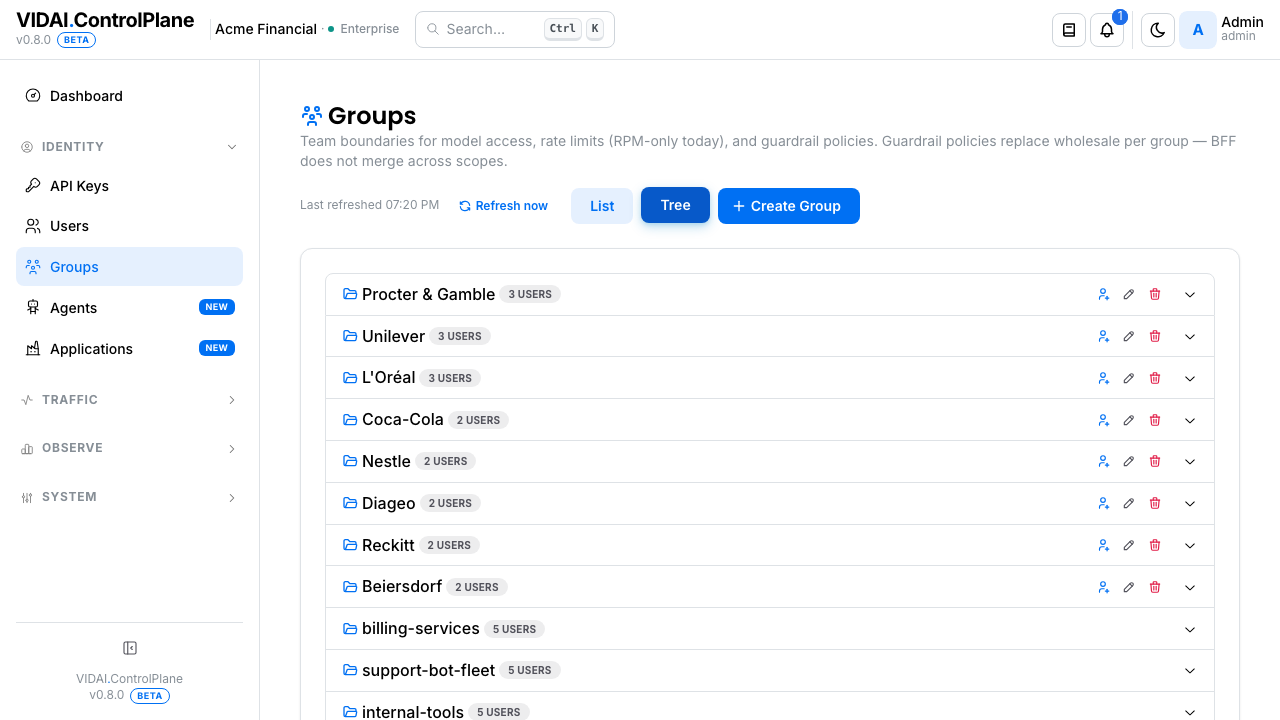
The tree view shows the same data, indented by parent → child. The same action icons sit on each node, so you can edit / manage / delete from either view.
💡 Pro tip. For routine "add this person to this team" work, the Tree view is faster: you can see at a glance whether the team is nested under a parent whose policy you'd be inheriting.
What you do on this page
Create a new team
- Click Create Group. The modal opens.
- Fill in:
- Name: up to 100 characters. Make it unambiguous in the audit log ("Marketing" beats "MKT").
- Description: optional, up to 500 characters. This is what hovering admins read when they don't remember what the team is for.
- Parent Group: optional. If you pick one, the team inherits the parent's allowed-models and guardrail policy. The child can narrow further but can't widen.
- Allowed Models: leave empty for "no team-level restriction" (members can use anything they're individually allowed). Pick a list to lock the team to a specific subset.
- Requests per minute: the team-level RPM cap, if any. The only rate-limit type the control plane enforces today is RPM. Token-per-minute caps aren't supported.
- Guardrail policy: leave the override toggle off to inherit from the parent (or from system default if no parent). Toggle on to set policy specific to this team. See Guardrail policy below.
- Click Create.
The new row appears immediately. Members see the policy on their next request through the control plane: there's no manual sync step.
💡 Pro tip. Set policy at the team level, not on individual users. Team-level policy is what makes onboarding a new joiner "add them to the team" instead of "add them to the team, then go set their allowed-models, then go set their guardrails." The team carries it all.
Edit a team
Click the pencil icon (list) or pencil on a tree node.
The edit modal mirrors the create form, with extra context:
Allowed Models: with parent inheritance display
If the team has a parent, an inheritance summary appears under the Allowed Models field showing what the parent restricts:
Inherits from Engineering:
gpt-4o,gpt-4o-mini,claude-haiku-4. This team can narrow further but can't add models the parent doesn't allow.
The composition rule is set-intersection: a child team
narrows the parent. If parent allows [A, B, C] and child
allows [B, C], members get [B, C]. If the child leaves
its list empty, members get the full parent list.
⚠️ Watch out. Leaving a child team's allowed-models list empty doesn't mean "block everything." It means "inherit the parent's list" (or "no restriction" if no parent). To enforce a specific subset, list it explicitly.
Rate limit
A single integer field, Requests per minute, for team members. Changes save immediately and re-sync to member keys within seconds.
The control plane enforces RPM at the team level by counting requests across every API key owned by every member. A member with two keys hitting the team RPM cap will see both keys throttle proportionally.
📌 Worth knowing. Token-per-minute, concurrent- request, per-provider, per-model rate limits aren't available today. The console will silently accept some of those values via the API but they're 422-rejected by the control plane and not enforced. RPM is the one to use.
Guardrail policy
Follows the same override-toggle pattern you see on API Keys:
- Toggle off (default): the team inherits from its parent (or system default if no parent). An inheritance summary tells you exactly what's in force.
- Toggle on: a wholesale editor opens. The team's config replaces the inherited config; the merge is per-top-level-field, wholesale.
The editor has four controls:
| Control | What it does | Default | Common mistake |
|---|---|---|---|
| Guardrails enabled | Master switch. Off = no guardrails fire for any team member's keys. | On | Disabling this turns off all content filtering: use only when you've decided the team genuinely shouldn't be filtered. |
| Allowed rules | Whitelist of specific rule IDs. Only these fire. | Empty | Empty does NOT mean "fire nothing": it means "no filter applied, every rule eligible." To fire nothing, turn the master switch off. |
| Blocked rules | Blacklist. These never fire even if listed in Allowed. | Empty | A rule listed in both Allowed and Blocked won't fire: exclusion always wins. |
| Filter by categories | Category whitelist (PII, Secrets, Prompt Injection, Profanity, Internal Data, Custom). | Empty | Empty = all categories. |
The four controls compose with AND at request time: 1. The rule is in the whitelist (or whitelist is empty). 2. The rule's category is in the category filter (or category filter is empty). 3. The rule is not in the blacklist.
If all three are true, the rule fires for any traffic through any team member's keys.
⚠️ Watch out. The "empty whitelist = all rules fire" semantic is the most common admin mistake on this page. The list of authored guardrail rules lives on Guardrails; think of the Allowed-rules field as "narrow this team to a subset of rules" rather than "tell me which rules to fire from scratch."
Worked example: narrow Data Science to PII rules only, except email
Goal: the Data Science team should run PII rules only. Email-masking is too aggressive for their workflow, so exclude that one specifically.
- Open Data Science → Edit.
- Override toggle on.
- Leave Guardrails enabled on.
- Allowed rules: leave empty (no whitelist = every rule eligible).
- Filter by categories: pick PII only.
- Blocked rules: pick
pii-email-mask. - Save.
Result: every PII-tagged rule fires for Data Science
members' keys, except pii-email-mask. Rules in other
categories (Secrets, Prompt Injection, etc.) don't fire
because the category filter only includes PII.
What happens when a member belongs to multiple teams
Say Alice is in Engineering and Contractors. Both teams have their own guardrail policy. The merge runs per top-level field, in team-id-ascending order:
- For each field (
rules,categories,excluded_rules,enabled), the team with the higher internal id wins on conflicts. - Fields that only one team sets are preserved.
Worked example:
- Engineering (id
a1b2…):{rules: [pii-email], categories: [pii]} - Contractors (id
c3d4…):{rules: [credit-card]} - Contractors has the higher id, so its
ruleswins. categorieswas only on Engineering, so it is preserved.
Alice's effective team-merged policy is
{rules: [credit-card], categories: [pii]}.
In practice, most users belong to one team. If multi-team precedence matters in your deployment, check team ids on the list view.
What "user-level override" means here
If an admin set a user-level guardrail override on Alice directly, that override wholesale-replaces the merged team policy for Alice. The team merge is bypassed for Alice; only her override applies. (User-level overrides aren't editable from the console today; they're an admin-API surface. See API Keys for key-level overrides, which is the supported override surface.)
What happens when you save
Saving a team's policy triggers four things in order:
- The team's row updates in the database.
- Every member's effective
allowed_modelsandguardrail_configrecomputes (factoring in their other teams + any user-level override). - The new effective config pushes to every API key owned by every member.
- New requests through those keys start enforcing the new policy within seconds.
If a key fails to update (network blip, etc.), the save returns an error listing which keys failed. Retry; the operation is idempotent.
Add or remove members
Click the people icon on the row (list view) or on the tree node. The Manage Users modal opens.
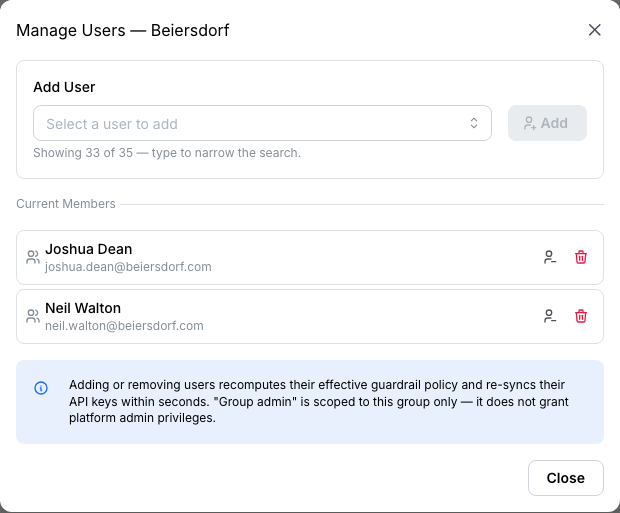
Each current member has:
- Role badge: Member or Group admin.
- Toggle role (arrow icon): flip between Member and Group admin.
- Remove (trash icon): remove this user from the team.
Below the member list, an Add to team picker lets you add any user not already a member. Search-as-you-type.
When you add or remove a member:
- Their effective
allowed_modelsrecomputes (adding or removing this team's contribution to the set-intersect). - Their effective
guardrail_configrecomputes. - Both push to every key the user owns within seconds.
💡 Pro tip. Add to teams at user-invite time rather than as a follow-up edit. The first call the new user makes then sees the right policy from the start.
Group admin vs platform admin
These are separate systems. The platform-admin role is set on Users and grants access to admin pages. The Group admin badge here grants a narrower thing:
- Group admin can manage the team's members (add / remove / toggle Group-admin role).
- Group admin can view the team's settings.
- Group admin cannot access platform-admin pages
(Settings, Audit Log, other teams' settings) unless
they also hold the platform
adminrole.
A regular user who's Group admin in Marketing can
manage Marketing's membership but can't see the rest of
the console.
Delete a team
Click the trash icon (list or tree). A confirmation dialog explains exactly what happens:
What disappears:
- The team's row.
- The membership records linking users to this team.
What survives:
- Every user account.
- Every API key.
- The team's child sub-teams (they're promoted to root, not cascade-deleted).
- The audit-log history of everything the team ever did.
What recomputes:
- Every former member's effective
allowed_modelsandguardrail_config, without this team's contribution. If they're in other teams, those teams' contributions still apply. If they're now in no teams, their effective set is "no team restriction" (they're back to their user-level overrides + system defaults). - Every former member's keys re-sync within seconds.
⚠️ Watch out. Deleting a parent team does not cascade-delete its children. The children become root- level teams. If you wanted them gone too, delete them separately first.
📌 Worth knowing. For a team that's just inactive (a project ended, but you might restart it), don't delete. Remove the members instead and keep the team shell; that preserves the policy template for if and when you re-staff.
Reference
Permissions
| Role | Can see this page | Can do |
|---|---|---|
| Admin | Yes | Create, edit, delete any team. Manage any team's members. Set any team's policy. |
| bi_read_only | No (page hidden) | Nothing: Groups isn't in the BI sidebar. |
| User | No (page hidden) | Nothing: regular users can't see other people's team settings. |
| Group admin of a team | Sees the team's row + can open Manage Users on that team | Can add / remove members and toggle Group-admin role on this team only. Cannot edit the team's policy fields (allowed-models, guardrail config, RPM); that's platform admin. |
Field reference
| Field | Type | Effect |
|---|---|---|
| Name | String, ≤ 100 chars | Display label. Unique per parent (no two children with the same name under one parent). |
| Description | String, ≤ 500 chars | Optional context. Search matches across this. |
| Parent Group | Pointer | If set, this team inherits parent's allowed-models and guardrail policy. Set-intersect for models; per-top-level-field wholesale-replace for guardrails. |
| Allowed Models | List of model names | Empty = inherit from parent (or no restriction if root). Otherwise, the team's allowed list narrows the parent via set-intersect. |
| Requests per minute | Positive integer | Team-level RPM cap. Counted across every key owned by every member. Empty = no team-level cap. |
| Guardrail policy | Object (rules, categories, excluded_rules, enabled) | See the Guardrail policy section. |
Composition cheat-sheet
| Field | How children + multi-group + user override compose |
|---|---|
allowed_models |
Set-intersection across the user's teams. User-level override wholesale-replaces the intersection. Effective set = key's allowed-models ∩ user-level effective set. |
guardrail_config |
Per-top-level-field. Within multi-team merge: higher team-id wins on conflicts; non-conflicting fields preserved. User-level override wholesale-replaces the merged team config. Key-level override wholesale-replaces the user-level effective. |
What gets written to the audit log
- Create: actor, team name, parent, initial members.
- Edit: actor, before/after of every changed field.
- Add / remove member: actor, member, role change if any.
- Toggle Group-admin role: actor, member, new role.
- Delete: actor, full team snapshot, list of removed memberships.
Audit Log shows these.
Common questions
A team has empty Allowed Models. Members still get 403 on a model the parent allows. Why?
Empty inherits from the parent, so this is fine for the team itself. The 403 is coming from somewhere else in the chain: the user's own override, or the user's other teams set-intersecting with this one. Open the user's row on Users: the Allowed Models section shows the per-team breakdown.
I added a guardrail rule to the team but my test request didn't trigger it.
Three usual suspects: (1) the team's master switch is off; (2) the rule isn't in the team's Allowed-rules list AND another team in the merge stomped this team's Allowed-rules with its own; (3) propagation hasn't reached the key yet (give it a few seconds and re-test). Request Logs shows which guardrails evaluated for a given call.
Why is the multi-team merge "higher id wins" instead of "later-added wins"?
Because internal ids are stable and deterministic across deployments: if two admins merge their spreadsheets and apply the same team list in different orders, the resulting policy is the same. "Later-added" would be operator-order-dependent. Higher-id-wins is unintuitive but predictable; in practice most members belong to one team and the question doesn't come up.
A child team has children of its own. How deep can the nesting go?
No hard depth cap, but practically: 3 levels is plenty. Past that the inheritance chain gets hard to reason about. Keep it shallow; flatten if the org chart doesn't actually warrant the depth.
Renaming a team: what does it touch?
Just the name field. Members, keys, policy, audit history all stay attached to the team's id. The new name shows everywhere immediately, but nothing re-syncs. (Renaming is metadata-only.)
Why are applications not on this page?
Applications are agent-containers: the parallel structure for automated callers. They have their own sidebar entry at Applications so the human-team and the automated-app universes stay visually distinct. Underneath, they're the same model with
subject_kind='application'instead ofsubject_kind='team'.I want a team that has different policies for different sub-environments (dev / staging / prod).
Use sub-teams. Make
Engineeringthe parent, withEngineering / Dev,Engineering / Staging,Engineering / Prodas children, each with its own allowed-models tightening + guardrail override. The dev sub-team can be wide-open, the prod sub-team can be locked to specific models with strict guardrails.Renaming a team breaks audit log readability for historic events.
The audit log records the team id, not the name, at event time. The current name is shown when you read the log, so a rename means historic events show the new name (for the same id). If you need to know the old name, the audit log includes the rename event itself with
before/after.
Where to go next
- Users: the team's members. Add / remove there or here; both surfaces edit the same membership.
- Applications: the agent-side parallel of this page.
- Cost Engine → Chargeback: see what each team spent this window. Team names created here become the row labels on the Chargeback tab's "Chargeback by team" section — the surface Finance uses for internal cost distribution or external customer invoicing.
- API Keys: every team policy change cascades to keys via this page.
- Guardrails: the rule-shop. Rules authored there are what you're picking from in the Allowed / Blocked / Categories fields.
- Rate Limits: RPM caps interact with team-level RPM via the more-restrictive-wins rule.
- Audit Log: every change on this page is logged there.