Rate Limits
Rate Limits cap how many requests a key (or your global default)
can make in a minute. When a caller exceeds their cap, the VIDAI
Control Plane returns 429 Too Many Requests with a Retry-After
header so applications back off cleanly.
The page is where you set those caps, see what's already in force, and adjust the system-wide default everyone falls back to.
When you'd open this page
- A new application is going live and needs a per-key cap so it doesn't accidentally exhaust the team's shared upstream quota.
- A customer is hitting
429more than expected. Increase their key's cap, or check the global default if they don't have a per-key override. - A spend incident traced to runaway calls. Set a tight cap on the key while you investigate.
- You're moving from "no caps" to "everyone gets a sensible default" as a deployment matures. Set the global default and per-key overrides where needed.
- An auditor asks "what limits are in force right now?". The list answers it.
What rate limits look like today
The control plane enforces requests per minute (RPM) on a sliding 60-second window. There are two scopes you can configure from this page:
- Global default: applies to every API key that doesn't have an explicit per-key cap.
- Per API Key: overrides the global default for a single key.
When a request comes in, the control plane looks up the calling key's
cap (or the global default if there's no per-key override) and
checks the rolling 60-second count for that key. Over the cap →
429. Under the cap → request proceeds.
📌 Worth knowing. RPM is per key, not per user, per team, or per application. A user with five keys gets five independent buckets, each with their own cap. To enforce a "team RPM," set the same per-key cap on every key in the team and divide accordingly.
The page at a glance
The page has tabs:
- All: every limit configured today.
- Global: the system-wide default cap (and the row that represents it).
- API Key: per-key overrides.
- Settings: set or change the global default + role-scoped caps (User, Admin), plus the hint copy on what the default semantics are.
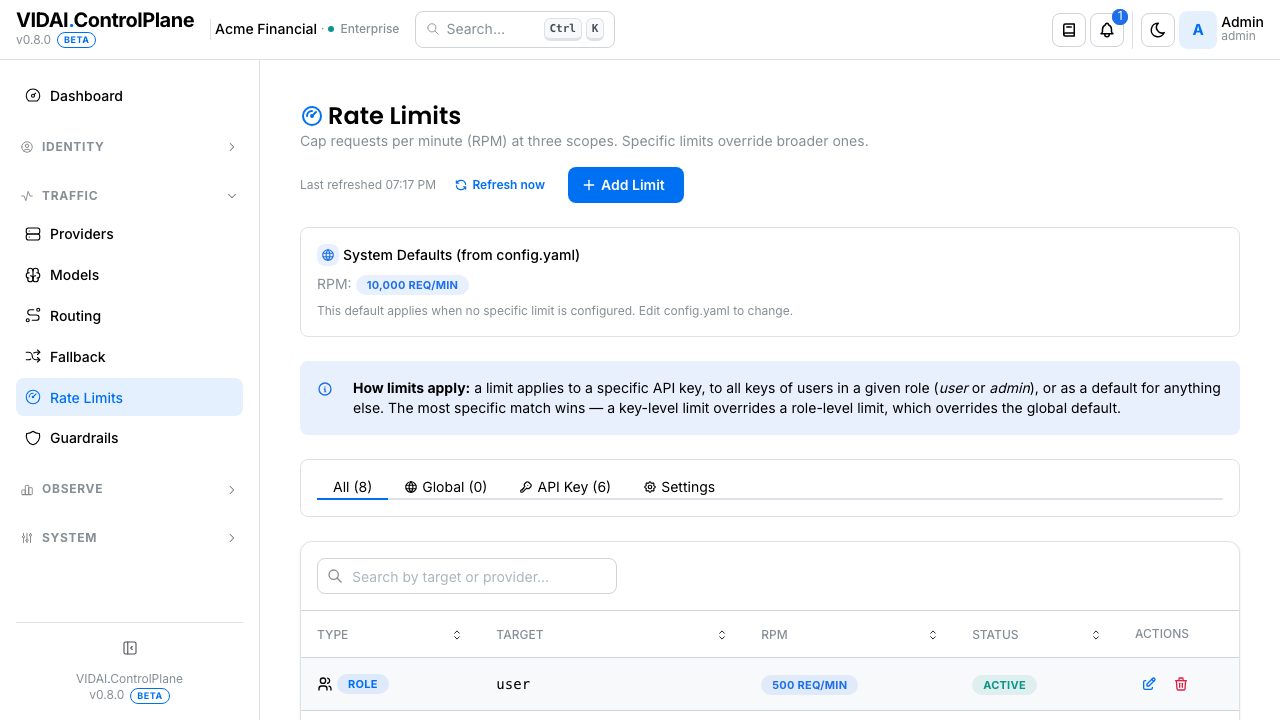
Above the list:
- Search box: narrows the list by
target(the API-key identifier, role name, ordefault) orprovider. Same GitHub-style search as elsewhere: multiple words AND together. - Tab badges: show counts per scope. Stay accurate when the search box narrows the list (the search filters the table; the badges still reflect the full set).
- Column sort: click any column header to sort. Click again to flip direction. Newest-first by default.
- Page size + pagination: pick 10 / 25 / 50 / 100 entries per page. Default 25.
The list columns:
| Column | What it shows |
|---|---|
| Type | A badge: Global, Role, API Key. |
| Target | Which key, role, or default this limit applies to. The Global row's target is default. |
| RPM | Requests-per-minute cap. |
| Status | Enabled or disabled. |
| Actions | Edit, Delete (per-key + per-role only; the Global row can't be deleted, only edited). |
What you do on this page
Set a global default
The Settings tab has a single field (Default RPM) plus a Save button. The default applies to every key that doesn't have an explicit per-key cap.
- Settings tab.
- Set Default RPM to a sensible starting number (e.g. 60 requests / minute = 1/sec).
- Save.
The change is in effect immediately for the next request from any key without its own cap.
💡 Pro tip. Pick a default that's tight enough to prevent runaway spending but loose enough to handle normal bursty traffic. 60 RPM is a reasonable starting point for most chat workloads; bumping to 600 RPM (10 / sec) is typical for high-throughput backends. If you're not sure, err high and tighten as you observe real traffic.
Set a per-key cap
Goal: a specific service (with a known traffic shape) needs a higher or lower cap than the default.
- API Key tab → Set Limit.
- Target: pick the API key from the dropdown (search-by-name or paste a hash).
- RPM: the cap.
- Save.
The per-key cap takes precedence over the global default for this key only. Other keys keep using the default.
To remove the override later (so the key falls back to the global default), delete the row from the list.
Tighten a cap during incident response
A leaked or compromised key is calling more than expected. Bring it back under control without revoking it.
- Find the key on the API Key tab. (If a per-key cap doesn't exist yet, Set Limit to create one.)
- Edit the row → set RPM to a much lower number (10, or even 1).
- Save.
The next request hitting the cap returns 429 immediately.
Investigate at your leisure; raise the cap when the
investigation concludes.
⚠️ Watch out. RPM is a rate, not a count. Setting RPM = 0 doesn't fully block the key; it returns
429on any request. To truly stop the key, disable it on API Keys: that returns401 Unauthorized, the conventional "you're not allowed" response.
Disable a per-key cap temporarily
Sometimes a service legitimately needs unlimited burst (a scheduled batch, a one-off backfill). Toggle the row's Enabled off temporarily; the key falls back to the global default while disabled. Re-enable when the burst is done.
If the key needs uncapped behaviour for a long period, it may be cleaner to set its per-key cap to a high number rather than disabling, so the audit log records the explicit intent.
What clients see when they hit the cap
When a request exceeds the cap:
HTTP/1.1 429 Too Many Requests
Retry-After: 60
Content-Type: application/json

{
  "error": {
    "type": "rate_limit_error",
    "code": "rate_limit_exceeded",
    "message": "Rate limit exceeded — try again in 60 seconds."
  }
}
The response shape matches what OpenAI's SDK already knows how
to retry, so your applications can handle the 429 cleanly via
their normal retry logic.
💡 Pro tip. Most LLM SDKs (OpenAI, Anthropic, Google GenAI) honour
Retry-Afternatively with exponential backoff. You typically don't need to write custom retry handling for429s; the SDK takes care of it.
Reference
Permissions
| Role | Sees Rate Limits page | Can do |
|---|---|---|
| admin | Yes | Set / edit / delete per-key caps. Edit the global default. |
| bi_read_only | No | Page hidden. |
| user | No | Page hidden. |
Field reference
| Field | Effect |
|---|---|
| Target type | default (global) or key (per-key). |
| Target | For key, the api-key id or hash; for default, fixed at default. |
| RPM | Requests per minute: the cap. Sliding 60-second window. |
| Enabled | Whether the cap is in force. Disabled = the key falls back to the global default. |
How the cap is evaluated
- The control plane maintains a sliding 60-second counter per key in memory.
- On each request, the counter is incremented and compared against the configured cap.
- Counter value > cap →
429 rate_limit_exceeded. - Counter is per-key, not aggregated across keys, users, teams, or applications.
- The 60-second window is rolling, not aligned to clock minutes: burst traffic at 12:00:30 is counted from 11:59:30 onward.
Audit log records
- Set / edit / delete a cap: actor, target, before/after RPM, before/after enabled state.
Audit Log shows these.
Limitations
A few things rate limits don't do today:
- Only RPM is enforced. Other rate-limit dimensions (tokens-per-minute, concurrent in-flight requests, per-provider caps) are configurable via the admin API but not enforced at runtime. The console intentionally only exposes RPM to avoid the surprise of "I configured this and it didn't actually do anything."
- No team / application / user-aggregate caps in the console. RPM is per-key. To approximate "this team can make 100 RPM total," divide across the team's keys manually. Aggregate caps (sum across multiple keys) aren't exposed today.
- Role-scoped caps are limited to User and Admin. The Settings tab edits role caps for these two roles only; expand the role list when a third role ships. For finer cohorts (per-team, per-application), use per-key overrides on individual keys.
- No reset semantics for stuck buckets. If a key has been hammering the cap for an hour, the rolling window decays naturally as the minute window slides; there's no manual "reset this key's bucket" action. Wait it out, or raise the cap temporarily.
- In-memory counters. Bucket state is in process memory
and resets when the control plane restarts. A fresh process
starts every key with a fresh empty bucket. Worth knowing
but rarely a problem in practice; control plane restarts are
rare and the bucket reset doesn't release old
429s.
Common questions
A key is getting
429even though I haven't set a per-key cap. Why?The global default applies. Open Settings → check the Default RPM. If it's set to anything other than 0 / blank, every uncapped key inherits it. Either bump the default or set a higher per-key override.
My team has 5 keys and the team is supposed to get 100 RPM total. How?
Today, set 20 RPM per key. There's no aggregate-team cap; the console caps per-key. If the load is uneven (one key does 80%), give that key a higher per-key cap and tighten the others.
The cap is 60 RPM but the API throws
429after sending only 50 requests.Two possibilities: (1) the requests went through faster than 60 seconds (sliding window: 50 requests in 30 seconds is not under the 60 RPM cap; the cap is "60 in any rolling 60s window"); (2) some of the requests were retries that were already counted. Spread your calls evenly to stay under.
I want to apply a cap to "this whole user's traffic" rather than per key.
Aggregate caps aren't supported in the console today. The closest approximation is "set per-key caps that sum to the user's intended budget." If users in your deployment routinely have multiple keys serving the same workload, consider one user → one key as a policy.
Can I use rate limits to throttle a runaway service while I investigate?
Yes: set a low per-key cap (1–10 RPM) on the suspected key. Calls will return
429instead of reaching upstream; nothing else changes. Re-raise the cap when investigation concludes. (For a faster / harder stop, disable the key on API Keys: that returns401.)Does the cap count guardrail-blocked requests?
Yes. The cap is on requests reaching the control plane, not on requests that successfully reach an upstream. A guardrail-blocked request is still counted (the control plane accepted and evaluated it).
Will the cap apply to internal calls from my admin console actions?
No. The cap is on traffic from API keys; admin console actions don't go through the same path. Console activity is independent of RPM.
Where to go next
- API Keys: the keys whose caps you set here. Disable + delete + last-used surface there.
- Users: the human owners of keys; user- aggregate cap planning is informally done here.
- Request Logs: see which keys are hitting their caps. Filter by status code 429.
- Dashboard: the Actionable Signals panel surfaces rate-limit-spike patterns over time.
- Audit Log: every cap change is logged.