API Keys
API keys are how users and applications call the VIDAI Control Plane. Each key is owned by exactly one user or one agent, can be restricted to specific models, and can carry its own guardrail policy that overrides what's inherited from the owner. This page is where you mint them, see who has what, and revoke when you need to.
If you're brand new and just want to mint a key for yourself, Getting started → Step 4 walks you through it. This page is the deeper guide.
When you'd open this page
- A new colleague joins and needs control plane access. Mint a key for them.
- A team is rolling out a new application or agent. Mint a key dedicated to that workload, scoped to just the models it should use.
- A key was leaked (committed to a public repo, pasted into Slack, picked up by a credential scanner). Disable it immediately, mint a replacement.
- Finance asks "how much did the marketing team's keys spend last month?" Open this page, find their keys, click through to Cost Insights filtered by those keys.
- Someone left the company. Disable their user, which cascades to all their keys at once. (See Users for the cascade flow.)
- An audit asks "who created this key, when, and what's it allowed to call?" Every answer is on this page.
The page at a glance
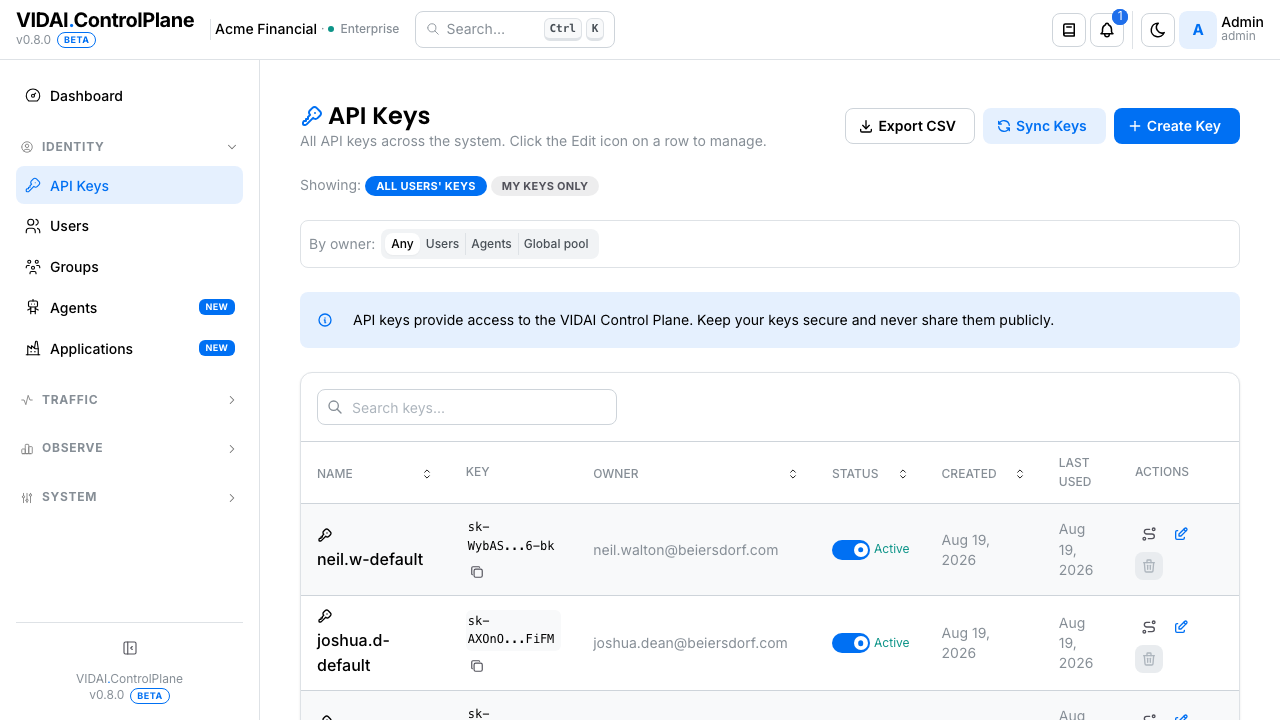
What you see depends on your role:
- Admins land on All users' keys by default: every key in the system, paginated, searchable. A scope switch at the top flips between All users' keys and My keys only.
- Regular users see only their own keys. No scope switch, no admin-on-behalf-of-a-user flow.
The columns:
| Column | What it shows |
|---|---|
| Name | The friendly name you gave the key. Edit by clicking the row. |
| Key | A short fingerprint (vidai-abcd...…): the full key is only shown at creation time, never afterward. The fingerprint is searchable. |
| Owner | The user or agent who owns the key. Admins see this column; users see only their own keys so it's redundant. |
| Status | Active or Disabled. Disabling pauses the key without losing its history. |
| Created | When the key was minted. |
| Last Used | The most recent time the key successfully authenticated a request. — if it's never been used. |
Each row has an action menu (⋯) with Edit, Reassign, Disable (or Enable), Delete, and View traffic (opens Request Logs filtered to that key).
💡 Pro tip. The search box matches across name, owner email, and the key's hash. If you have a hash from a log line and want to know which key it is, paste the hash into search and the matching row will surface.
Deep-link from Users
When you arrive here from the Users page via "View this user's keys →", the list is pre-filtered to that one user. An orange chip reads Filtered by user, click to clear ✕ above the table; click it to return to the unfiltered list.
📌 Worth knowing. The deep-link is one-way. Filtering from this page back to a user is via the Owner column link in each row.
What you do on this page
Mint a key for yourself
The simplest path. Useful for testing or for personal scripts.
- Click Create Key. The Create-Key dialog opens.
- Give it a name. "Personal test" is fine; rename later if needed. Names don't have to be unique.
- Leave Allowed models as "all" if you want this key to call anything you have access to. Tick specific models only if you want to restrict it (rare for a personal key; common for production keys: see scenario B).
- Click Create.
- Copy the key the moment it's revealed. You won't see it again.
⚠️ Watch out. The create dialog reveals the key exactly once. If you close the dialog without copying, there's no recovery: delete that row and create a fresh key. The fingerprint shown later in the list is only a hash, not the full key.
Mint a key for an application or service
Production keys are different from personal keys in three ways: they're scoped, they're owned by an agent (not a person), and they go straight into your secret store rather than your terminal history.
- First, make sure the agent exists. If this is a brand new application, set it up on Applications → Agents → then come back here.
- Switch to All users' keys (admin only; regular users only mint keys for themselves).
- Click Create Key. The dialog opens with an extra Owner picker because you're an admin.
- Pick the agent that will own the key. Names like
nightly-report-botorproduction-rag-servicemake the audit trail easier to follow. - Tighten the allowed-models list to just what the
service needs. A summarisation bot probably needs
gpt-4o-mini; it doesn't needgpt-4oorclaude-opus-4.5. Smaller allowed-models lists mean smaller blast radius when something goes wrong. - (Optional) Override the guardrail policy if this service needs different content rules from the rest of its application. See Guardrail policy below; most production keys don't need an override and inherit from the owning agent's application.
- Click Create, copy the key, store it in your secret manager (AWS Secrets Manager, GCP Secret Manager, Vault, 1Password, etc.), and reference it from there in your deployment.
💡 Pro tip. Name keys after the thing they're for, not the person creating them.
marketing-llm-batchages better thanalice-test-2026-04. Six months from now nobody remembers who Alice was; everyone still wants to know whatmarketing-llm-batchis doing.⚠️ Watch out. Never put the upstream provider's API key (your OpenAI / Anthropic / Google key) into your application config. Those keys live on the Providers page on the control plane side; your applications only ever see VIDAI keys. The whole point of the control plane is that secret rotation, provider swaps, and rate-limit changes happen centrally without touching deployed code.
Disable a key fast (suspected leak)
You hear that a key may have been exposed. The clock starts ticking. Two options depending on how sure you are.
You're confident the key is leaked:
- Find the key on the list (search by name, fingerprint, or owner email).
- Open the action menu (⋯) → Delete. Confirm.
- The key is invalidated immediately; any in-flight request
carrying it gets a
401 Unauthorizedon the control plane. - Mint a fresh key for the same owner with the same allowed- models scope, hand it to the team, and let them deploy it.
You want to investigate first:
- Open the action menu (⋯) → Disable. Confirm.
- The key stays on the list with a Disabled badge but
stops working immediately. Any caller using it gets
401 Unauthorized. - Click View traffic on the row to land on Request Logs filtered to that key.
- Look at the recent calls: IPs (if the control plane is logging them), models called, geographic patterns. If the activity looks foreign or off-pattern, escalate internally and proceed to delete.
📌 Worth knowing. Disable is reversible (re-enable from the same action menu). Delete is not. For a suspected leak, default to Disable unless you're certain: preserving the key on the list keeps the audit trail tidy and gives you a way to investigate without losing the chain.
Reassign a key to a different owner
Sometimes a key needs to move: a colleague leaves, a service is handed off between teams, an application reorganises into different agents. Reassigning preserves the key value (so callers don't have to redeploy) but changes who's responsible for it.
- Find the key on the list.
- Open the action menu (⋯) → Reassign.
- Start typing the new owner's name or email; the picker searches as you type. If there are more matches than fit, a "Showing N of M, type to narrow" line appears; keep typing to find the right one.
- Confirm.
After reassignment, the row shows the new owner. The key's Created timestamp doesn't change, but the audit log records the reassignment with both the old and new owner ids and a timestamp, useful when an audit asks "this key billed to my team last quarter, why is it billing to the other team this quarter?"
⚠️ Watch out. The Allowed models scope follows the key, not the new owner. If the receiving owner doesn't have the same model access pattern, you may need to tighten the key's allowed-models list to match the new owner's intent. Check the key's edit dialog after reassigning.
💡 Pro tip. The Owner column on the list is denormalised: it shows the email (for human owners) or the agent name (for agents). When you reassign a key to an agent, the column flips to the agent's name with an "agent" badge. Agents don't have email addresses by design (they're automated identities), so the agent name is the canonical identifier.
Edit a key
Click the row (not the action menu) to open the edit modal. You can change four things:
- Name: purely cosmetic; the key value doesn't change.
- Allowed models: narrows or widens what models the key can call. Takes effect immediately on the next request.
- Guardrail policy: see the Guardrail policy section below.
- Status: Active / Disabled toggle (the same as the action-menu Disable / Enable).
Save closes the modal and the row updates in place.
📌 Worth knowing. There's no audit-log diff for name changes (it's just a label) but there is one for allowed-models changes and guardrail-policy changes because those affect what the key is allowed to do at runtime. Audit Log shows the before/after.
Find a key from a hash in the logs
Logs and webhooks reference keys by their hash, not their full value. To go from a hash to a row:
- Copy the hash (e.g.
a1b2c3d4...). - Paste it into the search box at the top of the keys list.
- The matching row surfaces. Click to open the edit modal for full context.
The hash is deterministic (the same key always produces the same hash), so this lookup is reliable across deployments and across time.
Allowed models
Every key carries an allowed-models list: the set of model
names the key is permitted to call. The list can be empty
(meaning "all models the owner is allowed to call"), explicit
(a specific subset), or wildcarded (* matches everything).
How the allowed-models list interacts with the owner's
The owner has their own allowed-models list (set on the Users page, Agents page, or inherited from a Group / Application). The key's effective access is the intersection of the two:
- Owner allows
[gpt-4o, gpt-4o-mini, claude-haiku-4]. - Key allows
[gpt-4o, claude-haiku-4]. - Effective:
[gpt-4o, claude-haiku-4].
If the key allows a model the owner doesn't, the call is denied at the owner's level. The key never widens access.
⚠️ Watch out. Narrowing the owner's allowed-models list later automatically narrows what their keys can call, even if the keys themselves still list the wider set. The intersection re-runs on every request; there's no cached "what can this key do" snapshot to refresh.
Why narrow allowed-models on production keys
Three reasons:
- Cost containment. A summarisation key calling
gpt-4oinstead ofgpt-4o-miniis silently 30× more expensive. Locking the model out at the key level makes this impossible by accident. - Capability fit. A vision-only key shouldn't be able to make text-only calls; a tool-use key shouldn't be hitting models that don't support tools. Narrow lists catch these mistakes before they hit production.
- Blast radius. If a narrow key leaks, the leaked key can only call its allowed models, so the damage is bounded.
Guardrail policy
Each key can carry its own guardrail policy. If the key doesn't set one, the policy comes from the key's owner (the user or agent), which in turn inherits from the group / application, which finally falls back to the system default.
How inheritance works
Guardrail policy resolves in this order, first match wins at the top-level field:
- Key: what's set on this row.
- Owner: the user or agent's own policy.
- Owner's group / application: the team or app the owner belongs to. If multiple groups, the policies merge group-by-group with the most-specific group winning on conflicts.
- System default: what's set if nothing above overrides.
The merge is shallow per top-level field, not deep. If
a key sets rules: [X], that field wholesale-replaces the
owner's rules: [Y, Z]; the owner's rules don't merge in.
Other fields the key doesn't touch (e.g. categories,
excluded_rules) still inherit from the owner.
📌 Worth knowing. The wholesale-replace semantic is on purpose. When a key explicitly says "rules: [X]", the admin meant exactly those rules, not "those plus whatever the owner has." If you want union semantics, set the union explicitly on the key.
When to override on the key
Most keys don't need an override. The owner's policy typically covers the right scope:
- A team's keys usually want the team's compliance rules.
- An application's agents usually want the application's content policy.
You'd override on the key when:
- A specific service genuinely has different content rules from its peers (a customer-support bot allowed to mention competitor names; an internal-tool key allowed to discuss PII that customer-facing keys can't).
- A debug key needs the rules relaxed so engineers can reproduce production-only guardrail trips during incident response.
- A high-trust service needs additional rules layered on that the rest of the team doesn't.
Editing a key's guardrail policy
Click the row to open the edit modal. Scroll to Guardrail policy. You'll see two states:
- Inherited: the key uses the owner's policy.
- Override: the key carries its own policy that overrides what's inherited.
Toggling Override reveals the rule picker, the category picker, and the exclude-rule picker. Changes save when you click Save on the modal; they take effect on the next request through the control plane.
Guardrails covers the rule-shop side: how rules are authored, what categories exist, how the action ladder (block / mask / log_only / redirect) works.
Reference
Permissions
| Role | Can see | Can do |
|---|---|---|
| Admin | Every key in the system | Create, edit, reassign, disable, delete any key. Mint on behalf of any user or agent. |
| BI read-only | (page is hidden) | Nothing: the keys page isn't in the BI role's sidebar. |
| User | Only their own keys | Create new keys for themselves. Edit, disable, delete their own keys. Cannot reassign (admin-only). Cannot see other users' keys. |
Action menu (⋯)
| Action | Effect |
|---|---|
| Edit | Opens the edit modal: name, allowed models, guardrail policy, status. |
| Reassign (admin only) | Move the key to a different owner without changing its value. |
| Disable / Enable | Pause or resume the key. Reversible. Disabled keys return 401 Unauthorized to callers. |
| Delete | Permanent: invalidates the key value immediately. Audit trail preserved. |
| View traffic | Opens Request Logs filtered to this key. |
Statuses on the badge
| Badge | Meaning |
|---|---|
| Active | The key authenticates successfully and is allowed to call its allowed models. |
| Disabled | The key returns 401 Unauthorized. Reversible via Enable. |
CSV export
The download icon next to Create Key exports the current list view (respecting any filters or scope switches) as a CSV. The CSV does not include the key value (only the hash); exports are safe to share for inventory purposes.
Key value lifecycle
- Generation: the control plane generates the key when you click Create. It's an opaque string with no embedded meaning.
- Reveal: the key is shown to you exactly once, at creation time, in the success dialog. After the dialog closes, the full value is unrecoverable from the console or the API.
- Storage: the key is stored on the control plane in a way that lets it validate incoming requests. The hash shown on the list is for human reference / log correlation, not for re-presenting the key.
- Disable: sets a flag; the key value is unchanged, validation fails, can be reversed.
- Delete: the row is removed and the key value is invalidated permanently. Audit log preserves the historic record.
What gets written to the audit log
Every key action is recorded:
- Create: actor, owner, allowed models, guardrail policy at creation time.
- Edit: actor, before/after of every changed field.
- Reassign: actor, old owner, new owner.
- Disable / Enable: actor, new status.
- Delete: actor, last known shape of the key (snapshot before deletion).
Audit Log is the place to read these.
Common questions
Why can't I see other users' keys?
You're not signed in as an admin. Regular users see only their own keys; the scope switch and the owner column are admin-only.
The "Last Used" column shows "—" but I just used the key. What's wrong?
Last-used updates with a small delay (a few seconds, up to ~30s under load); the control plane batches the update rather than writing on every request. Refresh the page after a minute. If it still shows "—" after several minutes of confirmed traffic, check the Status column. Disabled keys don't update last-used because they don't actually authenticate.
I created a key two days ago and forgot to copy it. Can you reveal it again?
No. The key value is shown exactly once at creation; the control plane doesn't keep a recoverable copy after that. Mint a fresh key, hand it to whoever needed the original, and delete the un-copied one. This is by design: if the console could reveal the key after creation, so could anyone with admin access, defeating the secret-handling story.
A key calls a model and gets
403 model_not_allowed. What's wrong?The key (or its owner) doesn't allow that model. Open the key's edit modal and check the allowed-models list. If the key's list includes the model but the call still 403s, check the owner's allowed-models list (on Users or Agents). The effective access is the intersection of key + owner.
A key calls a model and gets
429 rate_limited. Where do I see and adjust the limit?Rate Limits shows per-key and per-role RPM caps. The 429 response includes a
Retry-Afterheader so callers can back off; the rate-limit page lets you raise or remove the cap.What's the difference between disabling a key and disabling its owner?
Disabling a key affects only that key. Disabling a user (on Users) cascades to all their keys at once: useful for "person left the company, kill everything" cases. The cascade is reversible (re-enable the user, re-enable the keys), but the audit trail records both events.
Can I move a key to a brand-new agent that doesn't exist yet?
No: reassign expects the destination owner to exist. Create the agent first on Agents, then reassign.
Why does the keys page have an "agent-owned key" badge on some rows?
Those keys belong to agents (automated identities) rather than humans. The badge helps with at-a-glance audit: "is this key a person or a service?" Agents typically don't have email addresses, so the Owner column shows the agent's name with the badge.
My company rotates secrets quarterly. How do I automate key rotation?
Mint a new key, deploy it alongside the old one, then disable the old key once you've confirmed the new one is in use (Last Used updating, no
401s in your service logs). Delete the old one a week later. The reassignment flow doesn't help here: reassign keeps the same key value. Rotation needs a fresh value.
Where to go next
- Users: the page where human owners live. When a user joins, leaves, or moves between teams, their keys come along for the ride.
- Agents: automated identities. Agent-owned keys are a sizeable chunk of the production picture for most deployments.
- Applications: the container around agents. Set the application's policy once and inherited agents pick it up.
- Guardrails: the rule-shop. Rules authored here are the ones you're choosing on a key's override.
- Rate Limits: per-key RPM caps. Worth setting on production keys before they need it.
- Request Logs: every call a key has ever made. The first stop when a key misbehaves.
- Audit Log: every action taken on every key. The compliance-and-governance side of this page.