Settings
Settings is your own profile page. Change your password, edit your display name, customise a few personal preferences. It's the only admin page non-admins can access (every signed-in user sees it).
Admins also see a Tenant administration section at the bottom with deployment-wide knobs: currently the Background workers card.
When you'd open this page
- Reset your password.
- Update your display name (e.g. after a name change, or because the email-derived default isn't ideal).
- Re-read your current role + memberships.
- Toggle the theme between light and dark (the toggle is actually in the header bar, but Settings is where you remember to do it).
The page at a glance
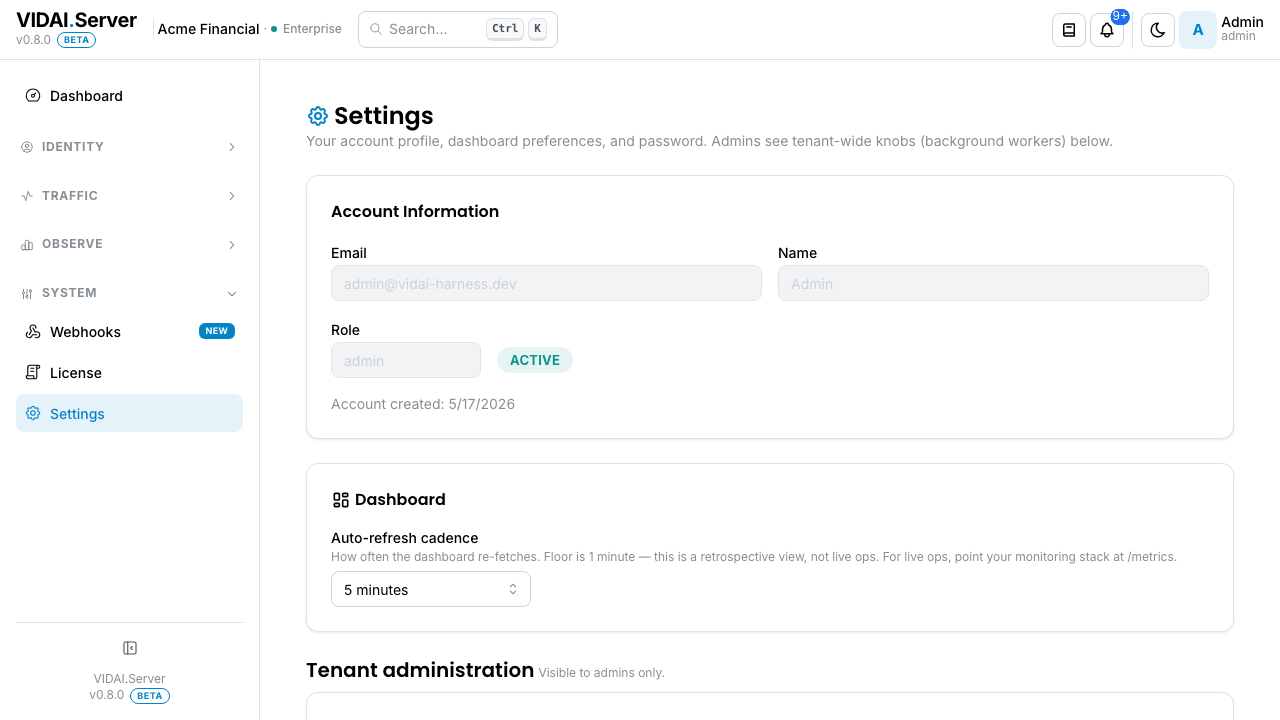
The page has three sections:
| Section | What it shows |
|---|---|
| Profile | Your email (read-only), your display name (editable), your role (read-only). |
| Change Password | Three fields: current password, new password, confirm new password. |
| Memberships | The teams + applications you belong to. Read-only here; admins manage memberships on Users → your row. |
What you do on this page
Change your password
- Change Password section.
- Enter your current password.
- Enter the new password (twice; the second field confirms).
- Click Save.
The new password takes effect on your next sign-in. Active sessions remain valid until they naturally expire; there's no "log me out everywhere else" affordance today.
📌 Worth knowing. Password requirements depend on your deployment's configuration (length, complexity, historical-reuse blocking). The form will reject and tell you what was wrong; check the requirements with your platform team if rejected.
⚠️ Watch out. If you're using SSO, password changes happen on your identity provider, not here. The Change Password form may not be visible at all on SSO-only deployments.
Update your display name
- Profile section → edit the Name field.
- Save.
The new name appears in the audit log, in dropdowns, and anywhere your identity is referenced going forward. Past audit entries keep your name at the time of those events (audit history doesn't backfill).
View your memberships and role
The page is read-only on these; to change them, an admin edits your row on Users. What you see here:
- Role: your platform role (
admin,user, orbi_read_only). Decides what's visible in your sidebar. - Memberships: the teams and applications you belong to. Drives your effective allowed-models and guardrail policy.
If your access seems wrong, ask an admin to check your row. Most "I can't see X" issues are role / membership related.
Theme toggle
The light/dark toggle is in the header bar, not on this page. It's persisted per-browser; signing in on a different browser starts at the system default and you toggle again if you want.
💡 Pro tip. The dark theme is more comfortable for long sessions; the light theme is friendlier for screenshots and presentations.
Tenant administration: Background workers (admin only)
Admins see a Tenant administration section below the personal settings. The Background workers card lets you toggle five workers that compute the data the dashboard and BI Tables read:
| Worker | What it produces |
|---|---|
| BI Aggregate refresher | Daily rollups behind the BI Tables → Aggregates page. Off by default. |
| Cost calculator | The cost ledger from raw request logs + rate cards. Drives cost engine and chargeback. |
| Circuit-state observer | Provider health transitions that drive the Fallback page indicators. |
| Request-log observer | Streams new request rows into the metadata projection that powers BI Tables → Events. |
| Webhook dispatcher | Drains the webhook delivery queue. Off by default in dev; typically on in production. |
Each row pairs an enable/disable Switch with an interval (how often the worker runs, in seconds).
How changes apply. Enable and disable take effect immediately on save: the matching worker hot-starts or stops. Interval changes apply at the next worker start; to apply a new interval to a running worker, toggle it off and back on.
📌 Worth knowing. Leave a worker off and its derived surfaces stay empty. The BI Tables → Aggregates page surfaces the BI Aggregate refresher's status at the top of the tab so you can see at a glance whether an empty table is "no data yet" or "worker not running."
⚠️ Watch out. Webhook dispatcher is off by default on dev / test deployments. If your destination configuration looks right but no deliveries fire, check this toggle first.
Reference
Permissions
| Role | Sees Settings | What can be changed |
|---|---|---|
| admin | Yes | Profile name, password (where applicable). |
| bi_read_only | Yes | Profile name, password. |
| user | Yes | Profile name, password. |
Settings is the only admin-console page that's visible to all roles. Even regular users see it.
Field reference
| Field | Editable | Notes |
|---|---|---|
| No | Set at user creation; changes require admin intervention via Users. | |
| Name | Yes | Display name. Free-text. |
| Role | No | Set by admin on Users → your row. |
| Memberships | No | Set by admin on Groups / Applications. |
| Current password | Required for password change | Always required as a security measure (knowing the current password proves you're the legitimate session holder). |
| New password / confirm | Free-text | Requirements depend on deployment config. |
Audit log records
- Profile name change: actor (yourself), before/after.
- Password change: actor (yourself), no before/after (passwords are never stored or logged in plaintext).
Audit Log shows these (admins see; regular users may not see the audit log).
Limitations
- No "log out everywhere else" affordance for active sessions on other devices. Active sessions remain valid until they expire normally even after a password change.
- No 2FA / MFA enrolment from this page. If your deployment has 2FA, it's enrolled at the identity provider level (your SSO).
- No avatar upload. The avatar shown in the header is derived from your email's first letter; no custom avatar support today.
- No notification preferences. The notification bell shows the same items to every admin; you can dismiss per-browser, but there's no "I never want to see license expiry warnings" preference today.
Common questions
The Change Password form rejects my new password but doesn't say why.
Read the inline validation error: it should explain. Common reasons: too short, too similar to the current one, on a forbidden-passwords list, recently reused. If unclear, check with your platform team.
My old session on another device is still active after I changed my password: is that a security issue?
Sessions are valid until natural expiry. To force logout everywhere immediately, ask an admin to disable then re-enable your user account on Users: the disable cascade invalidates all sessions and keys; re-enabling brings you back online.
I changed my email but the audit log still shows the old one.
Email is read-only on this page; it can't be changed in the console. Admin would have to do it via the API. Audit history shows the email at the time of each event regardless of any later changes.
My role flipped to
userand I can't see most of the console anymore.Either an admin changed your role, or you've been added to a deployment with a different default role. Settings still shows the role; ask the admin to verify it's intentional.
Where's the option to disable email notifications?
The control plane doesn't send email notifications today; there's nothing to disable. The notification bell in the header is browser-side; dismiss individual items there. Email notifications are not part of this deployment.
Can I customise the dashboard layout from Settings?
No. Dashboard panels are open / collapsed per-browser by clicking on each one; that's the entire customisation. There's no "rearrange tiles" or "hide this panel" preference today.
Where to go next
- Console navigation: the sidebar, the bell, and role-gating context.
- Users: admins manage your role and memberships there.
- License: deployment-wide license + versions, distinct from your personal profile.
- API Keys: your personal keys (every user can mint their own).